WP User Frontend Now Works with Elementor
If you've been using WP User Frontend for a while, you know the drill. You set up your forms and dashboards in WPUF, then spend extra time trying to make everything look right on the frontend.
Shortcodes dropped into pages. Styling that doesn't quite match your website's look and feel. Design tweaks that require going back and forth between the builder and plugin settings.
That friction is gone now.
WP User Frontend works natively with Elementor. Your User Frontend widgets live inside the Elementor panel, just like any other widget. Drag, place, style, publish.
What's Actually New in WP User Frontend
The plugin already gives you almost everything you need to run a frontend content management system. Now it fills one of the key gaps: Elementor support. Three new widgets are now available directly inside Elementor:
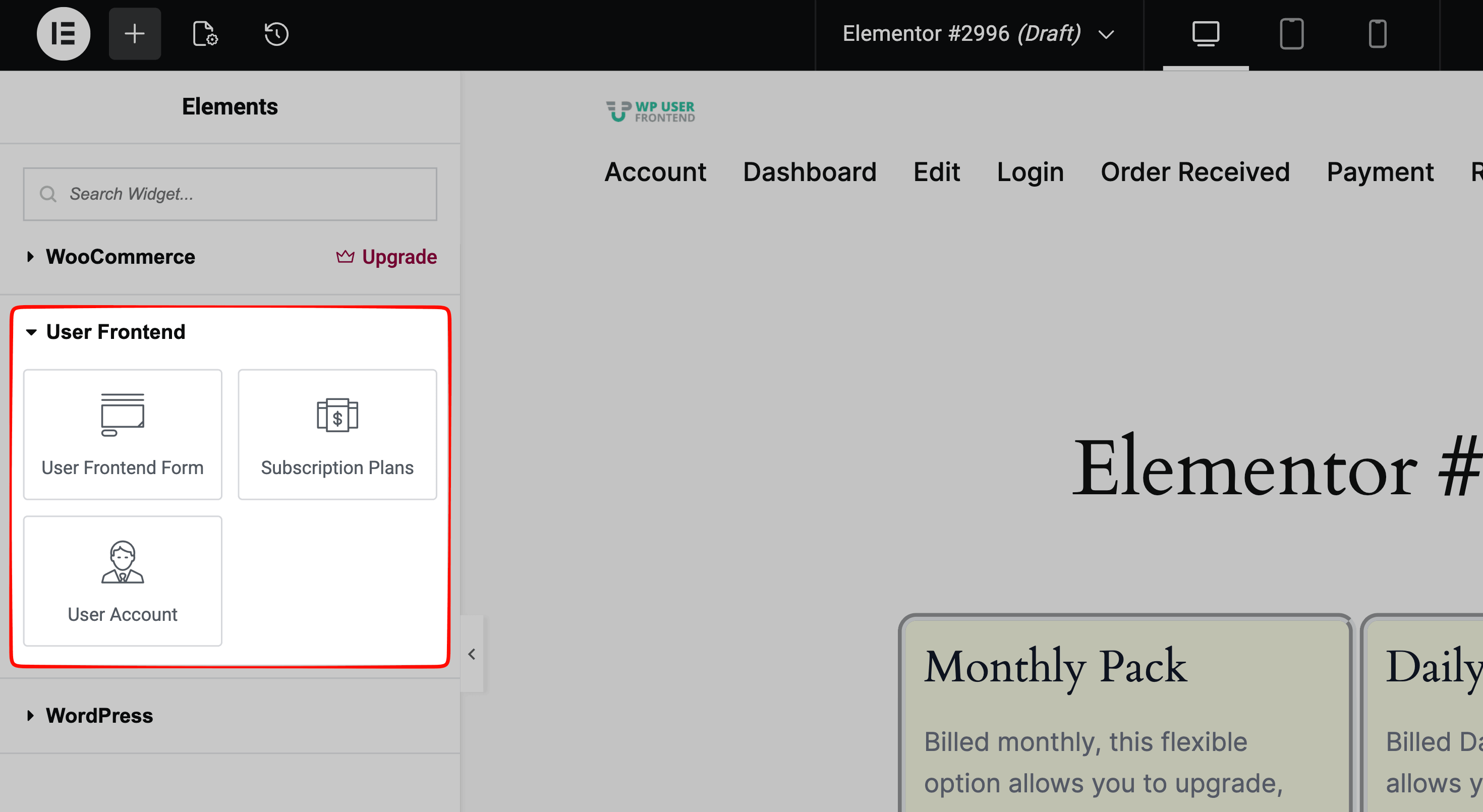
Account Page Widget: Let users update their profile and manage their information from the frontend. With Elementor, you can style each section of the page to match your site without limitations.
Subscription Widget: Give users a clear view of their plan and let them manage or cancel with ease. With Elementor styling, your subscription pages look more polished and easier to understand.
Post Form Builder Widget: This is the big one. You can now design submission forms visually inside Elementor. No shortcodes required to publish the post form. You have full layout control. What you see is exactly what your users get.
What Stays the Same in Your Existing Setup
You didn’t need a new plugin. You just needed your setup to stop fighting your page builder, especially one as widely used as Elementor.
This is the first release to add Elementor compatibility, so it focuses on the core widgets. A few things are worth knowing upfront. Advanced form settings, conditional logic, and payment rules are still configured inside WP User Frontend.
This is intentional. Elementor handles the design layer, while WPUF handles the logic layer. As the integration evolves, more controls will move into the visual builder. For now, the following still live inside WP User Frontend:
- Field configuration and conditional logic
- Email notifications and templates
- Payment and subscription rules
- Permissions and role settings
Nothing changes in how you manage logic. You’re not relearning anything. You can now use your Elementor skills to design better frontend experiences. All we’ve done is remove a layer of friction.
Free vs Pro: What Elementor Widgets Are Included in WPUF
The free version gives you access to all three Elementor widgets: User Account, Subscription Plans, and User Frontend Form. That’s enough to build a fully functional frontend experience.
The Pro version adds support for registration form widgets, with more widgets coming to support user directory and advanced workflows. Start with the free version. Upgrade to pro when your use case grows.
How to Use the User Frontend Elementor Widgets
First, you need to update WP User Frontend to the latest version and have Elementor installed on your WordPress site. Then follow the steps below to open the User Frontend-specific widgets in your Elementor editor panel.
Step 1: Edit Your Page with Elementor
Go to Pages → Add New and create a page. Give it a title, then click Edit with Elementor.
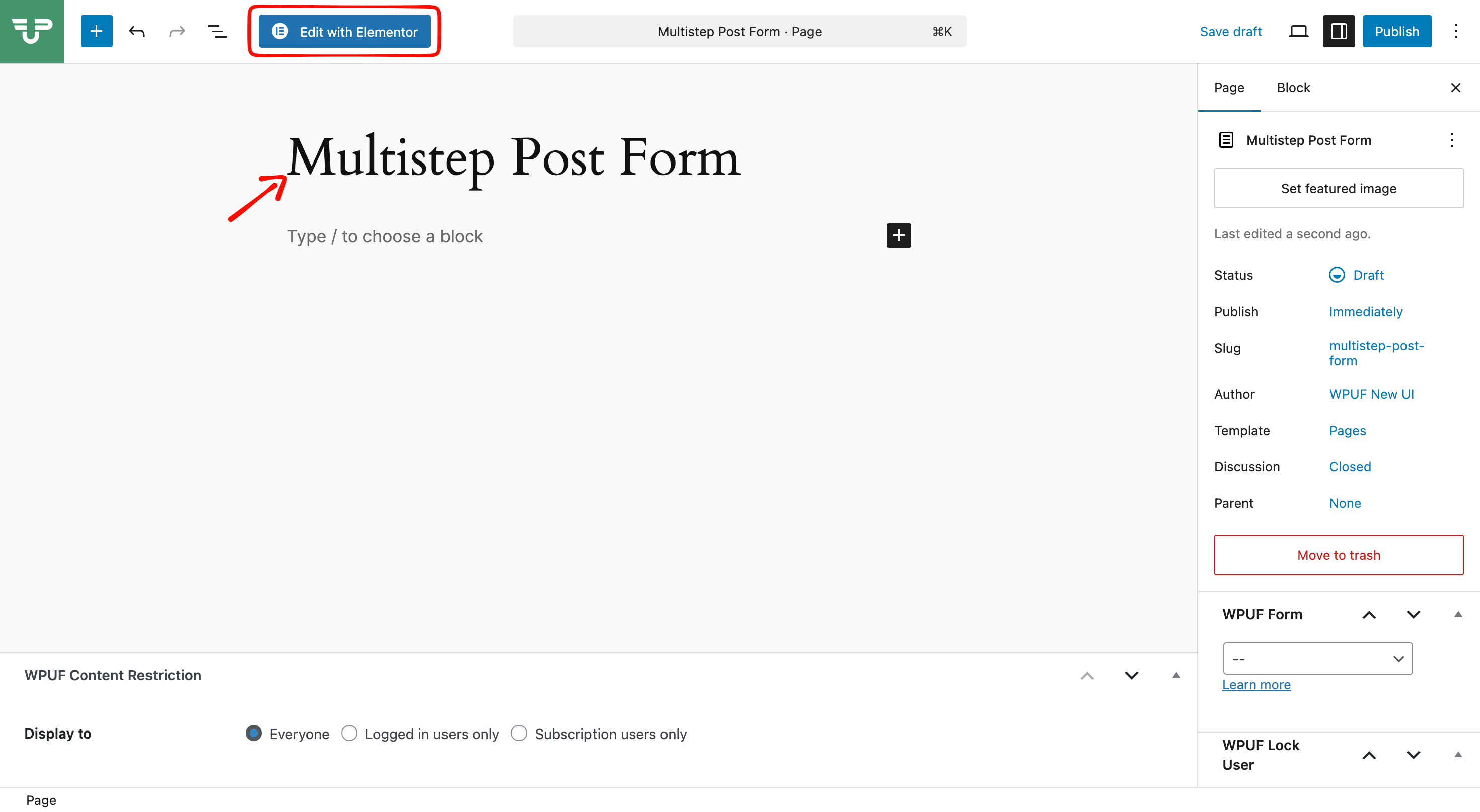
This will open the Elementor builder, where you’ll find all available widgets, including WP User Frontend widgets.
Step 2: Drag and Drop Your User Frontend Widget
In the left panel, scroll to the User Frontend section. You’ll see the available widgets:
- User Account
- Subscription Plans
- User Frontend Form
You can also use the search bar to find them quickly. Drag your desired widget into the editor area.
For example, if you choose the Post Form widget, you’ll be prompted to select a form you’ve already created in WP User Frontend.
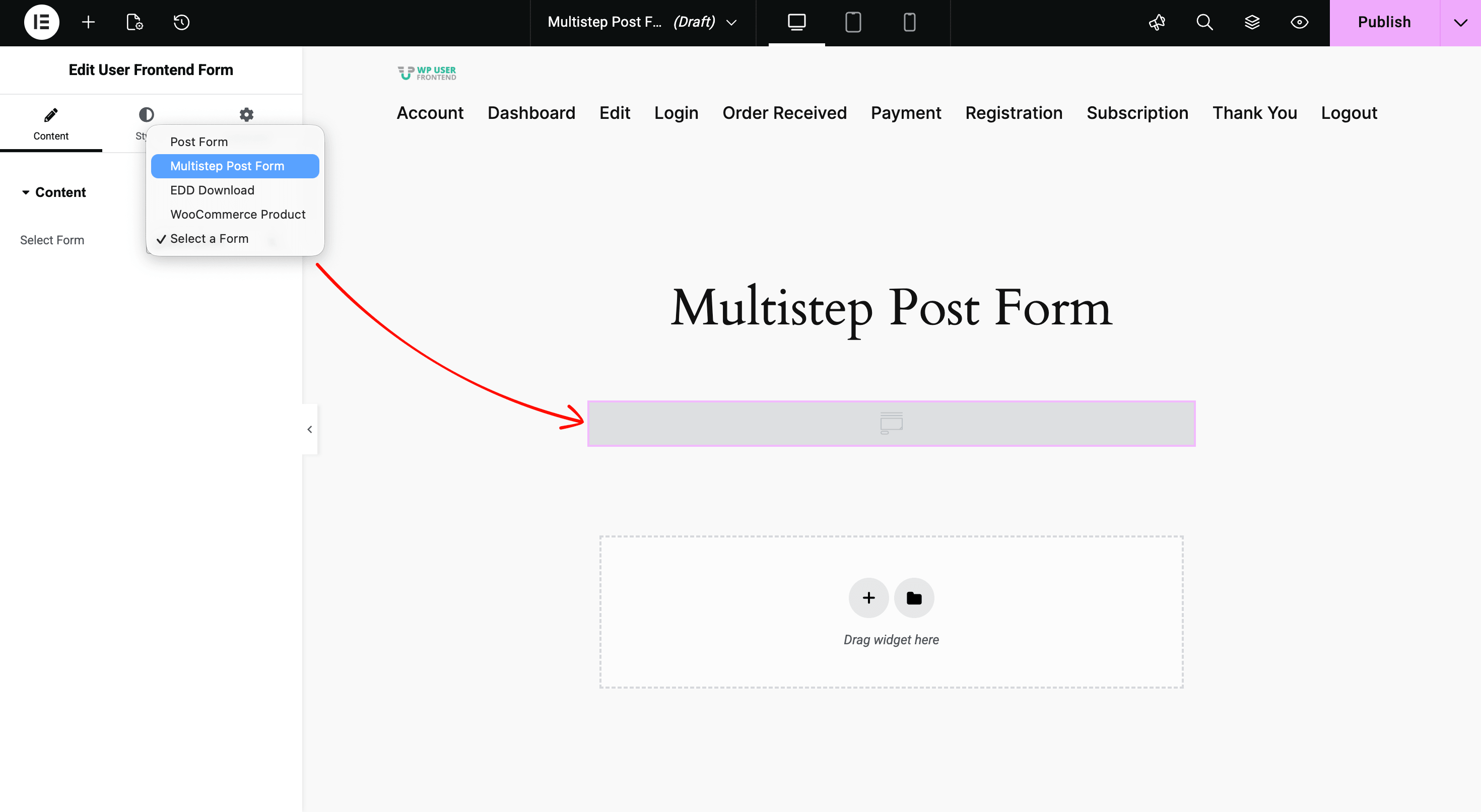
Once selected, the form will appear in the editor. You can now customize the layout and design using Elementor.
Step 3: Design Your User Frontend Widget Using Elementor
You can design each element of the submission form from the Style tab in the Elementor panel. As you make changes, you’ll see them update in real time on the canvas.
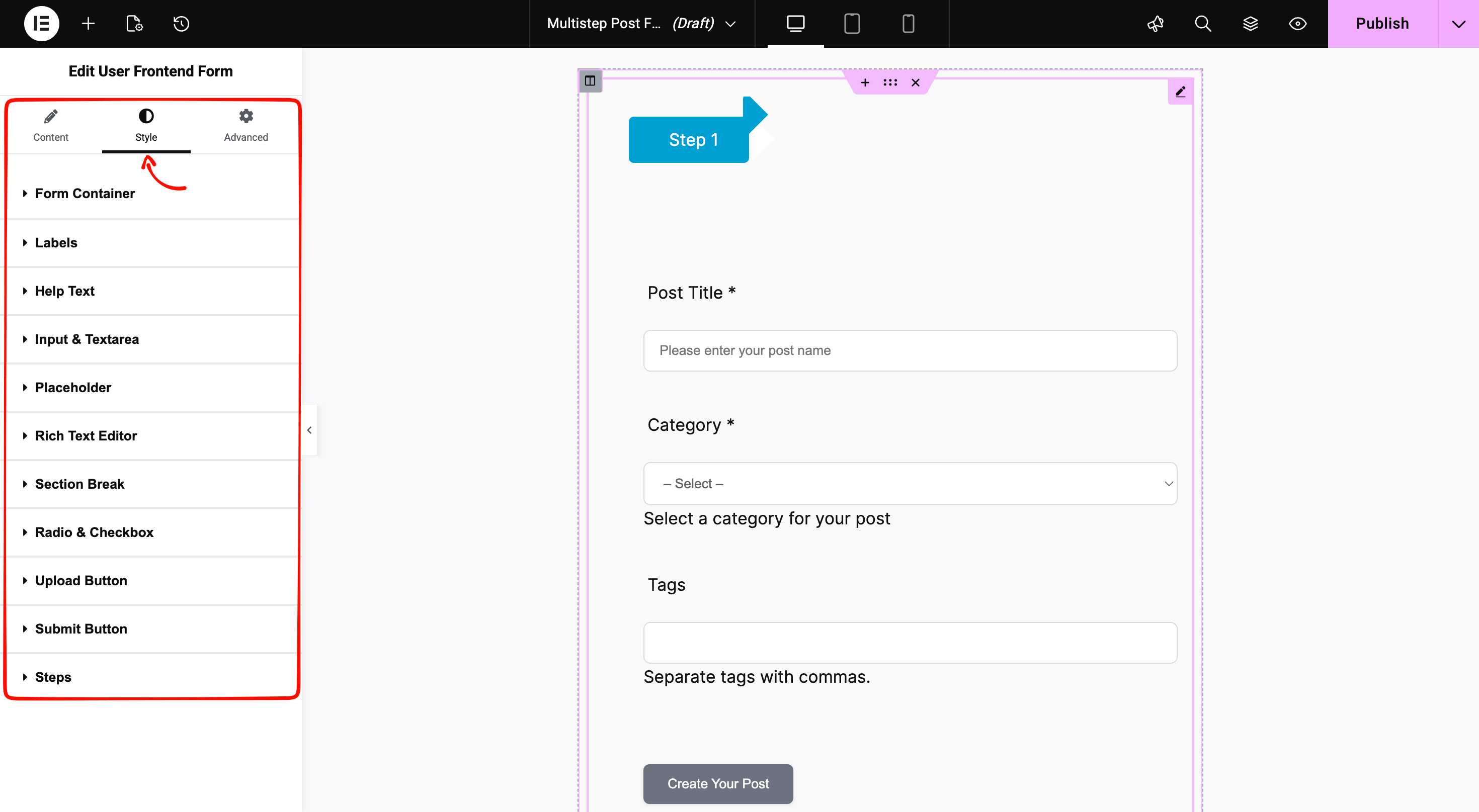
The Advanced tab includes Elementor’s default customization options. You can use these to fine-tune spacing, positioning, and other design details.
Now, let’s look at a quick example. Suppose you want to adjust the Submit button. Here’s what we changed:
- Set the button width from Custom to Full Width
- Changed the background color from grey to green
- Adjusted the border radius to make it more rounded
These small tweaks make your form look more polished and aligned with your site design. And this is just a glimpse of what you can do with Elementor.
All your changes take effect instantly, as you can see in the Elementor canvas on the right. Publish and test on the frontend. That's it. No extra setup, no shortcode hunting.
Step 4: Stylize Your User Dashboard
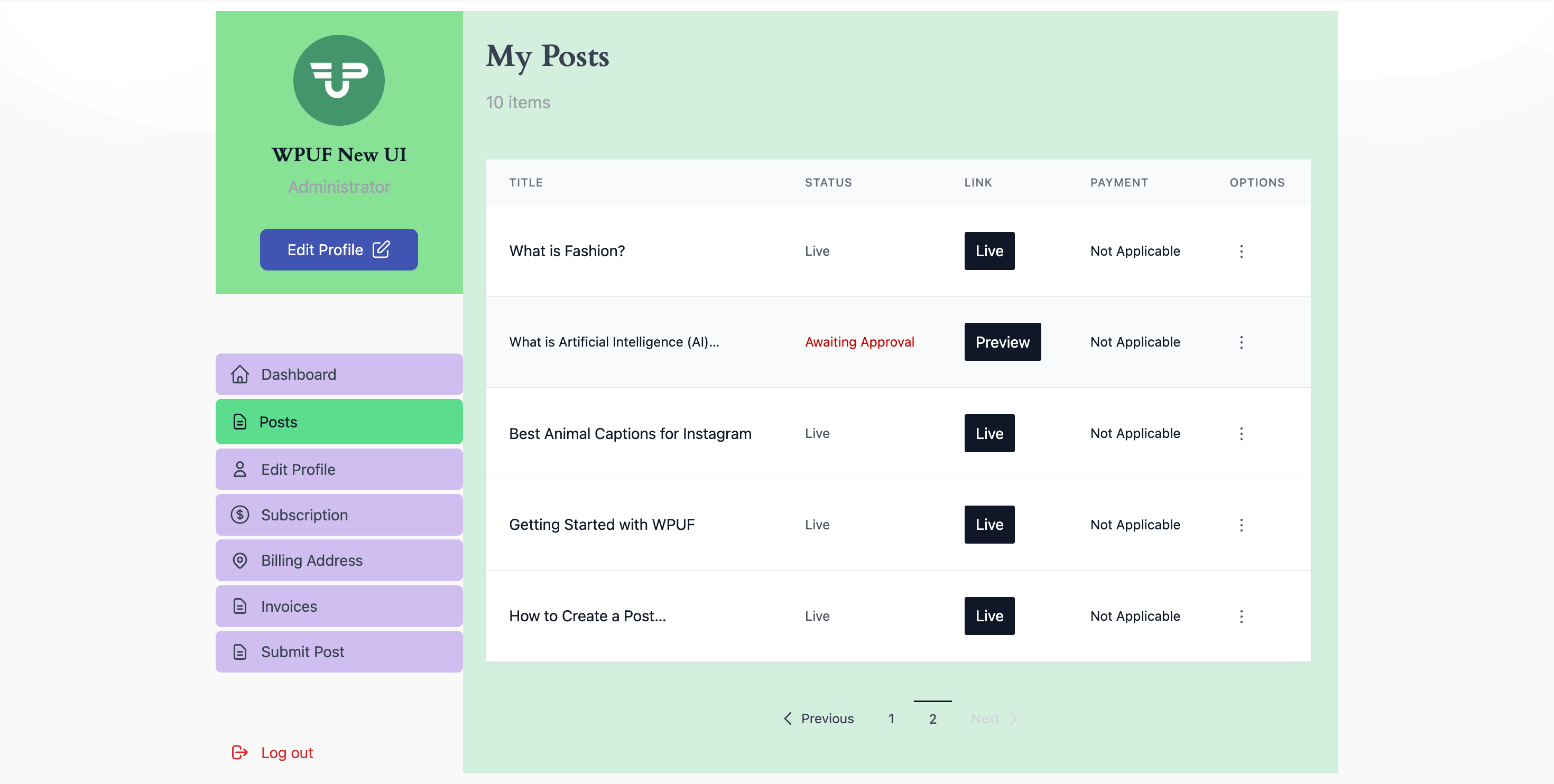
Drag the User Account widget from the Elementor panel onto the canvas. Then start customizing it using the Style and Advanced options.
We also improved the look of WP User Frontend’s default account dashboard. With a few styling tweaks and your Elementor skills, you can completely transform the design.
Here’s a glimpse of what you can build with Elementor.
Step 5: Organize Your Subscription Plans
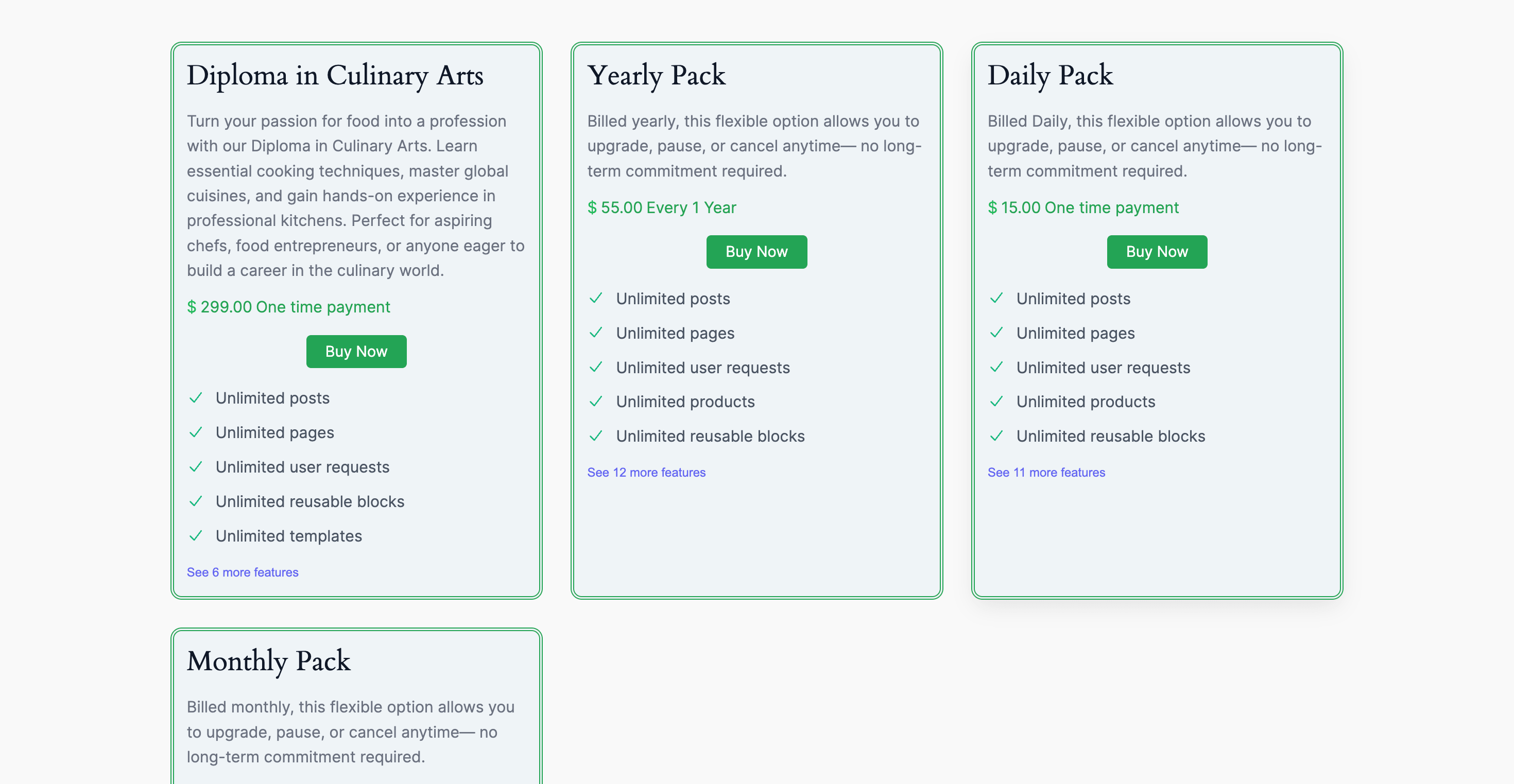
Drag the Subscription widget onto the Elementor canvas. From there, you can customize the layout, spacing, and overall design to match your site.
Here’s an example of how your subscription plans can look after styling with Elementor.
Now that you’ve seen how WP User Frontend and Elementor work together, a few questions might come to mind.
Frequently Asked Questions About Elementor Compatibility
Here are some quick answers to help you get started with using WPUF inside Elementor.
Can I use WPUF widgets with Elementor Free?
Yes. The widgets work with the free version of Elementor. Some advanced features require WP User Frontend Pro.
Do I still need shortcodes?
No. Everything can now be placed and designed visually inside Elementor.
Can I fully customize the design?
Yes, layout, spacing, and styling are all controlled through Elementor's standard design options.
Will this affect site performance?
No. The integration is optimized and won't add meaningful overhead.
Where do I manage advanced settings?
Inside WP User Frontend, same as always. Elementor handles the design layer; WPUF handles the logic.
Design and Functionality, Finally Together
This update is not about adding more features. It’s about removing friction from how you already work. WP User Frontend still handles the logic. Elementor handles the design. Now they finally work the way they should have from the start.
Already on the latest version? Open Elementor and search for User Frontend widgets; they're ready to use. Not updated yet? Head to your plugins dashboard and update now. It takes two minutes.

