

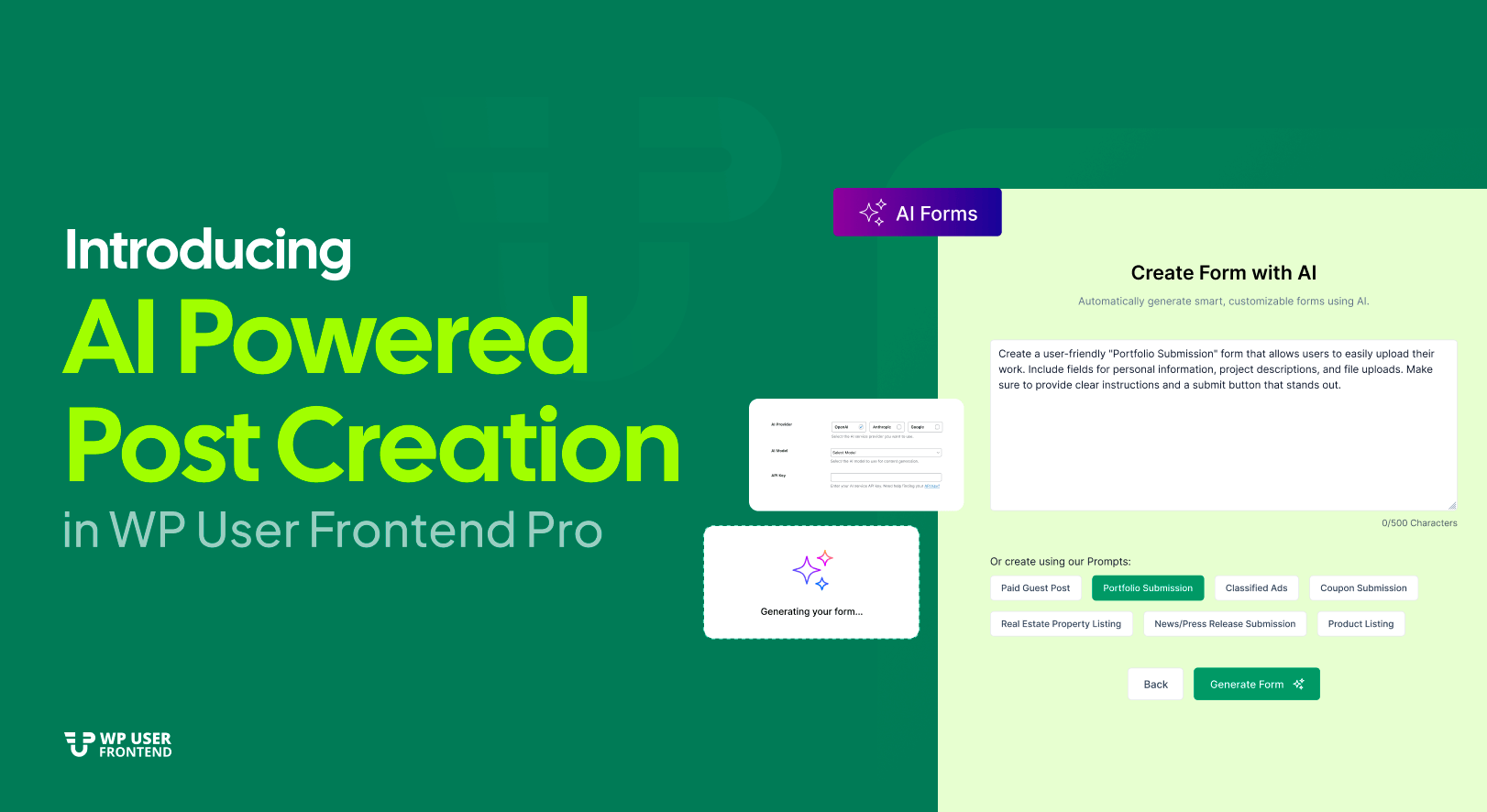
Introducing AI-Powered Form Creation in WP User Frontend
Form building just became smarter. WP User Frontend v4.2.1 introduces AI-powered form creation, a feature that builds complete WordPress frontend post forms from short English prompts.
No more dragging fields one at a time. No more confusion about which field type to use. You describe what you want, and AI creates a full form for you.
Whether you collect blog submissions, job postings, events, classified ads, or any user-generated content, WP User Frontend now creates a ready-to-use form in one click, for FREE.
Why Use the AI Form Builder?
Most people know exactly what they want their form to do. But setting it up manually takes time: adding fields, renaming labels, adjusting types, and reordering layouts. With this update, you skip the repetitive steps and jump straight to a working form. Here's a quick look at how the AI feature helps you:
| Pain Point | Old Way | AI Way |
|---|---|---|
| Time spent on setup | 10 to 15 minutes per form | Under 30 seconds |
| Choosing field types | Manual selection | AI picks the most suitable fields |
| Writing labels and placeholders | Type everything yourself | Auto-generated text |
| Organizing layout | Drag and drop repeatedly | AI structures the form logically |
You start with a complete draft instead of a blank page. Just tell WP User Frontend what you need, for example:
“Create a job posting form with title, description, company name, salary field, and an upload field for attachments.”
What AI delivers:
• Correct field types
• Smart labels and placeholders
• Logical order
• A clean structure
You review, adjust, and publish
Ideal Use Cases of the AI-Powered Form Builder

The AI Form Builder is perfect for any site that depends on user submissions. Instead of building every form from scratch, you can generate a complete layout in seconds and then fine-tune it in the visual builder. Below are some practical examples.
- Job applications: Create forms that collect name, email, resume uploads, portfolio links, salary expectations, and job history. HR teams or recruiters can receive structured submissions without manual setup.
- Event submissions: Let users submit event name, date, time, location, description, ticket links, and images. Ideal for community sites, event directories, or local organization pages.
- Guest blog posts: Accept article submissions with fields like title, content, featured image, category, and author bio. Perfect for editorial sites that rely on contributors.
- Classified ads: Build submission forms for cars, furniture, electronics, or local services. Add price, location, contact information, and photo upload fields with a simple prompt.
- Testimonials and reviews: Collect customer feedback in a structured format. Add name, rating, review text, and optional images. Great for service businesses or product websites.
- Portfolio or resume uploads: Photographers, designers, and professionals can share their work through forms that accept documents, images, and website links.
- Coupon code submissions: Perfect for deals and affiliate sites. Collect coupon titles, discount amount, expiry date, store name, and image uploads.
- Real estate listings: Accept property submissions with price, location, description, amenities, floor plans, and gallery uploads.
In short, if your website depends on user-generated content, AI gives you a ready-to-use form in one click. You spend less time building and more time collecting high-quality submissions.
See AI-Powered Frontend Post Creation Form in Action
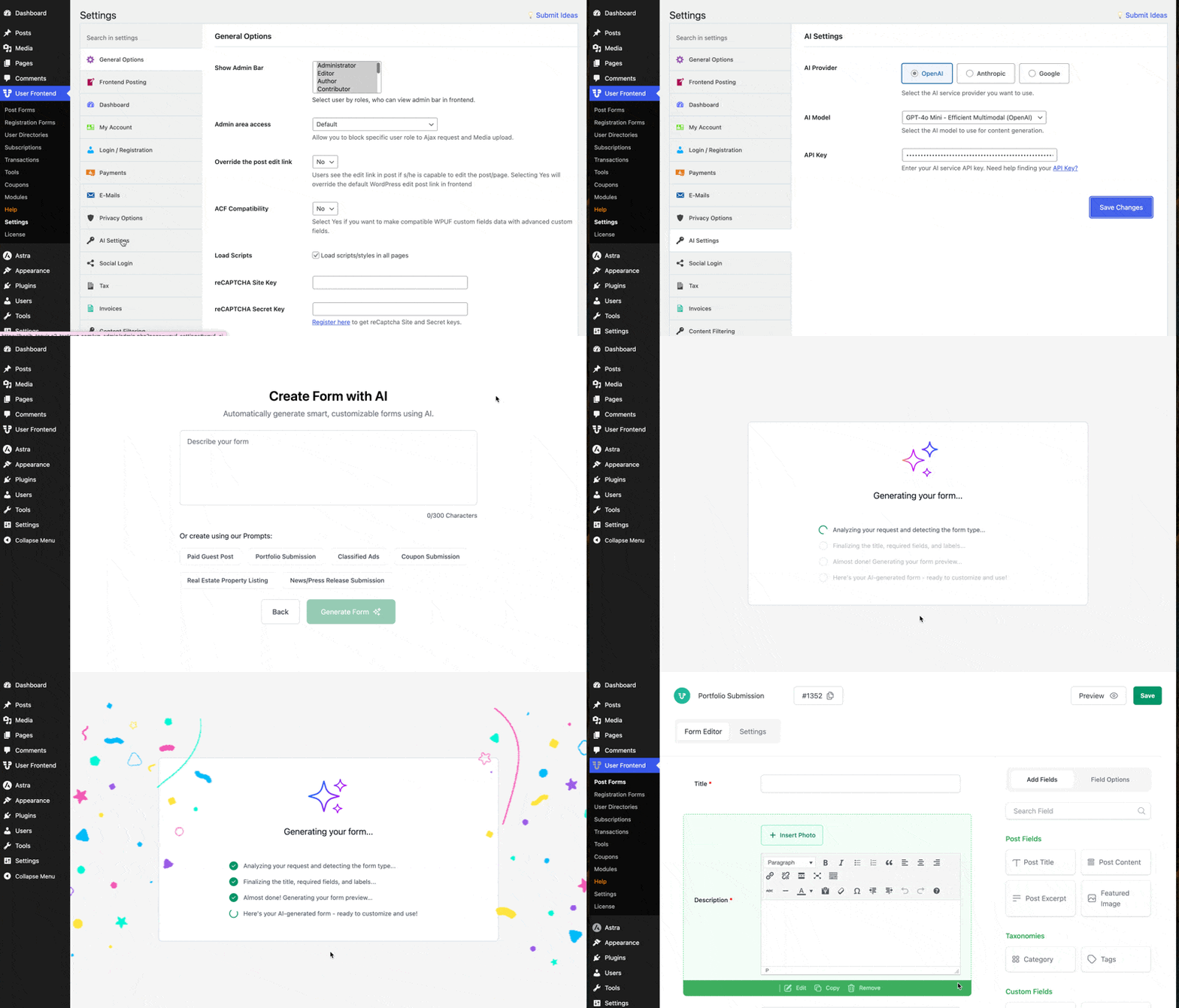
See how fast the AI Form Builder works. The example below shows how a short prompt instantly turns into a complete frontend post form with the correct fields, labels, and layout.
Read the full changelog from here → WPUF Free v4.2.1 – Meet All new AI Form Builder
How to Create a Post Form Using AI Form Builder
To use the AI Form Builder, you need WP User Frontend Free v4.2.1 or later.
- Open your WordPress dashboard
- Go to Plugins > Add New
- Search for “
WP User Frontend” - Click Install, then Activate
If you already have WPUF installed, check for updates under Dashboard > Updates and install the latest version. You can also install it manually by downloading the ZIP from WordPress.org and uploading it through Plugins > Add New > Upload Plugin.
Once the plugin is active, the AI Form Builder tools will appear in the Post Form dashboard.
Step 1: Configure the AI Form Builder
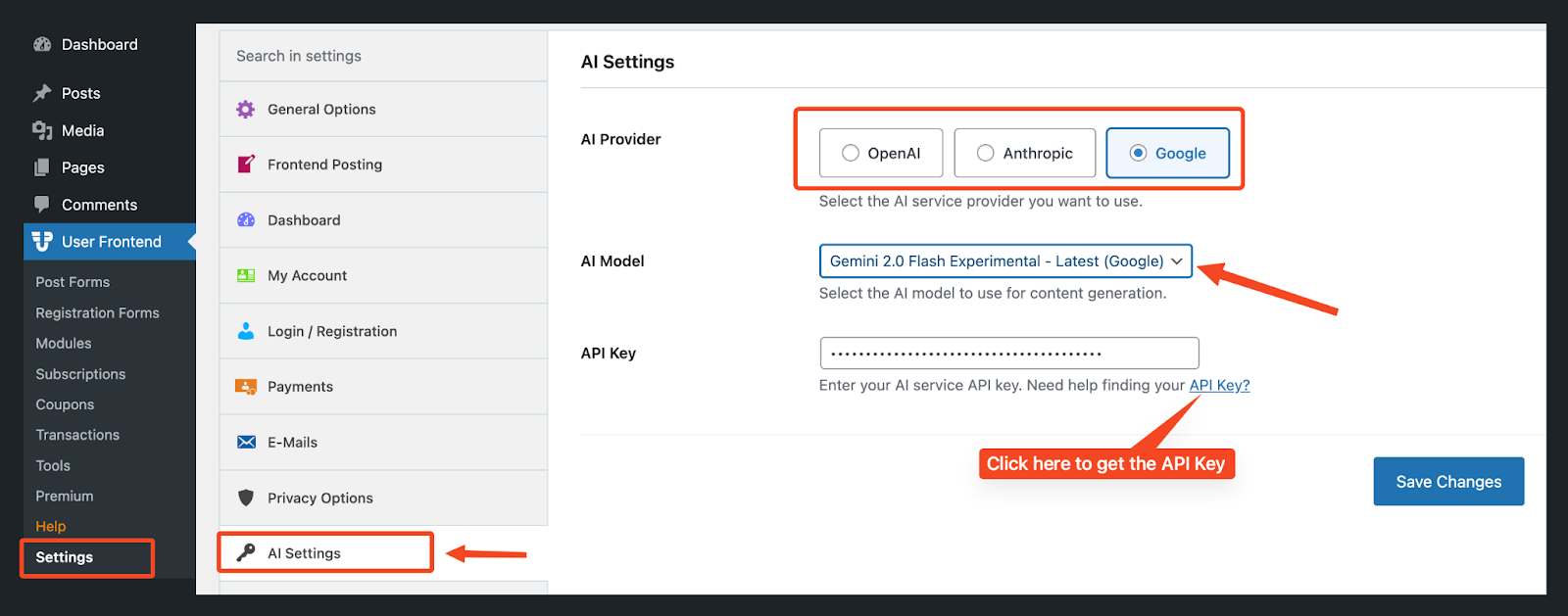
Navigate to User Frontend > Settings > AI Settings. Select your preferred AI Provider (e.g., OpenAI, Anthropic, or Google). WPUF currently supports three AI tools; we'll introduce more API providers soon.
Paste the API key you have. If you don't have an API key, click the API Key button you will be redirected to the provider's API key page.
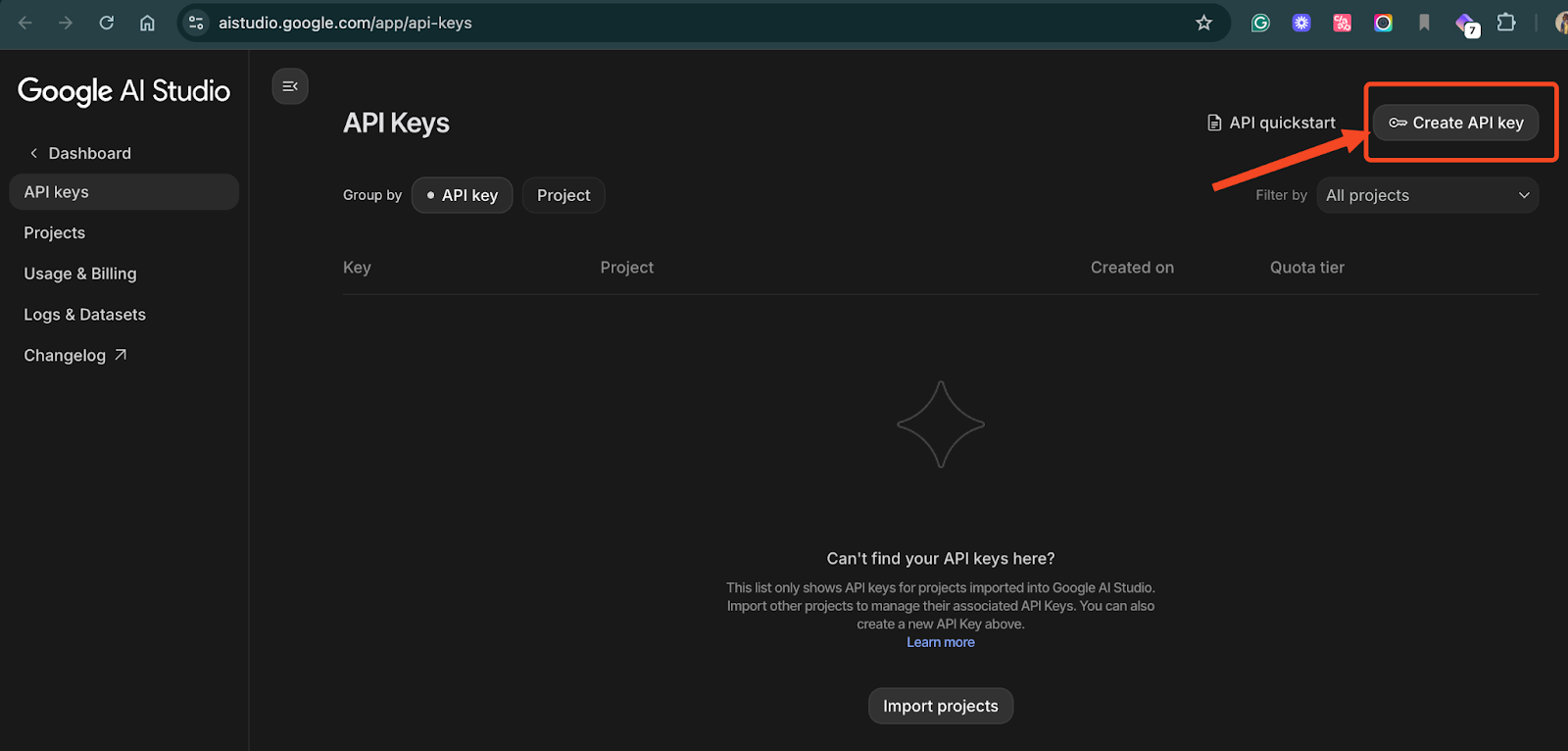
For free Google Gemini API:
- Go to Google AI Studio
- Click Create API Key > Select or create a Project.
- Name the Project and Key, then click Create Key.
- Copy the generated API key.
Return to the settings page, paste the API key, and click Save Changes.
Important: The AI Form Builder must be configured before use. If not set up, you’ll see a notice with a “Go to Settings” button, click it to complete Step 1.
Step 2: Access the AI Form Builder
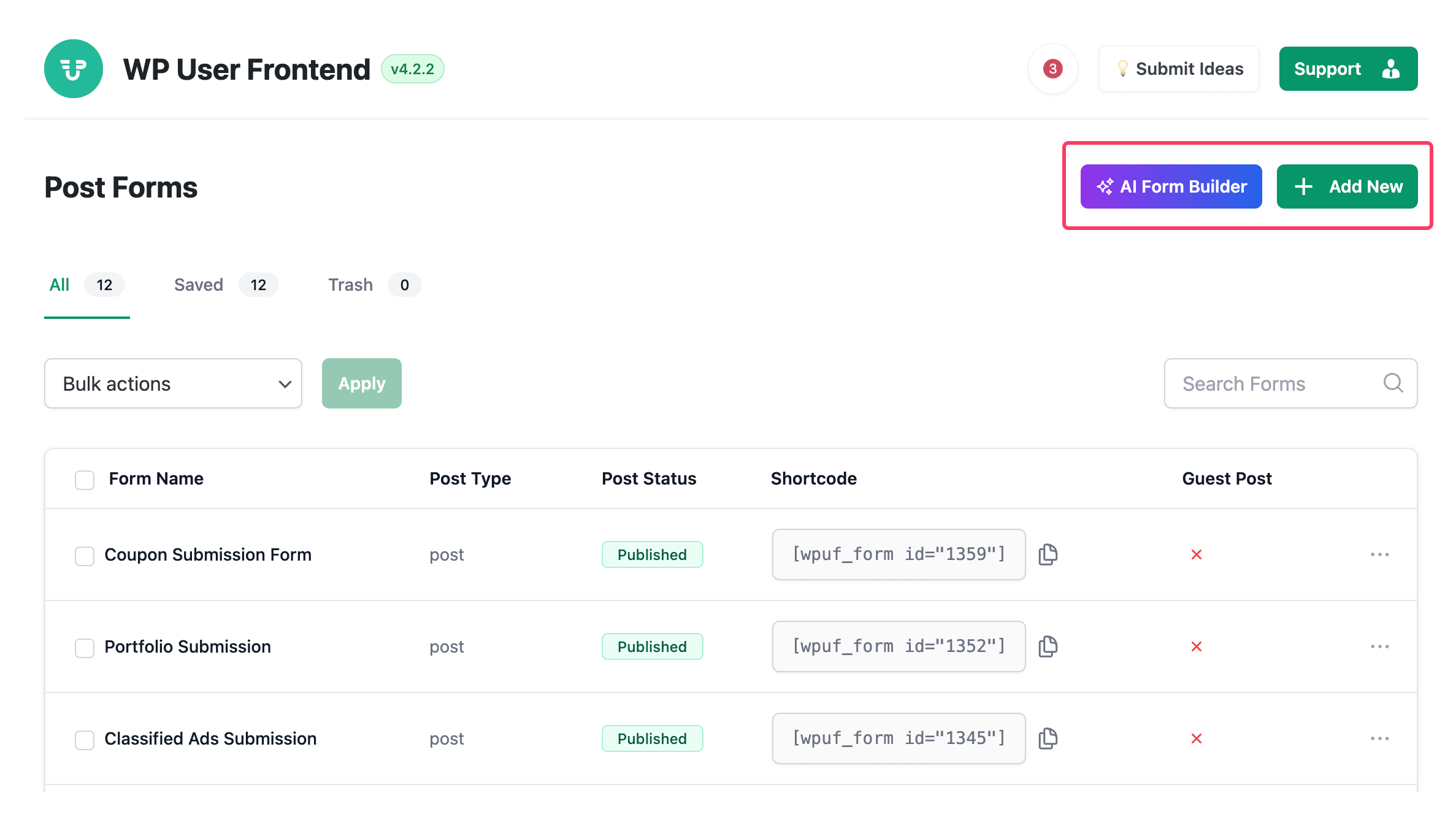
Go to WP Admin Dashboard > Post Form. Click “AI Form Builder”. Or you can follow the regular process: Add New > AI Forms > Create with AI. Both ways navigate to the same form creation fields.
Step 3: Generate the Form Using AI
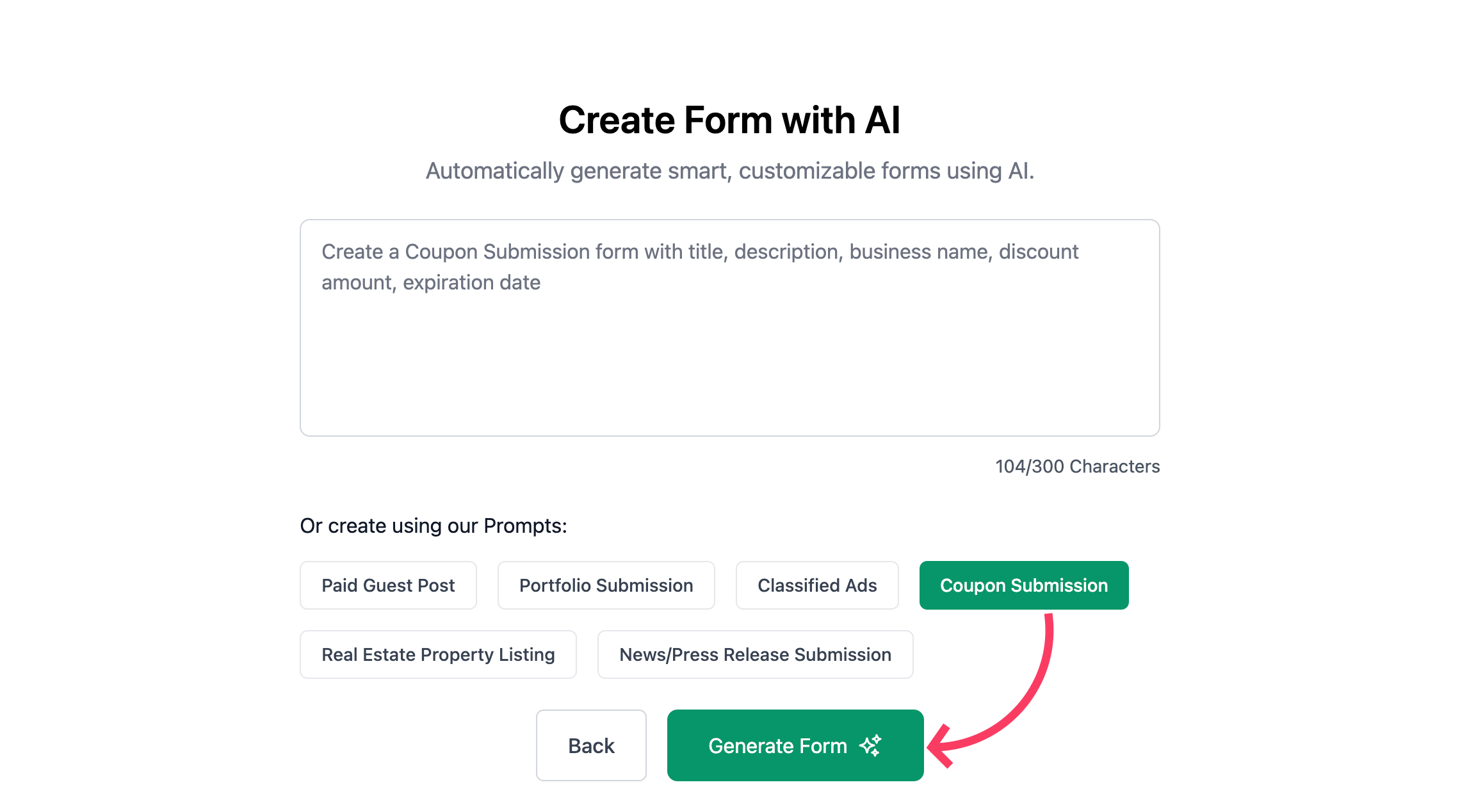
Choose a predefined prompt or type your own in the text field. Click “Generate Form”, and the AI will create the initial form structure. For example, here we're adding a Coupon Submission form.
You can also add fields via AI prompts (e.g., “Add an image upload field”). After each prompt, click “Accept” to save the field.
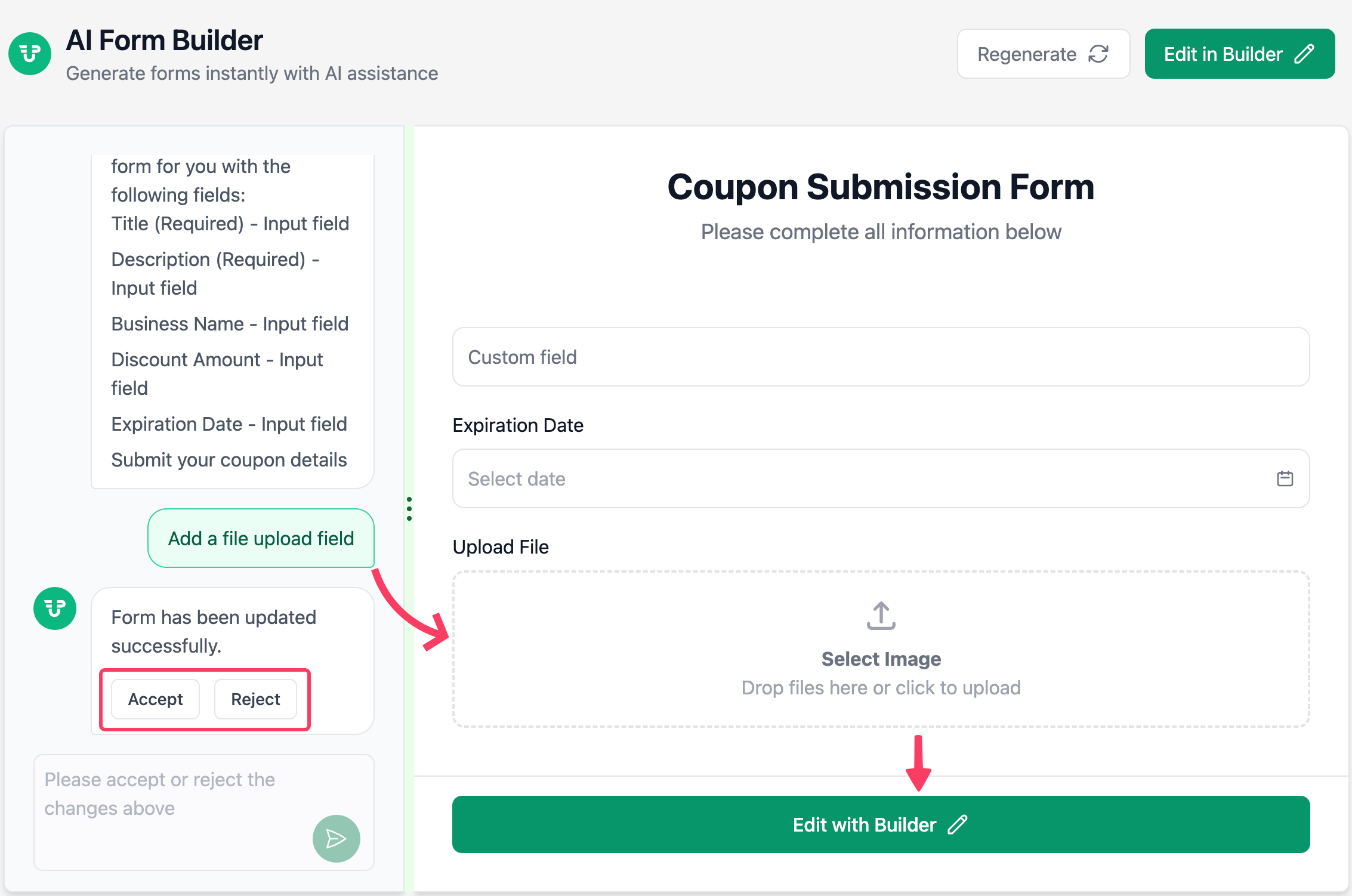
Repeat until all desired fields are added. If you are satisfied with all AI-generated fields, click “Edit with Builder”.
Critical Note:Once you proceed to the visual builder, you cannot return to AI prompt editing. Add all fields using AI before moving to the next step.
Step 4: Switch to Pro If Required
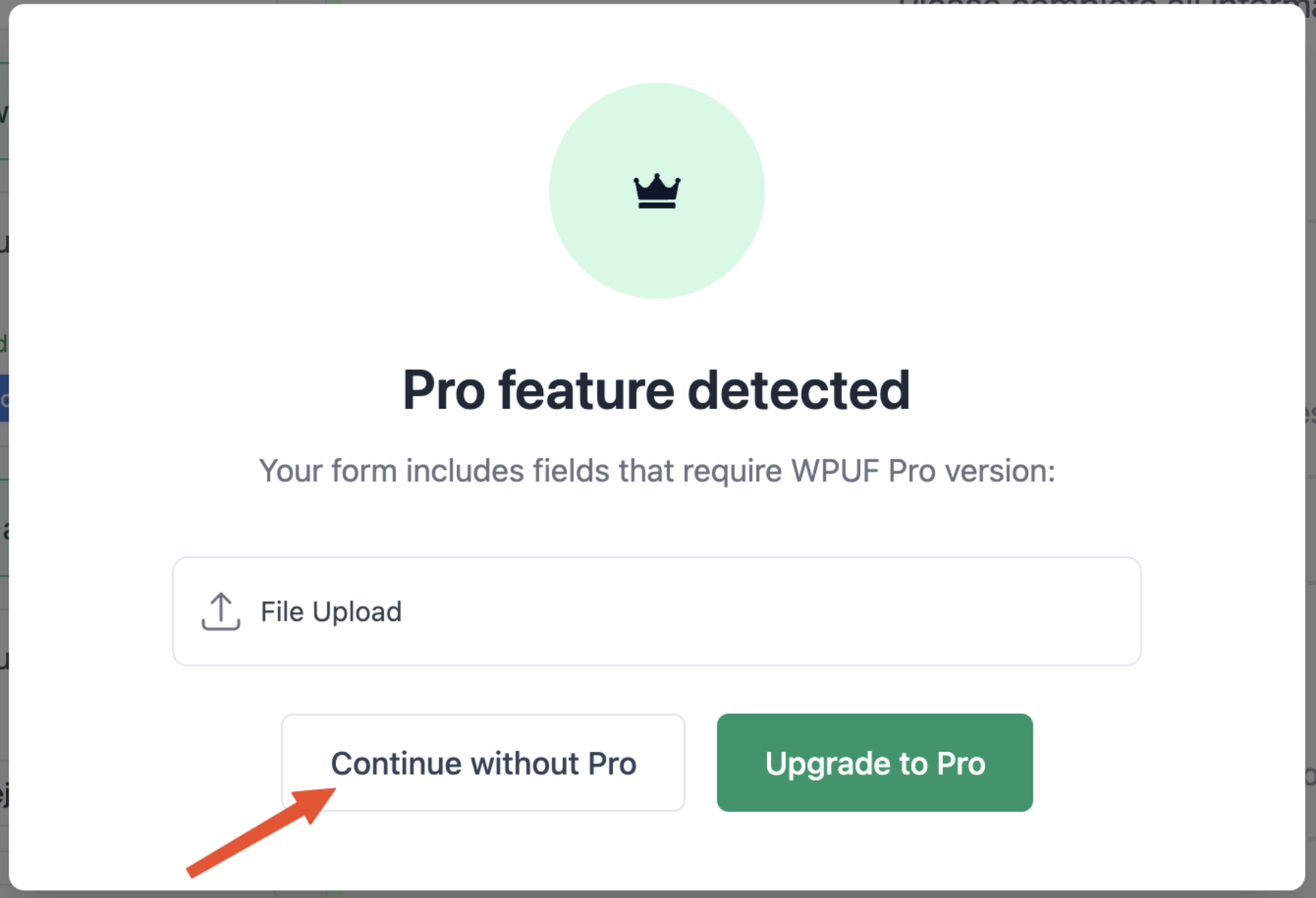
If you used Pro fields (e.g., File Upload), a notice will appear: Choose “Continue without Pro” to proceed with free fields only or upgrade to retain Pro features.
Step 5: Finalize and Save
Make any final adjustments in the visual builder. Click “Save Form”.
Done! Your AI-generated post form is now ready to use
Pro Tip: Always configure AI settings first and complete all AI-based field additions before entering the visual builder.
What Is Coming Next for AI Form Builder?
We are expanding the AI workflow even further. The next updates will add new capabilities and make form creation even faster and more flexible.
| Feature | Status |
|---|---|
| AI profile and registration form builder | In development |
| More AI providers | Planned |
| AI-based form improvement suggestions | Roadmap |
Available in WPUF Free v4.2.1 and Onwards
The AI Form Builder is included in WPUF Free starting from version v4.2.1 and will remain available in future releases. You can update directly from your WordPress dashboard or download the latest version from WordPress.org.
If you want advanced fields, payment options, and complex form workflows, you can upgrade to WPUF Pro at any time. The AI-generated forms work seamlessly in both the free and Pro versions.
Try the AI Form Builder today and see how quickly you can publish a working frontend form with only a short text prompt.
Now It's Your Turn to Build Forms Using AI with WPUF
AI form creation removes the hardest part of building forms. You no longer start with an empty screen or drag fields one by one. You begin with a complete, AI-generated draft that you can fine-tune in the visual builder. This gives publishers, agencies, and site owners a faster way to collect user submissions with professional layouts and correct field types.

