


How to Configure Google Workspace
WP Project Manager — Google Workspace Integration
User Guide
Connect WP Project Manager with Google Workspace to bring Google Drive, Google Calendar, and Google Meet directly into your project workflow.
What You Can Do
- Attach Google Drive files to comments and tasks
- Sync task due dates and milestones with Google Calendar
- Update task dates from Google Calendar with two-way sync
- Create Google Meet meetings directly from comments
- Keep each team member's Google account and permissions separate
| Feature | Plan | Google service |
| Google Drive files | Free | Drive API + Picker API |
| Google Calendar sync | Pro | Calendar API |
| Google Meet meetings | Pro | Calendar API |
One setup, individual Google accounts: The integration uses one Google Cloud project and one OAuth application for your WP Project Manager installation. Each team member connects their own Google account. Google Drive uses the limited drive.file permission, so the app can access only files the user explicitly selects.
Before You Start
- WordPress with WP Project Manager installed and active
- WP Project Manager Pro if you want to use Calendar or Meet
- A Google account with access to the Google Cloud Console
- An HTTPS-enabled WordPress site
- Administrator access to WP Admin → Project Manager → Settings → Google Workspace
Tip: Keep Google Cloud Console and WP Admin open in separate browser tabs. You'll copy several values between them.
Part 1 — Set Up Google Cloud
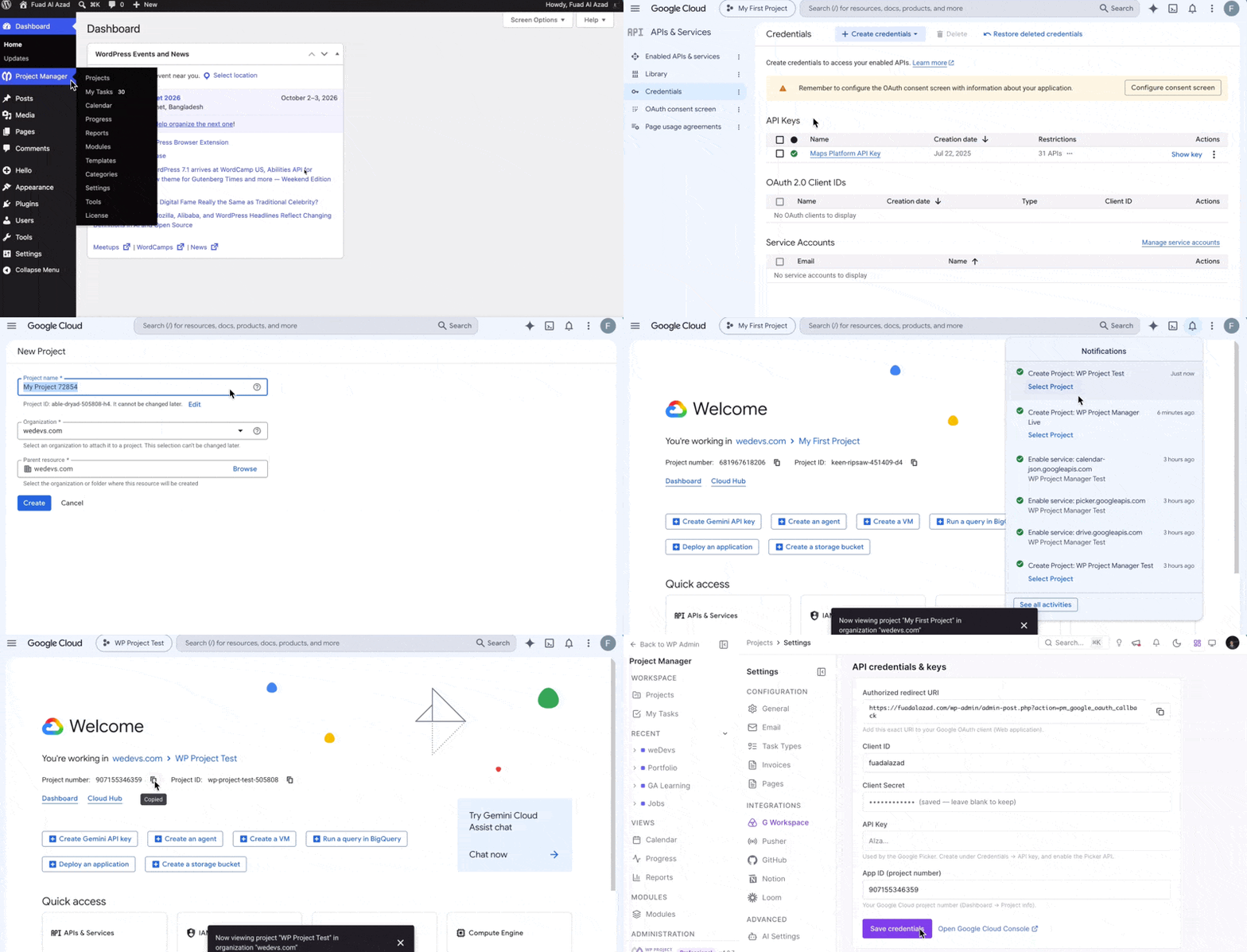
Step 1: Create a Google Cloud project
- Open the Google Cloud Console.
- Create a new project.
- Give it a recognizable name, such as WP Project Manager.
- Make sure the new project is selected.
- Open the project dashboard and note the Project number.
Important: Don't confuse the Project number with the Project ID. WP Project Manager needs the Project number.
Step 2: Enable the required Google APIs
Open APIs & Services → Library and enable the APIs you need.
| API | Why it's needed |
| Google Drive API | Accesses files selected through Google Drive |
| Google Picker API | Opens the Google Drive file picker |
| Google Calendar API | Calendar sync and Google Meet |
Note: If you're only using Google Drive, the Calendar API isn't required.
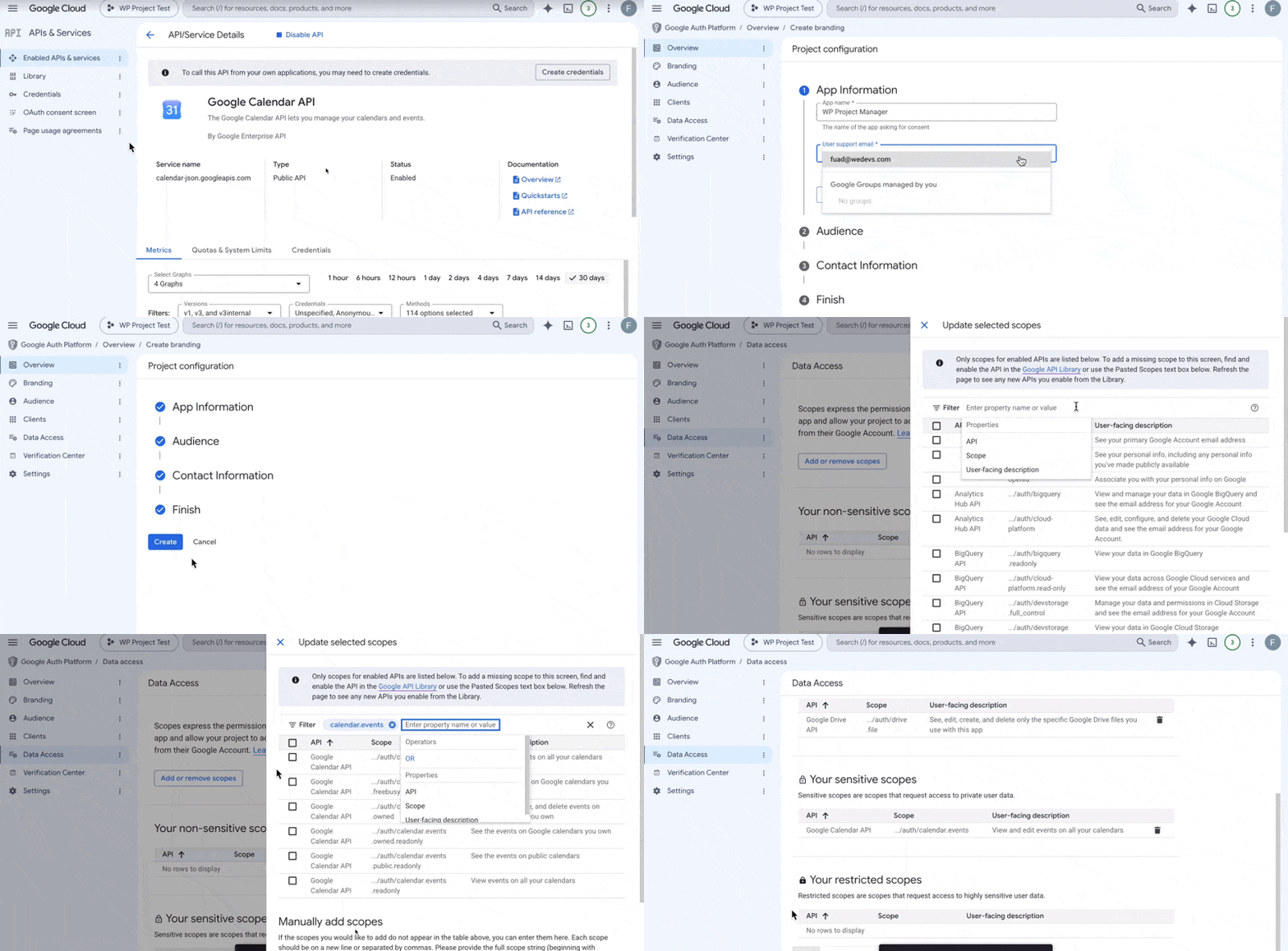
Step 3: Configure the OAuth consent screen
Open APIs & Services → OAuth consent screen.
Choose the user type
- Internal — if everyone using the integration belongs to the same Google Workspace organization.
- External — if users include personal Gmail accounts or people outside your organization.
Add your app information
- App name
- User support email
- Developer contact email
Add the required scopes
- openid
- userinfo.email
- userinfo.profile
- drive.file
- calendar.events (only for Calendar/Meet)
Testing mode: For an External app in Testing mode, add every Google account that will use the integration under Test users.
Testing vs. Production
Testing mode is useful while evaluating the integration, but only listed test users can connect and OAuth tokens expire after 7 days.
Production removes the 7-day testing expiration, but Google may require additional verification for External apps using sensitive or restricted permissions.
Recommendation: Use Internal when everyone belongs to the same Google Workspace organization. For broader external use, plan for Google's app verification requirements.
Step 4: Create the OAuth Client ID
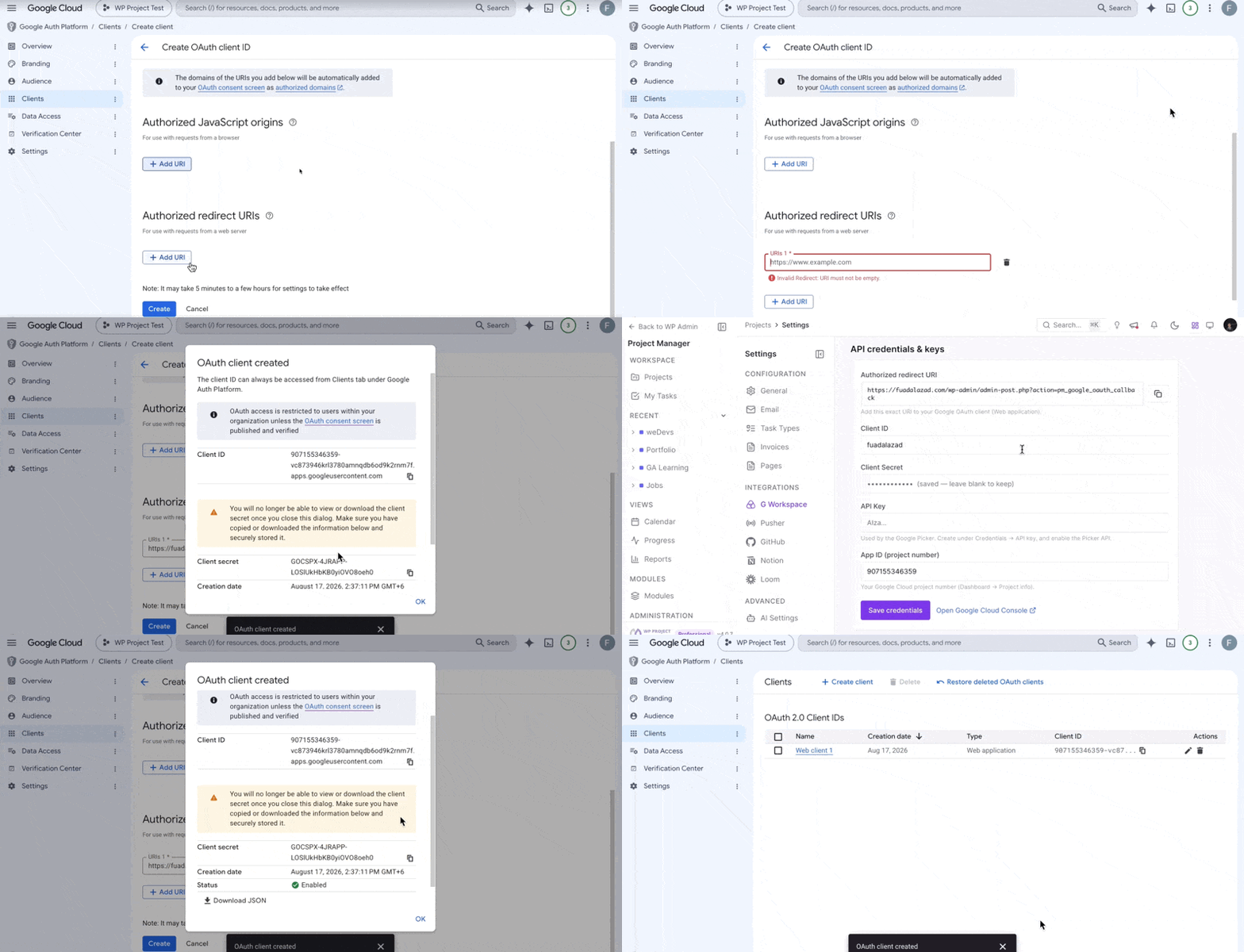
- Go to APIs & Services → Credentials.
- Click Create credentials → OAuth client ID.
- Choose Web application.
- Give it a recognizable name, such as WP Project Manager Web.
In WP Admin, open Project Manager → Settings → Google Workspace and copy the Redirect URI shown there.
Add it under Authorized redirect URIs in Google Cloud. It will look similar to:
Important: The redirect URI must match exactly. Differences such as http vs. https, www, or an extra trailing slash can cause an OAuth error.
Click Create, then copy the generated Client ID and Client secret.
Step 5: Create an API Key
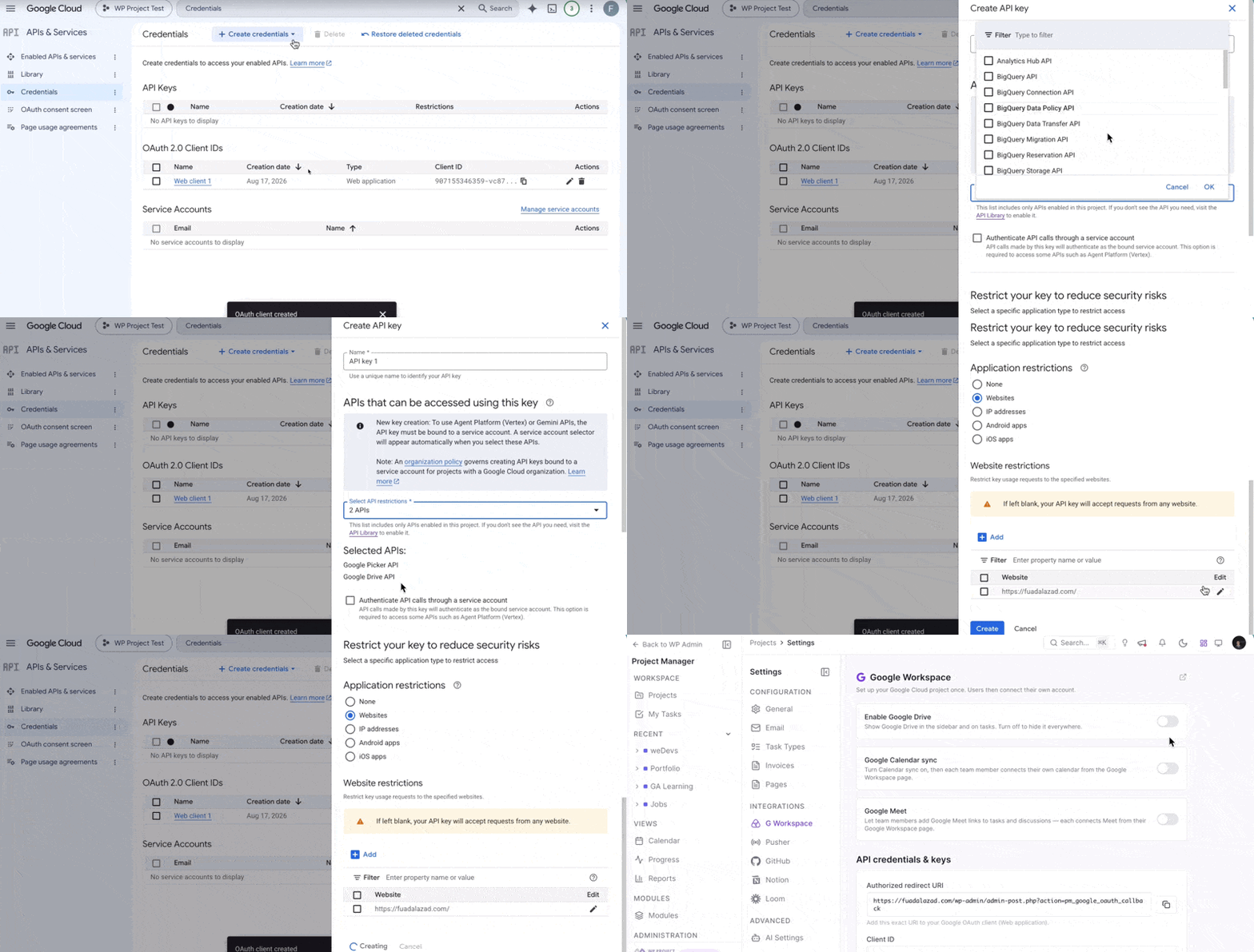
- Go to APIs & Services → Credentials.
- Click Create credentials → API key.
- Copy the generated key.
Recommended: Restrict the API key
- Application restrictions → Websites / HTTP referrers → add https://YOUR-SITE.com/*
- API restrictions → Restrict key → allow Google Picker API and Google Drive API
Step 6: Collect Your Google Credentials
| WP Project Manager field | Where to find it |
| Client ID | OAuth client created in Step 4 |
| Client secret | OAuth client created in Step 4 |
| API key | API key created in Step 5 |
| App ID | Google Cloud Project number from Step 1 |
Part 2 — Configure WP Project Manager
Go to WP Admin → Project Manager → Settings → Google Workspace.
Add your credentials
- Client ID
- Client secret
- API key
- App ID
- Confirm the Redirect URI shown by WP Project Manager matches the URI configured in Google Cloud.
- Click Save.
Configure the Google Workspace Features
| Setting | What it controls |
| Enable Google Drive | Turns Google Drive integration on or off. |
| Allow Drive in comments | Controls whether users can attach Drive files from comments. |
| Google Calendar sync | Enables Calendar integration (Pro). |
| Google Meet | Enables meeting creation from comments (Pro). |
Important: These feature switches are independent. Disabling Drive does not disable Calendar or Meet, and vice versa.
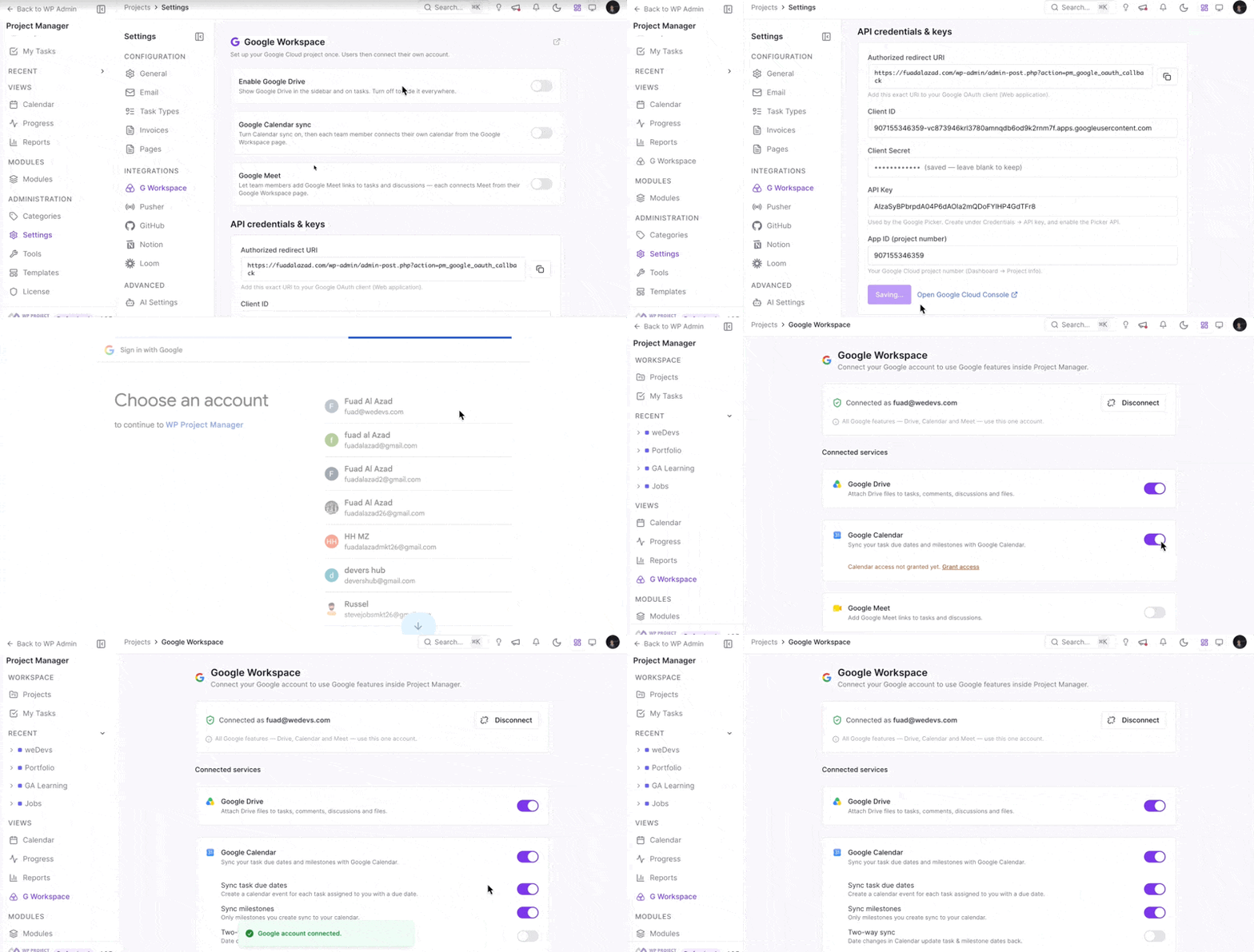
Project-Level Permissions
Go to Project → Settings → Capabilities.
- Google Drive — Attach
- Google Meet — Create
You can control access for co-workers and clients. Managers and administrators always have access. Google Calendar follows each user's own preferences and does not have a project-level role restriction.
Part 3 — Connect a Google Account
Each team member connects their own Google account.
- Open G Workspace from the WP Project Manager sidebar.
- Click Connect Google account.
- Sign in to Google.
- Review and approve the requested permissions.
- Configure Drive, Calendar, and Meet from their respective cards.
Important: Always reconnect using the same Google account. Connecting a different account replaces the existing connection across the integration.
[GIF placeholder — Connect a Google account and enable the Google Workspace features]
Using Google Drive
Attach a Google Drive file to a comment
You can attach Drive files from task comments, discussion comments, discussion bodies, and the Files area.
- Open a comment composer.
- Click the Drive icon.
- Select one or more files from the Google Picker.
- The selected file links are added to your comment.
- Post the comment.
[GIF placeholder — Select a Google Drive file and attach it to a comment]
How Drive permissions work: WP Project Manager stores a reference/link to the selected file. It does not copy the file. Attaching a Drive file does not change its Google Drive sharing permissions.
Google Drive Files in the Activity Log
When a Google Drive file is attached directly to a task, WP Project Manager records the action in the task activity feed. Removing it is also recorded. A Drive or Meet link inside an existing comment adds a small icon rather than creating a duplicate activity entry.
Using Google Calendar — Pro
Google Calendar integration provides two-way synchronization between WP Project Manager and Google Calendar.
Enable Calendar sync
An administrator must first enable Settings → Google Workspace → Google Calendar sync. Each user can then configure their own Calendar settings from the Google Calendar card.
| Option | What it does |
| Enable | Turns Calendar sync on for your account. |
| Sync task due dates | Creates an all-day event for assigned tasks with due dates. |
| Sync milestones | Adds milestones to Google Calendar. |
| Two-way sync | Calendar date changes update the corresponding task or milestone. |
| Remove completed tasks | Removes completed events or leaves them with a ✓, based on your choice. |
[GIF placeholder — Configure Google Calendar sync options]
Calendar Sync: WP Project Manager → Google Calendar
| Action in WP Project Manager | Result in Google Calendar |
| Set/change task due date | Event created or updated |
| Clear task due date | Event removed |
| Mark task complete | Event removed or marked ✓ |
| Reopen task | Event restored or ✓ removed |
| Delete task | Event removed |
| Unassign yourself | Your copy of the event is removed |
| Create/update milestone | Milestone event created or updated |
Calendar Sync: Google Calendar → WP Project Manager
| Action in Google Calendar | Result in WP Project Manager |
| Move an event to another date | Task/milestone date is updated |
| Delete the event | Calendar link is removed; task remains unchanged |
Important: Two-way sync must be enabled, and only events created by WP Project Manager are monitored.
Using Google Meet — Pro
- Open a task or discussion comment composer.
- Click the Meet icon.
- Enter the meeting title, date, time, duration, and description.
- Add project members or external email addresses.
- Create the meeting.
Google creates a Calendar event with a Google Meet link, sends invitations, and WP Project Manager inserts a meeting card into the comment.
[GIF placeholder — Create a Google Meet meeting from a comment]
Who can create meetings?: Access is controlled by Project → Settings → Capabilities → Google Meet. Managers and administrators always have access.
Note: Meet links are added inside comments. They are not stored as file attachments.
Troubleshooting
“redirect_uri_mismatch” or Error 400
Copy the Redirect URI from WP Admin → Project Manager → Settings → Google Workspace and paste it into the OAuth client's Authorized redirect URIs. Check http/https, www, trailing slashes, and typos.
“Access blocked” or “App isn't verified”
For External apps, use a Test user during Testing, use Internal when appropriate, or complete Google's verification process.
Users have to reconnect every week
External apps in Testing mode have OAuth tokens that expire after about 7 days. Move to Production or use Internal when appropriate.
Only some users can connect
In Testing mode, only listed Test users can connect. Add the affected user's Google email address.
The Drive button is missing
Check that Drive is enabled by the administrator, Allow Drive in comments is enabled, the user has enabled Drive, and the Google account is connected.
The Google Picker won't open
Verify the API key, App ID/project number, Picker API, Drive API, website referrer restriction, and API restrictions.
A comment won't save after adding a Google link
Make sure you're using the current WP Project Manager version. Remove any unsupported emoji or unusual character that was manually pasted.
Calendar changes aren't reaching WP Project Manager
Enable Two-way sync, make sure the event was created by WP Project Manager, and allow a few minutes for synchronization.
Changing a task date creates duplicate events
Update WP Project Manager to the latest version. The current version reuses the existing event. Remove older duplicates manually.
Completed tasks still appear in Google Calendar
Check Remove completed tasks. When disabled, completed tasks remain with a ✓ in the title.
Quick Setup Checklist
- ☐ Google Cloud project created
- ☐ Drive API enabled
- ☐ Picker API enabled
- ☐ Calendar API enabled if using Calendar/Meet
- ☐ OAuth consent screen configured
- ☐ Required OAuth scopes added
- ☐ Test users added if using External + Testing
- ☐ OAuth Web Application client created
- ☐ Redirect URI configured exactly
- ☐ API key created and restricted
- ☐ Client ID added to WP Project Manager
- ☐ Client secret added
- ☐ API key added
- ☐ Project number added as App ID
- ☐ Google account successfully connected
- ☐ Drive tested
- ☐ Calendar sync tested if applicable
- ☐ Google Meet tested if applicable
You're Ready to Go
Once Google Cloud and WP Project Manager are configured, each team member can connect their own Google account and start using Google Workspace features directly inside their projects.
- Google Drive keeps project files accessible without copying them into WordPress.
- Google Calendar keeps task deadlines and milestones synchronized with personal calendars.
- Google Meet makes it easy to start project meetings without leaving the task or discussion.
