How to Add Tasks to the Calendar of WP Project Manager
WP Project Manager has a calendar feature for your projects. You can view an interactive calendar view of your projects and tasks. To view the calendar, navigate to WP Admin Dashboard → Project Manager → Calendar.
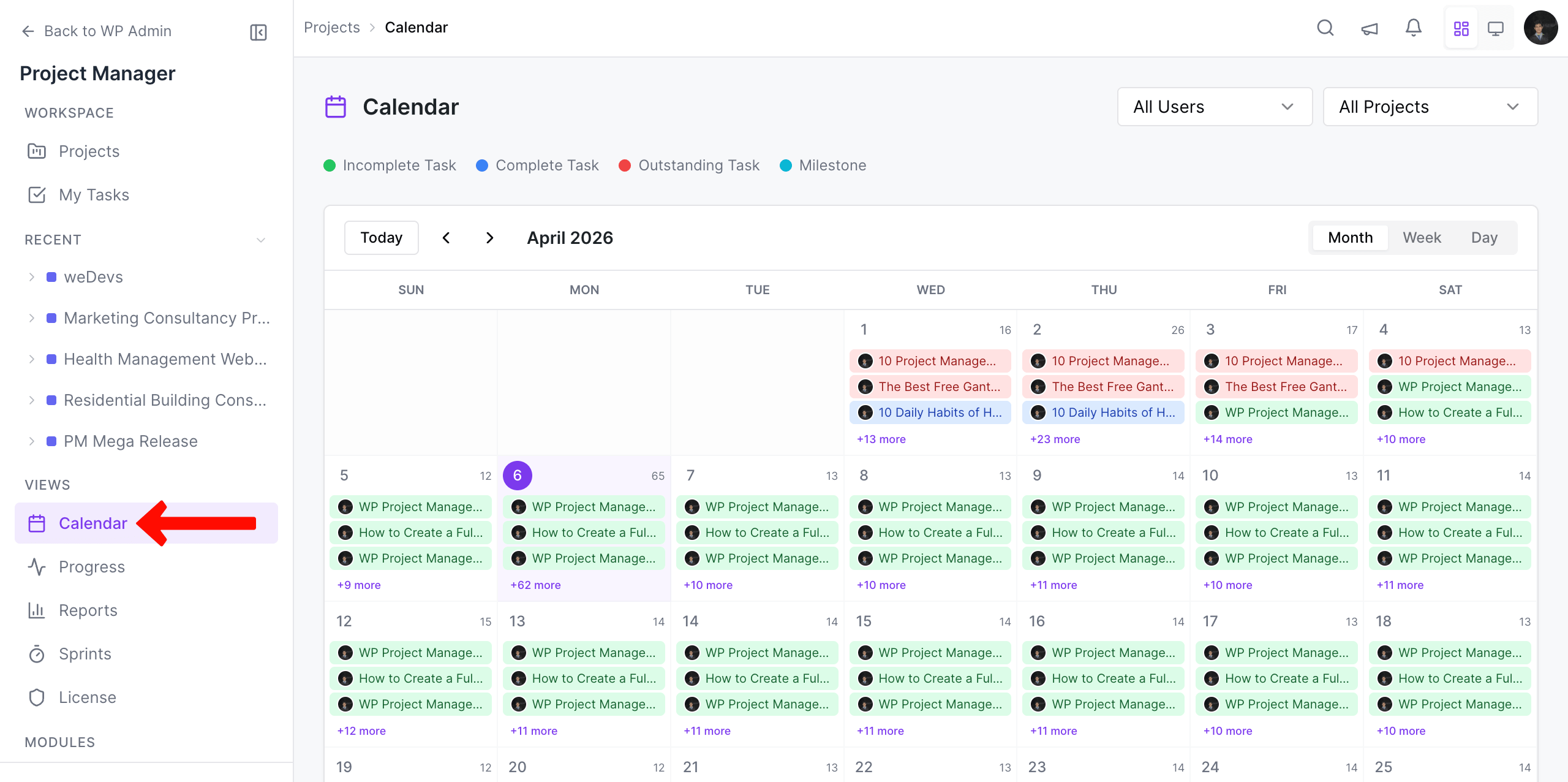
If you log in as an admin, you will only see the projects and tasks assigned to you. However, you can filter the tasks by projects or users if needed.
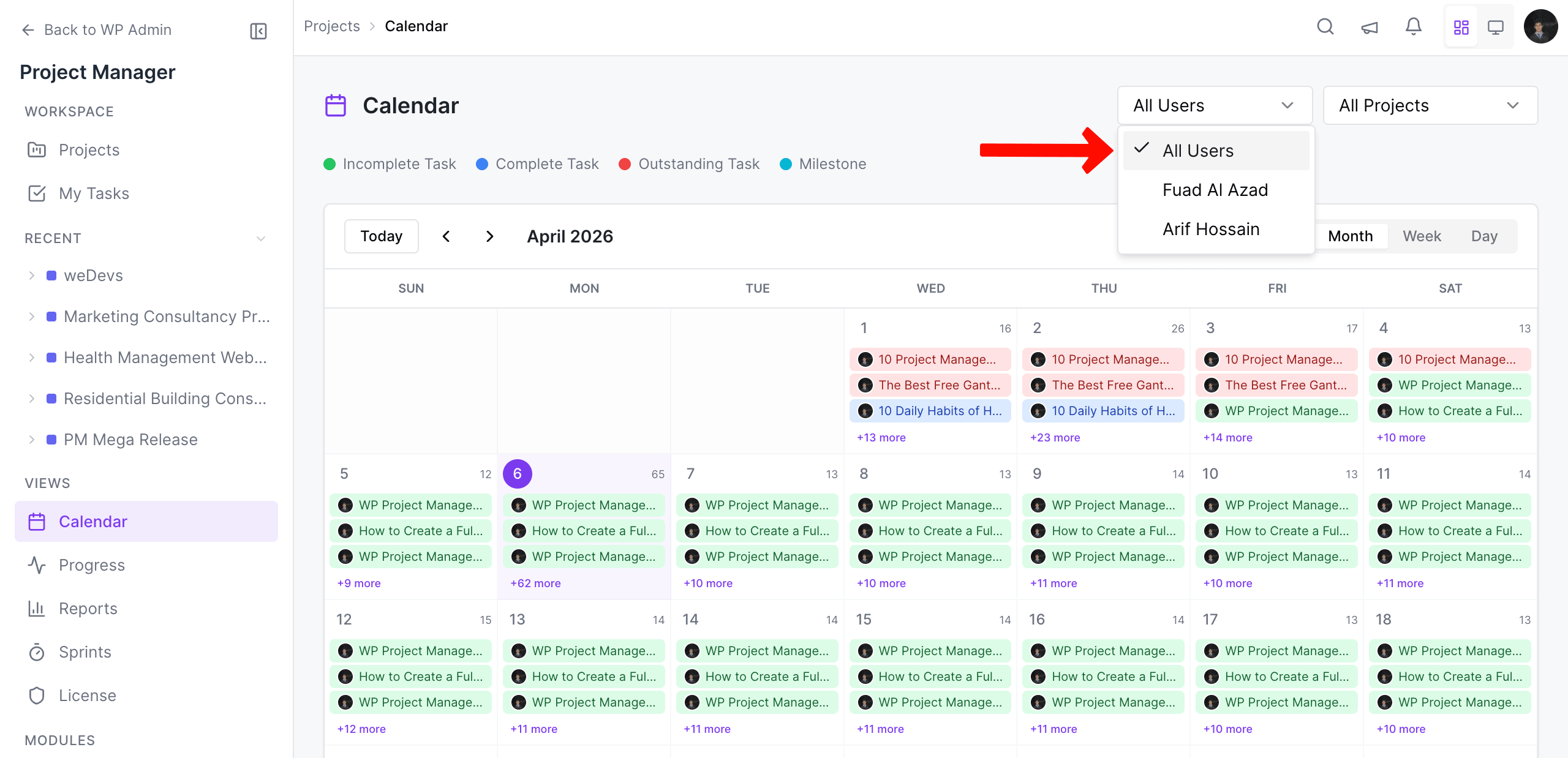
If you want to view any of the other users' tasks, select the project and then choose the user. Click on the Filter button to see that user's task.
Taskbars
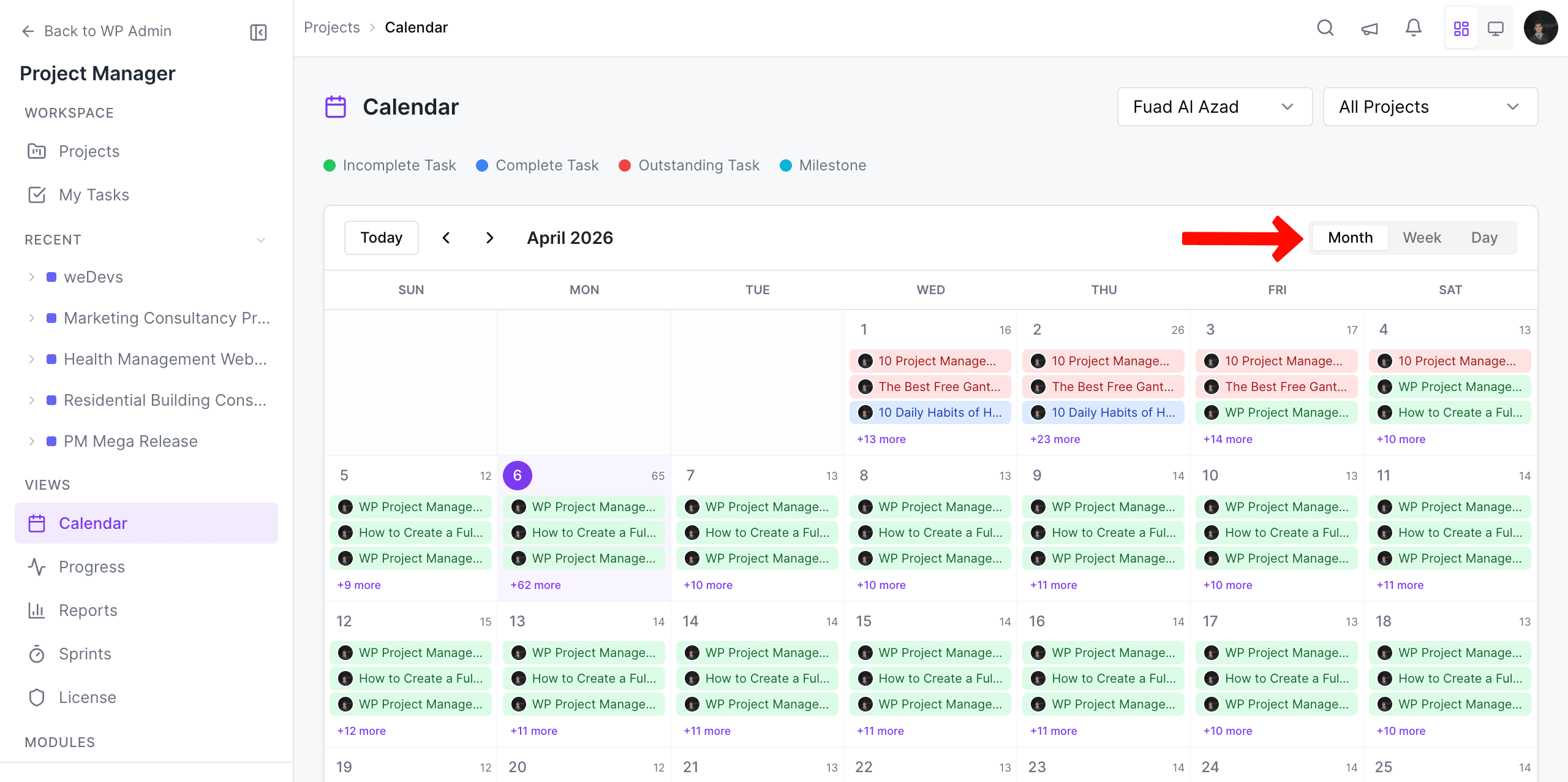
You will see different bars that indicate the status and duration of the tasks. These are called taskbars. The longer the task duration, the more stretched the bar for that task.
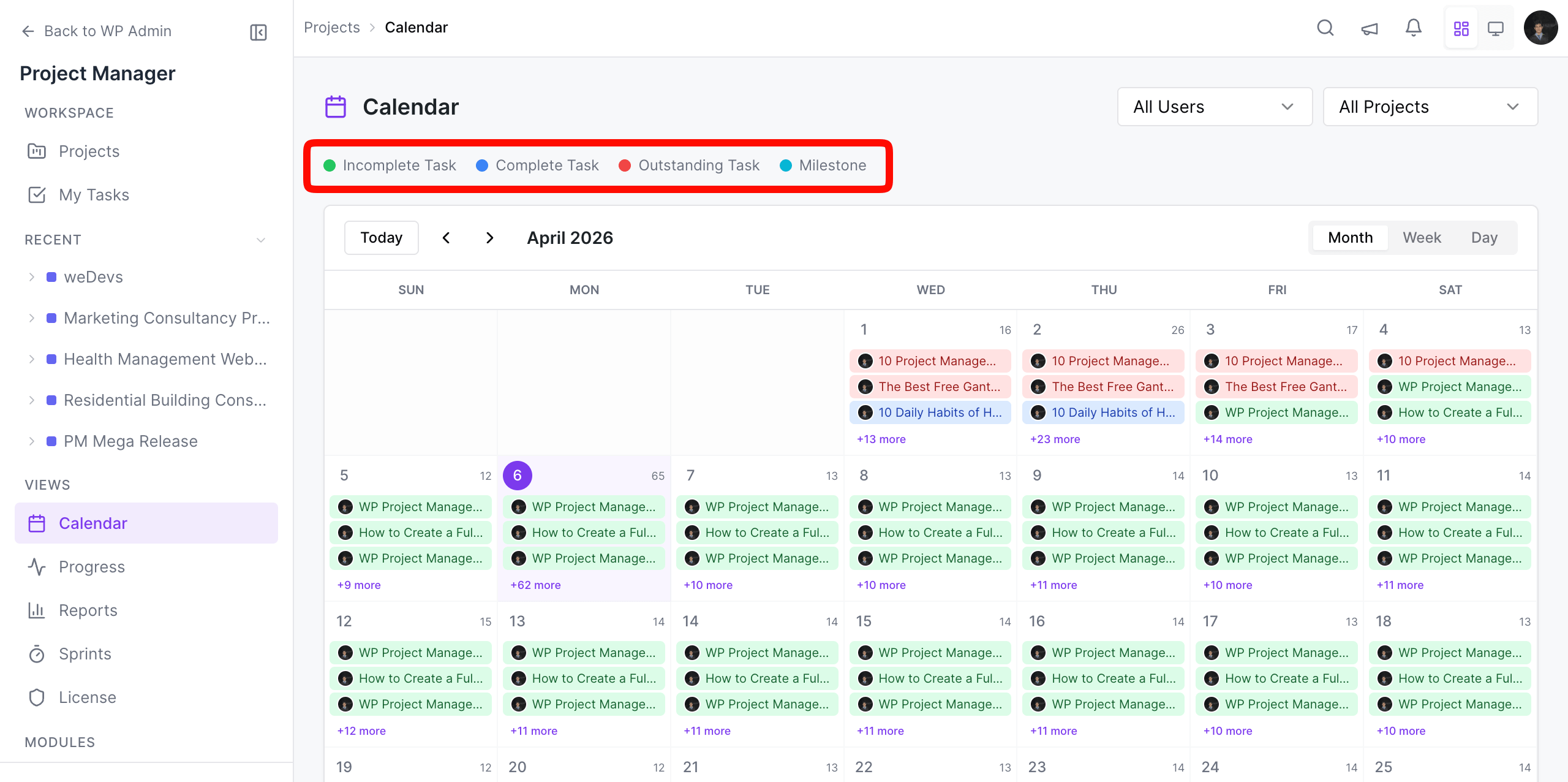
The Red bars represent the due tasks or outstanding tasks or the tasks that have a starting date but do not have a due date.
The Green bars represent the ongoing tasks or the tasks your team members are working on.
The Blue bars represent the completed tasks.
The light Blue bars represent the milestones you set for the project.
Filtering the Calendar
When you navigate to the calendar, it will show all the tasks for all the projects and users you create. But you may wish to see only the tasks for a particular project and user.
Luckily, you can filter the tasks shown on the calendar using three methods:
- One is selecting a project
- Another is selecting a user.
- The other is by selecting both a project and a user.
Filter by Project
Choose a project from the dropdown list and hit the Filter button in order to see the tasks for your desired project.
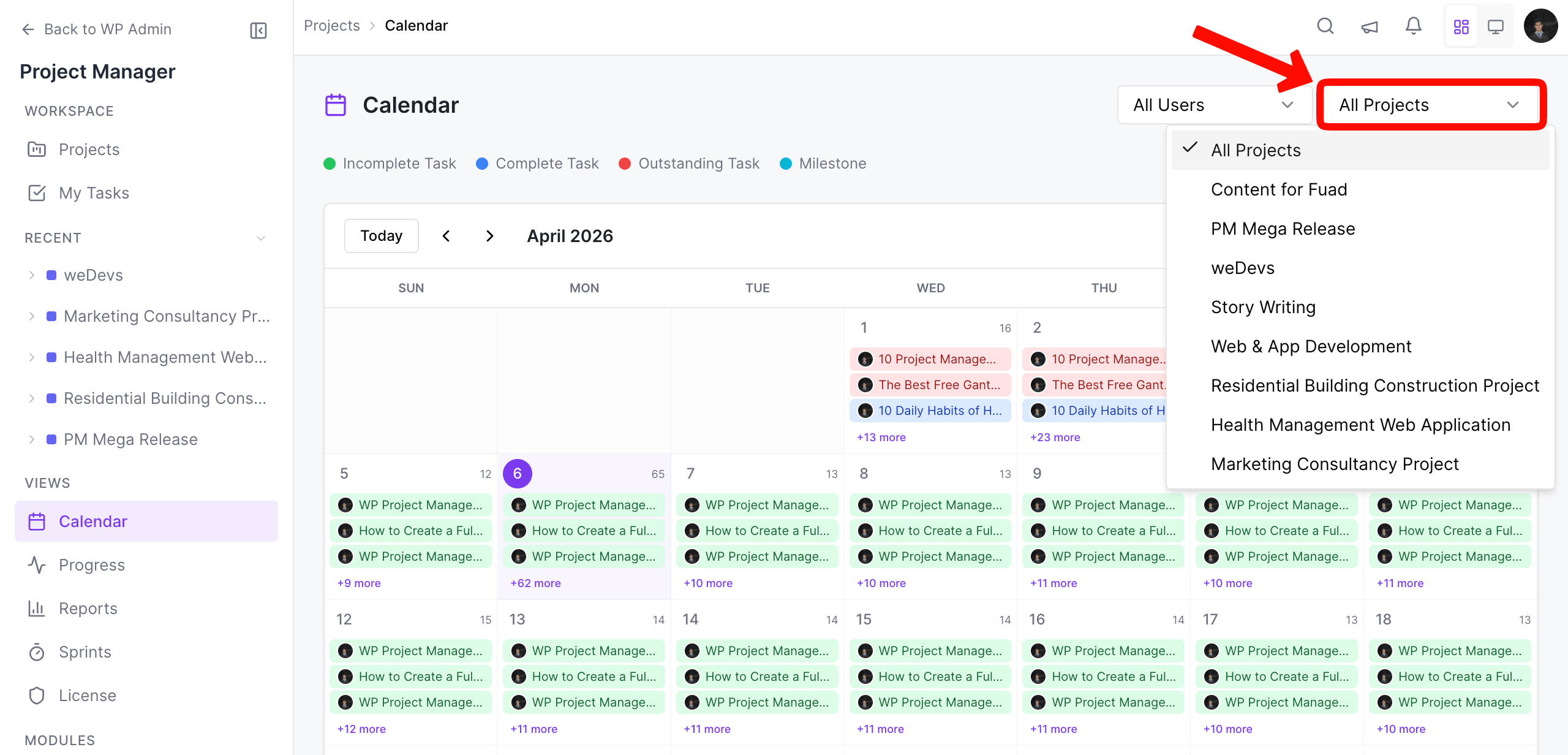
You can also choose the monthly, weekly, and daily options to see the tasks.
Filter by User
Choose users from the dropdown and hit the filter button to see the tasks of those users only:
Filter by Both (Project and User)
You can also specify projects and users together and filter the tasks accordingly:
Monthly, Weekly, and Daily View
You can get 3 types of views in the calendar. They are:
- Monthly View
- Weekly View
- Daily View
Monthly View (Default View)
Selecting this option will only show you the tasks on a monthly basis. Use the left single arrow and the right single arrow to navigate to the previous and next months.
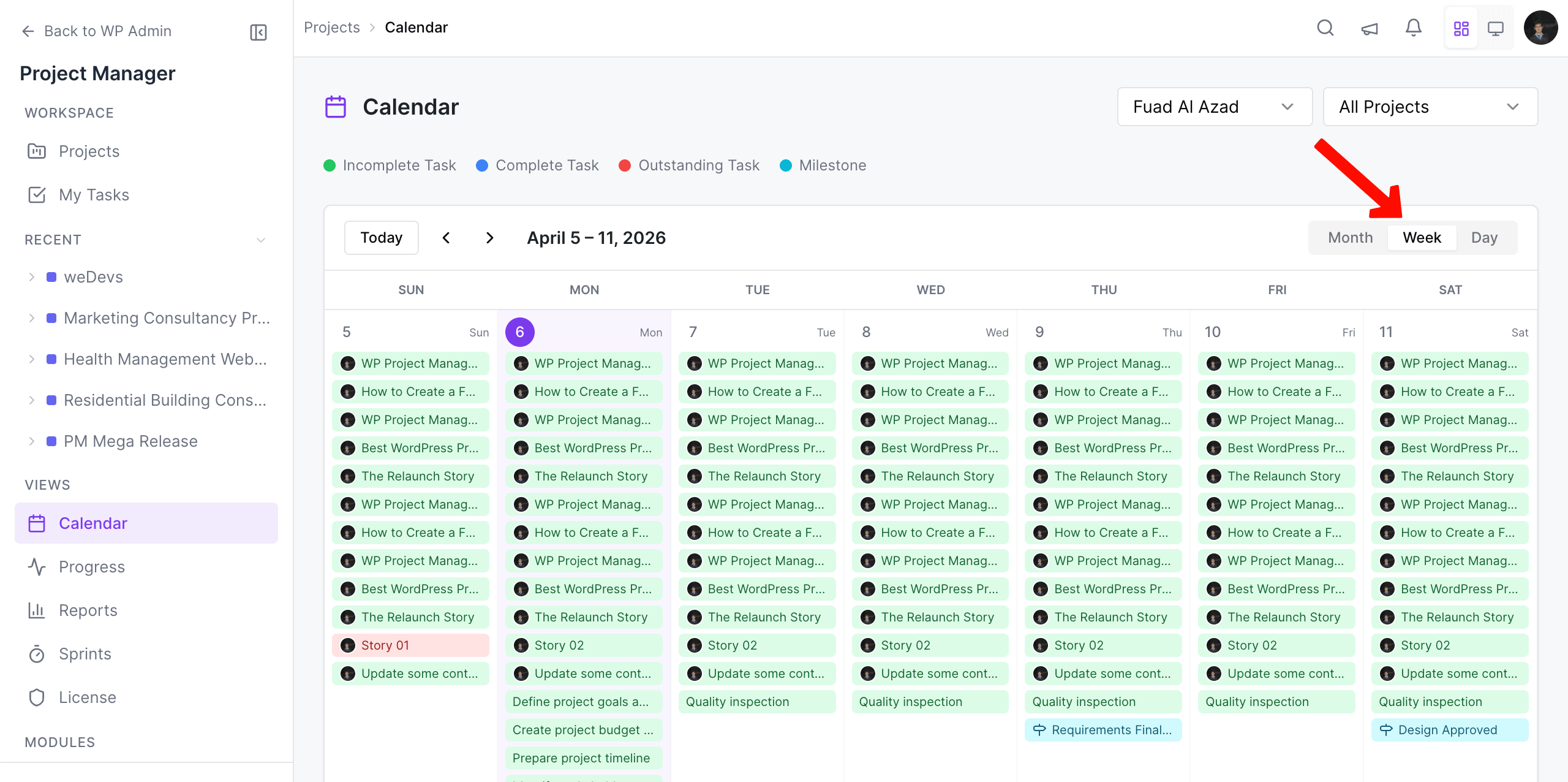
Weekly View
Selecting this option will only view the tasks on a weekly basis. Use the left single arrow and the right single arrow to navigate to the previous and next weeks.
Daily View
Selecting this option will show you the tasks on a daily basis. The daily view counts and shows tasks from 12 a.m. to 11 p.m. of a day, so it is a 24-hour calendar view. Use the left single arrow and the right single arrow to navigate to the previous and next days.
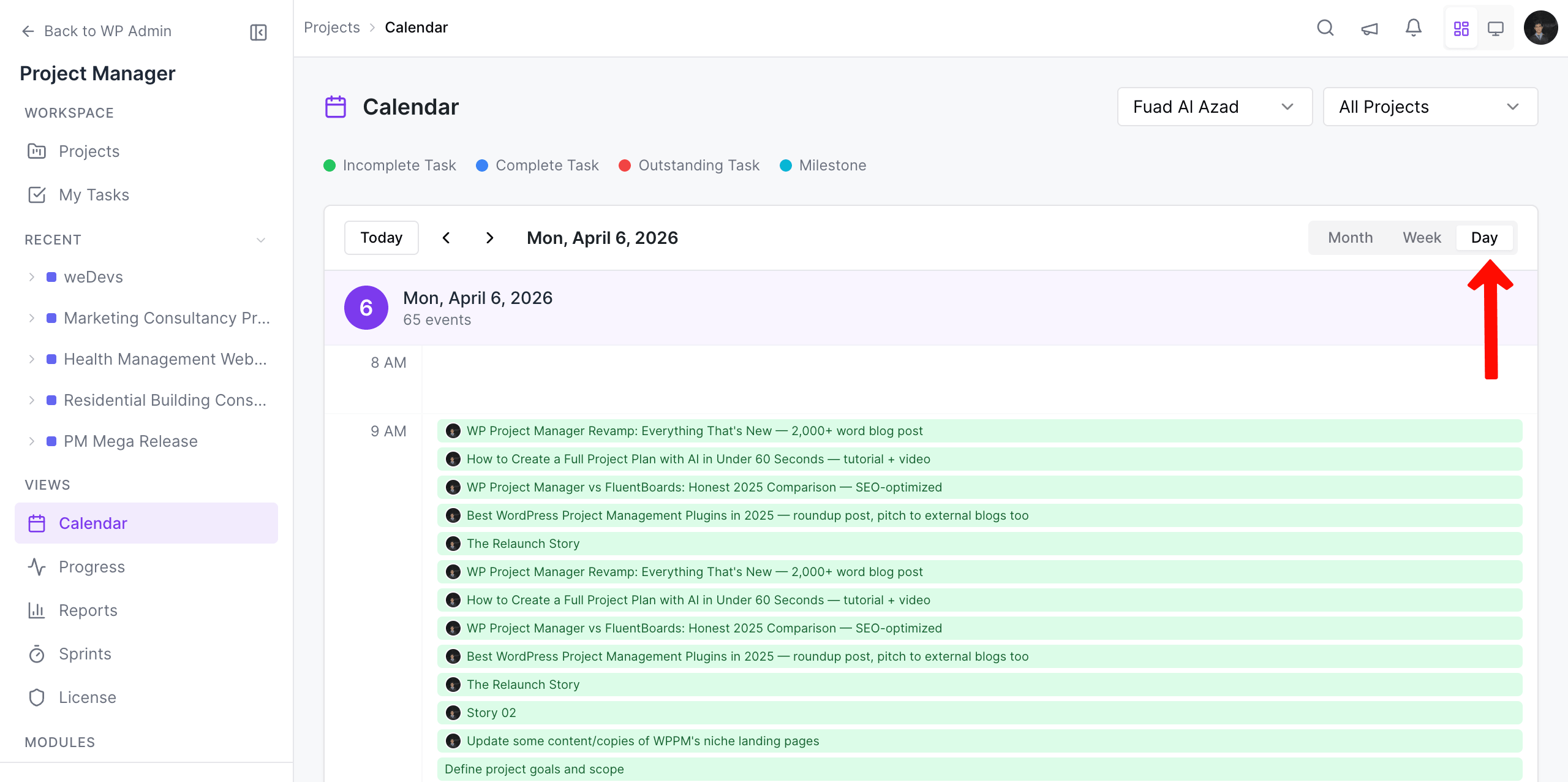
Note: You can use the ‘today‘ button to quickly navigate to the tasks for the current day you are working on. The button remains deactivated if you are already on the day you are working.
