


Google Analytics eCommerce Tracking: How to Track and Generate More Sales
Making a unique identity among 24 million eCommerce stores is not an easy task. You must track your business performance regularly and review the strategies based on that. Initially, measure your goal considering KPIs like online conversion rate, click-through rates, sessions, page views, and others.
It helps you determine which of your products people love most and which aren't working well. To do that, you need to set up Google Analytics eCommerce tracking for your website. This can help identify your traffic sources, which pages and products customers engage with, and what drives conversions on your website.
However, leveraging Google Analytics eCommerce tracking data could be inconceivable if you don't know how to use it properly. To help you on this journey, we are going to show you how to track Google Analytics eCommerce data and use it to drive more sales.
Why Google Analytics eCommerce Tracking Is Essential
eCommerce Tracking is a feature of Google Analytics that tracks shopping activity on your website. You can use it to track and analyze transaction data, revenue, products you’ve sold, and more.
Today, GA4 gives even deeper insights by tracking user behavior across devices and platforms. It uses event-based tracking, which means every action (view item, add to cart, start checkout, purchase) is recorded in a more detailed way than the old Universal Analytics approach.
The ability to track where your customers come from, what parts of your website they interact with, and what they do before and after a purchase is a piece of critical information. Because these data can be used to improve the user experience and drive more revenue.
eCommerce data in Google Analytics will give you specific insights into:
- Products with a high or low number of sales
- What are the best products viewed by the customers
- The average revenue per transaction
- Your online store’s conversion rate
- Changes and trends in transactions and revenue over time
When you have all this data in your hands, you can make use of it in different ways. Let's talk about that-
1. Improve shopping cart abandonment rate
The cart abandonment rate is expressed as a percentage and shows the number of sessions that included cart abandonment. Use the cart abandonment metric to understand how much potential revenue you’re missing out on. And plan a better strategy to improve the abandonment rate.
2. Track sales report
eCommerce tracking lets you instantly gauge the pulse of your online store. You can monitor the sales report, like what our revenue is month-to-date and year-to-date, whether there are significant peaks or drops in sales, how revenue this week, month, or quarter compares to the same period last year, and many more.
3. Increase your conversion rate
eCommerce tracking helps to identify pain points in the customer journey. For example, if a lot of visitors are dropping off from a particular page, you may need to investigate so you can learn how to improve their experience and reduce drop-offs. That ultimately helps you to increase the conversion rate.
How to Set up Google Analytics eCommerce Tracking- Step-by-Step Tutorial

Now you know what is Google Analytics eCommerce tracking and the benefits of using it. In this segment, let's learn how to set it up for your WordPress site.
You may have already guessed that you need a Google Analytics account to continue this part. So, if you already don't have an account, sign up for a Google analytics account now.
Once you have created your Google Analytics account, go to https://analytics.google.com/analytics/web/ and follow the procedures below.
Configure Google Analytics eCommerce Tracking for Your WordPress Website
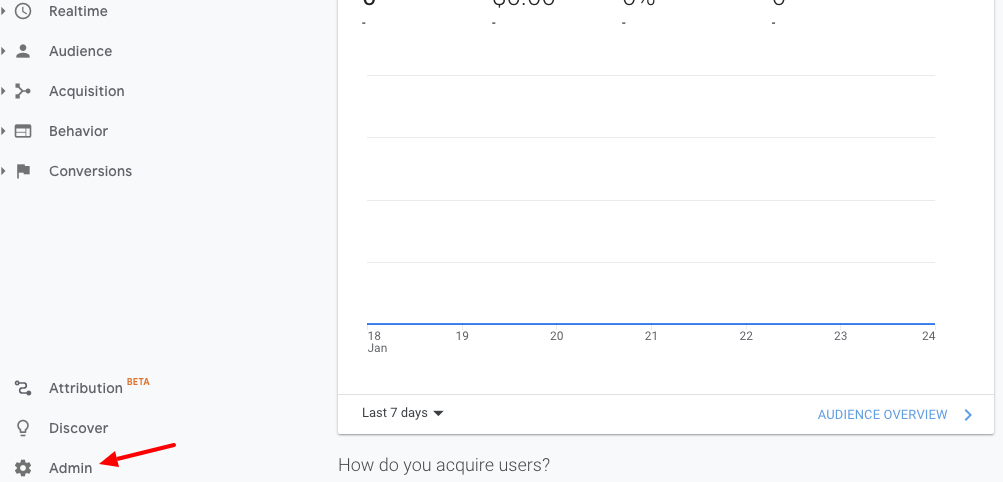
Step 01: Click on the “Admin” option from the bottom left-hand side.
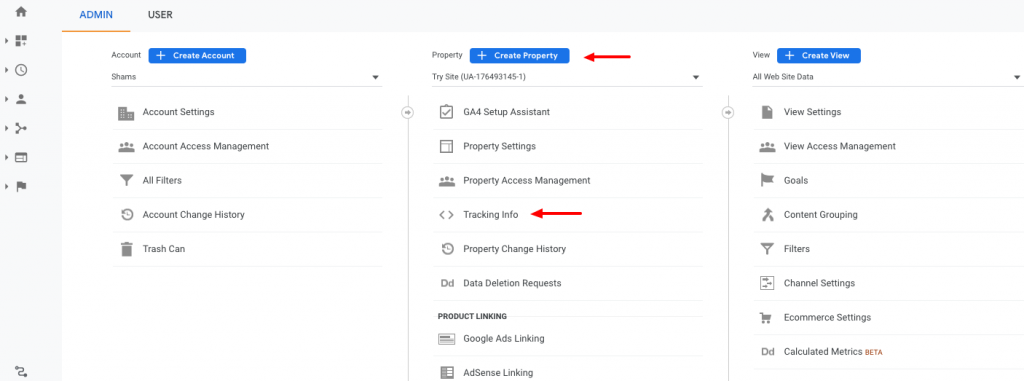
Step 02: Click on the “Tracking info” from the drop-down menu under the “Property” column. You'll see the property column between the Account and View columns.
Step 03: After clicking the Tracking info link, you will get some options. From there, click on the ‘Tracking Code' option. Then you'll get the tracking code.
Step 04: Copy the Google Analytics tracking code from the box under the ‘Website Tracking' section.
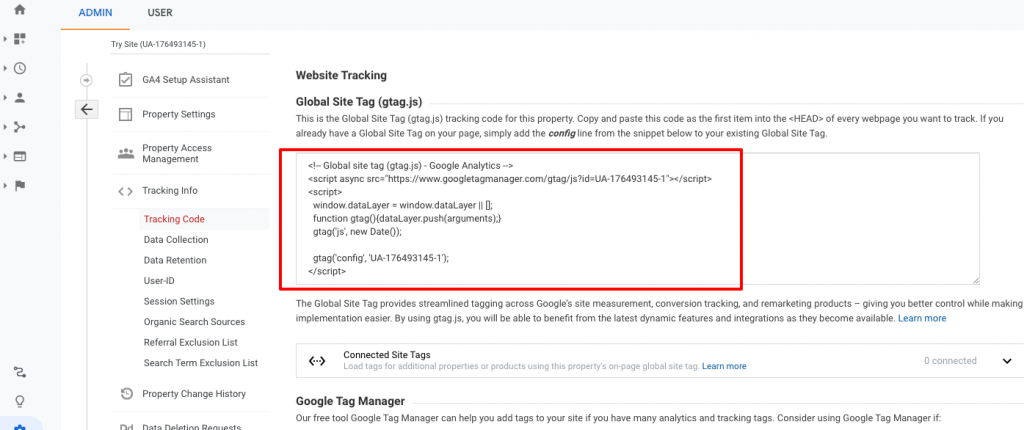
Step 05: Paste the Google Analytics tracking code in the header template file (header.php). In case you don't know where the file is, go to your WordPress dashboard > Appearance > Editor > header.php. Here you should paste the code.
Step 06: Now, go to your Google Analytics account and navigate to Realtime > Overview to check how many people are active on your site.
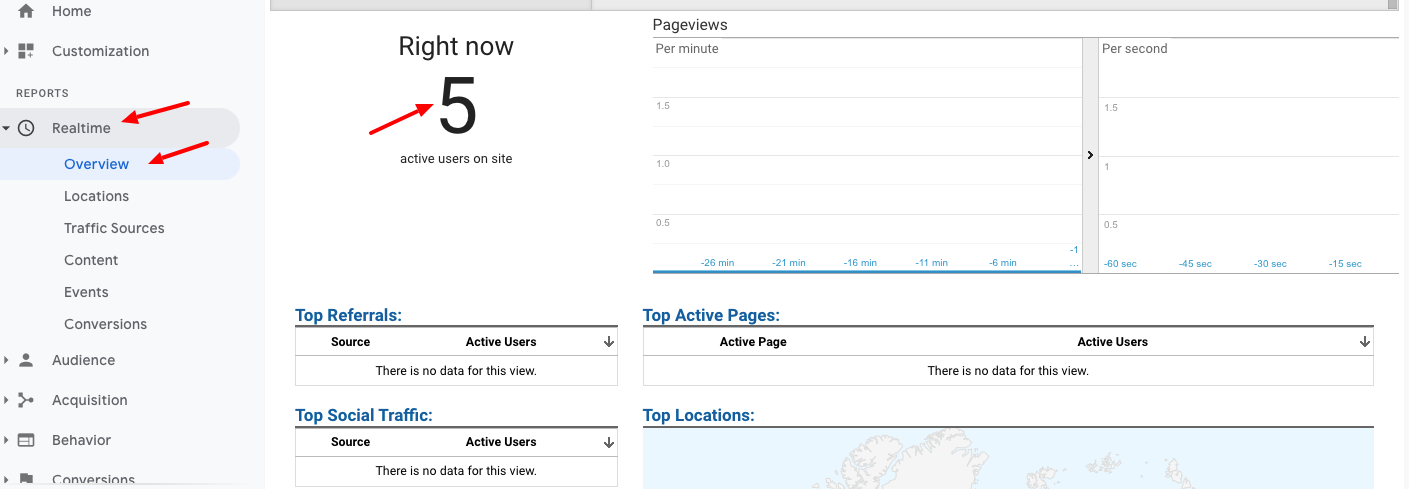
After installing Google Analytics on your website, you can see the number of users in your Realtime Overview report.
Step 07: Now, click the ‘Admin' option again from the bottom-left corner. Then, from the View column, click on the “Ecommerce Settings” option.
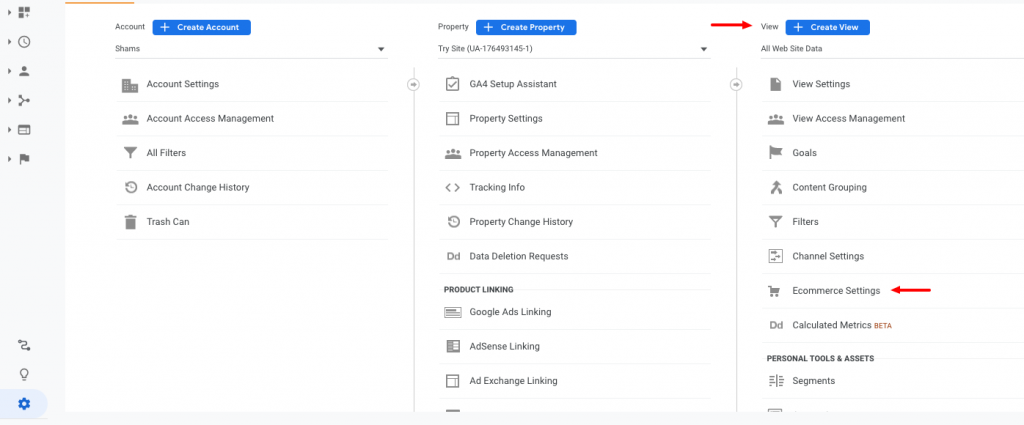
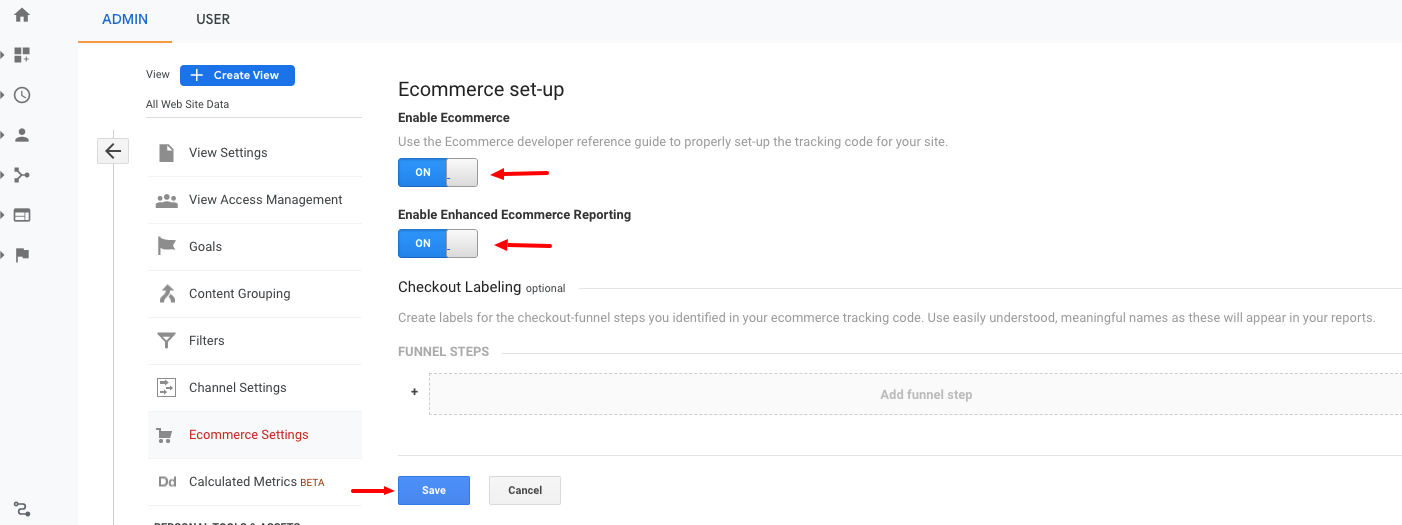
Step 08: Click the on/off toggle to enable eCommerce tracking settings.
Once you’ve done, you’ll see the option to Enable Enhanced Ecommerce Reporting, which gives you additional insights and the ability to create customized labels for the steps in your checkout process.
Enhanced Ecommerce isn’t required, but is recommended. Enhance eCommerce gives you data about how your users progress through the checkout process.
Then click the ‘Save' button to save all the changes that you have just made.
Now go to your Google Analytics account and navigate to Conversions > Ecommerce, you'll see many options there including Overview, Shopping Behavior, Checkout Behavior, Product Performance, Sales Performance, and Product List Performance.
eCommerce Overview- What You Will Get in the Reports
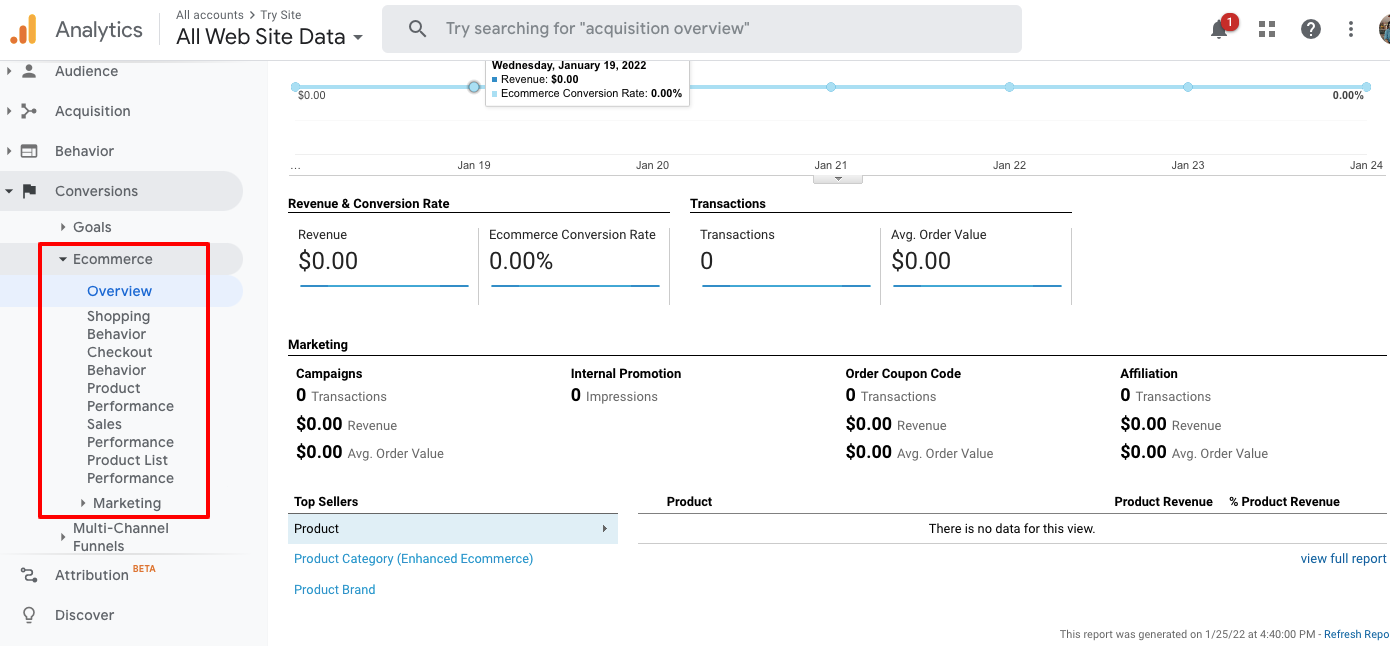
Shopping Behavior: Your report for understanding behavior at different stages of the buyer funnel. eCommerce Conversion Rate, Transactions, Average Order Value, and other metrics.
Checkout Behavior: Report to understand how users navigate your checkout process step by step.
Product Performance: Google’s Product Performance report allows you to understand how your products are performing in terms of shopping behaviors and sales. Revenue, Purchases, Quantity, Average Price, and Average QTY by SKU and Category.
Sales Performance: The Sales Performance report allows you to evaluate your eCommerce sales by transaction and date.
Product List Performance: Product Lists are a grouping of products based on tags you’ve set for your products across your website. These can include catalog pages, category pages, cross-sells, up-sells, related, and more.
Track this data to get an idea about how your business is performing.
How to Use Google Analytics to Increase Sales in Your Online Shop

1. Use Campaign Data
By analyzing your previous campaign data, you can really start to understand which marketing efforts are performing better than others, and also understand which efforts may need a little work.
To access this data, go to Acquisition > All Traffic > Channels.
You will typically see between 4 and 8 different channels of traffic, and if you can properly analyze the data, it will show you where to prioritize your efforts. The channels you may see in the list are Organic, Social, Referral, Email, Direct, Paid, and Other traffic.
By reviewing which channels are doing well and which channels aren’t, you’ll gain insight into where to focus your precious time and energy.
2. Set up Conversion Funnels
Want to know exactly what steps your visitors are taking when they buy things? Google Analytics conversion funnels can give you the answers. These funnels are the journeys consumers take online when they search for information, visit websites, view online ads, and make purchases.
Being able to see what steps your website visitors are taking can help you nurture them more effectively with the right content at the right time, while also helping you fix any errors that are leading visitors to drop out of the funnel.
3. Target Geolocation
Figuring out which countries are most interested in your brand can help you focus your energy on where it matters most. Google Analytics can give you exactly the overview you need. You can access this information via the audience drop-down on your menu.
For example, if you’re seeing a healthy click-through rate from certain regions, but also a high bounce rate, you can choose to exclude them from your promotional marketing efforts.
Knowing where you’re most likely to attract paying customers is crucial information. Adjust your strategy accordingly!
4. Find out High Converting Pages
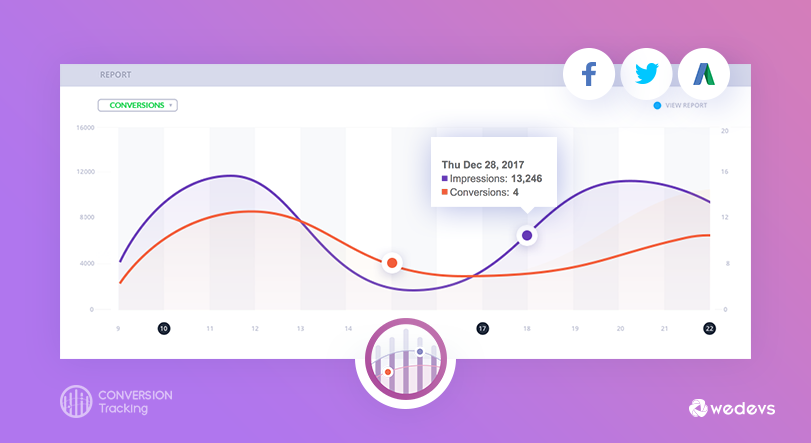
Tracking which specific web pages on your site are producing the highest conversion rate can be highly valuable. Knowing what works to convert and increase sales can help you create new content that will turn web visitors into paying customers.
It can also help you reduce costs and maximize the effects of your best web pages by knowing which pages should be marketed more heavily and which ones shouldn’t.
Simply use Google Analytics’ Reverse Goal Path to uncover your top-performing web pages and content and better understand which types of content your audiences appreciate most.
5. Track Product Performance
Tracking the product performance using your Google Analytics account, you can analyze user interactions with products and understand what is converting at the highest rate.
Check product performance from Conversions > Ecommerce > Product Performance.
This is where you can break down the product sales performance by dimension. This can be by product name, product category, product brand, or SKU. You will also see various product metrics such as revenue, unique purchases, quantity, average price, average quantity, cart to detail rate, and product refund amount.
After reviewing the data, you can resolve your issues by ensuring that your ad copy in any advertisements and the page copy are 100% accurate. Or, you may need to reevaluate the pricing of certain products.
6. Find Keywords with High Conversion Rates
Identifying and using the best keywords for your business can increase sales by improving the visibility of your blog and other web pages on search engines.
But how do you know if your keywords are driving conversions? Create an AdWords campaign with your targeted keywords and then go to Google Analytics to see which ones led to purchases and which ones didn’t convert. Armed with this knowledge, you can then build more relevant and effective content to increase sales.
Bonus: Use a WordPress Conversion Tracking Plugin to Make Your Job Easier
When we are talking about eCommerce tracking, using a plugin for your WordPress site can make your job much easier. Using a WordPress plugin, you'll get all the tracking data from a single dashboard. On top of that, it can also help you to manage and run paid ads to target and retarget your potential customers.
You'll find dozens of WordPress conversion tracking plugins out there. Among them, our favorite is the WooCommerce Conversion Tracking plugin.
It's a freemium plugin with more than 60K active installations. Using this plugin, you will be able to
- Obtain advanced user behavioral data
- Get detailed conversion data for analytics
- Create better ad campaigns
- Increase ROI from all paid media investments
- Secure better customer retargeting for future marketing efforts
WooCommerce Conversion Tracking plugin comes with a long list of features. Some of the key features of this plugin are,
- Tracking trigger-based events
- Fine-tuned audience retargeting
- Facebook multiple pixel and product catalog
- Submit custom values to connected platforms using custom parameters
- Last but not least you don't need to apply any custom coding
Track Google Analytics eCommerce Data to Maximize Your Sales
All the successful eCommerce startups are tracking their Google Analytics eCommerce data to launch better marketing campaigns and get the most out of it. So, what are you waiting for?
Now you know what Google Analytics eCommerce tracking is and tips to get more sales through properly using it. So, start applying all the tricks and tips that we have shared in this article to your eCommerce business and grow fast.
If you have any queries or suggestions regarding the topic that we have discussed now, you can let us know through the comment box below. We'll love to get your feedback.
Also, don't forget to share this blog with your circle if you think it can create value for them.

