

How to Accept Student Assignments in WordPress
If you teach online, collecting assignments can turn into a mess fast. Files arrive by email. Some come through chat apps. Others sit behind Google Drive permission requests. Everything ends up scattered.
You don’t have to deal with that anymore.
You can accept student assignments right on your WordPress site. Students upload files from one simple page. You review submissions from a single, clean dashboard.
This setup works great for schools, coaching sites, online courses, training programs, and private tutors. Best of all, you don’t need technical skills to set it up. Next, you’ll see the easiest ways to accept assignments in WordPress, including a beginner-friendly option that keeps students out of wp-admin.
Why Accept Assignments on Your WordPress Site?
When students submit assignments through your website, everything stays organized. You won’t chase emails or search for missing files. Every file lands in one place. You can download, review, and even send feedback without leaving WordPress. Here are the key benefits:
- No more email overload: Students upload files to a page. You don’t lose submissions in a crowded inbox.
- All assignments stay in one dashboard: You can sort, filter, and track student progress.
- Students don’t need wp-admin access: They use a simple frontend form. This keeps your site clean and secure.
- You choose what file types students can upload: PDFs, Word documents, images, presentations, or even video links.
- It works for many education models: You can use it for schools, online courses, language classes, coaching programs, hobby groups, and training sites.
Online learning is growing every year, and more teachers want simple tools that save time. Accepting assignments on your WordPress site gives you full control without extra software. It’s faster, cleaner, and stress-free for both you and your students.
What You Need Before Getting Started
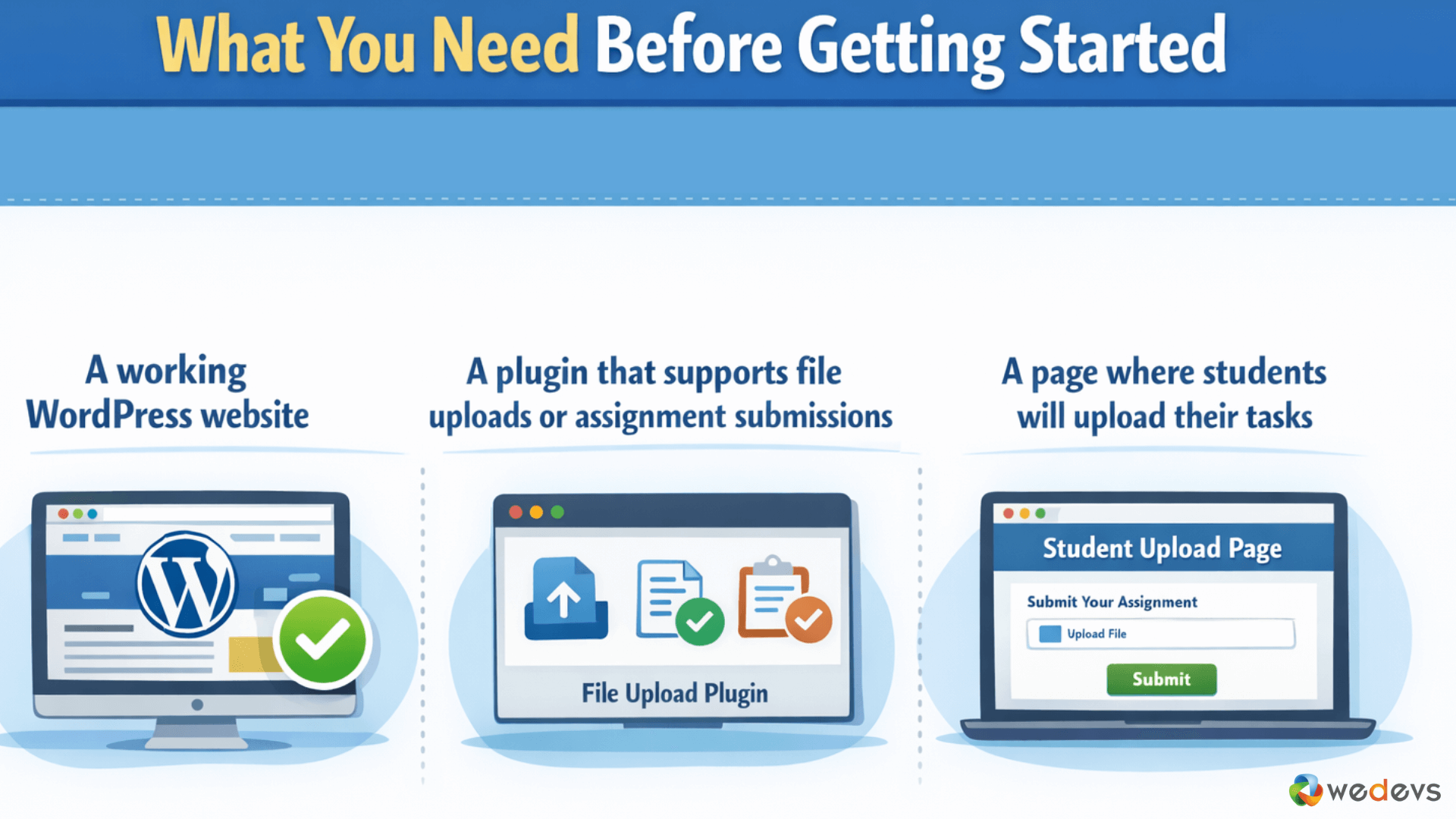
You don’t need a complex setup. Just a few things in place:
- A working WordPress website
- A plugin that supports file uploads or assignment submissions
- A page where students will upload their tasks
Optionally, if you want only enrolled students to submit assignments, you can use:
- An LMS plugin
- A membership plugin
- WP User Frontend subscription plans
That’s all. Once these are ready, you can start accepting homework, projects, and coursework right inside WordPress.
How to Accept Student Assignments in WordPress
If you already use an LMS plugin, accepting assignments becomes much easier. Most LMS plugins handle this out of the box. But if you rely more on frontend posting and want full control over how students submit their work, WP User Frontend Pro fits perfectly.
Let’s start by looking at how you can accept student assignments using an LMS plugin.
Method 1: Using an LMS Plugin to Accept Assignments
If you already run online courses, you might use a Learning Management System. Many popular LMS plugins come with built-in assignment features. Students finish a lesson, upload their work, and you review everything from the dashboard.
Here are well-known LMS plugins that support assignment submissions:
- Tutor LMS
- LearnDash
- LifterLMS
How it works is simple:
- Create a course and add a lesson.
- Enable assignments for that lesson.
- Students upload files from the lesson page.
- You download, grade, or leave feedback.

Why this method is great:
- It keeps everything inside your course system.
- You can track progress and completion.
- Perfect for full classroom setups.
Where it might feel heavy:
- LMS plugins are feature-rich and sometimes costly.
- If you only need a simple way to collect assignments, this can feel like too much.
That’s why many tutors, coaches, and small training programs prefer a simpler method. And that’s where WP User Frontend Pro shines.
Method 2: Using WP User Frontend Pro (Frontend and Beginner-Friendly)
If you want the simplest way to accept student assignments, this is it. WP User Frontend Pro lets students upload files from a clean frontend form. They never enter wp-admin. You keep full control.
Why WP User Frontend Pro Works So Well
- Students submit homework from a regular WordPress page
- You choose the allowed file types
- You limit file size and number of uploads
- You see every submission in one dashboard
- Works for schools, coaching sites, workshops, and eLearning programs
It feels like a built-in assignment portal for your website.
Step-by-Step: Accept Assignments With WP User Frontend Pro
Step 1: Install WP User Frontend Pro
Go to Plugins → Add New → search for WP User Frontend → Install → Activate.
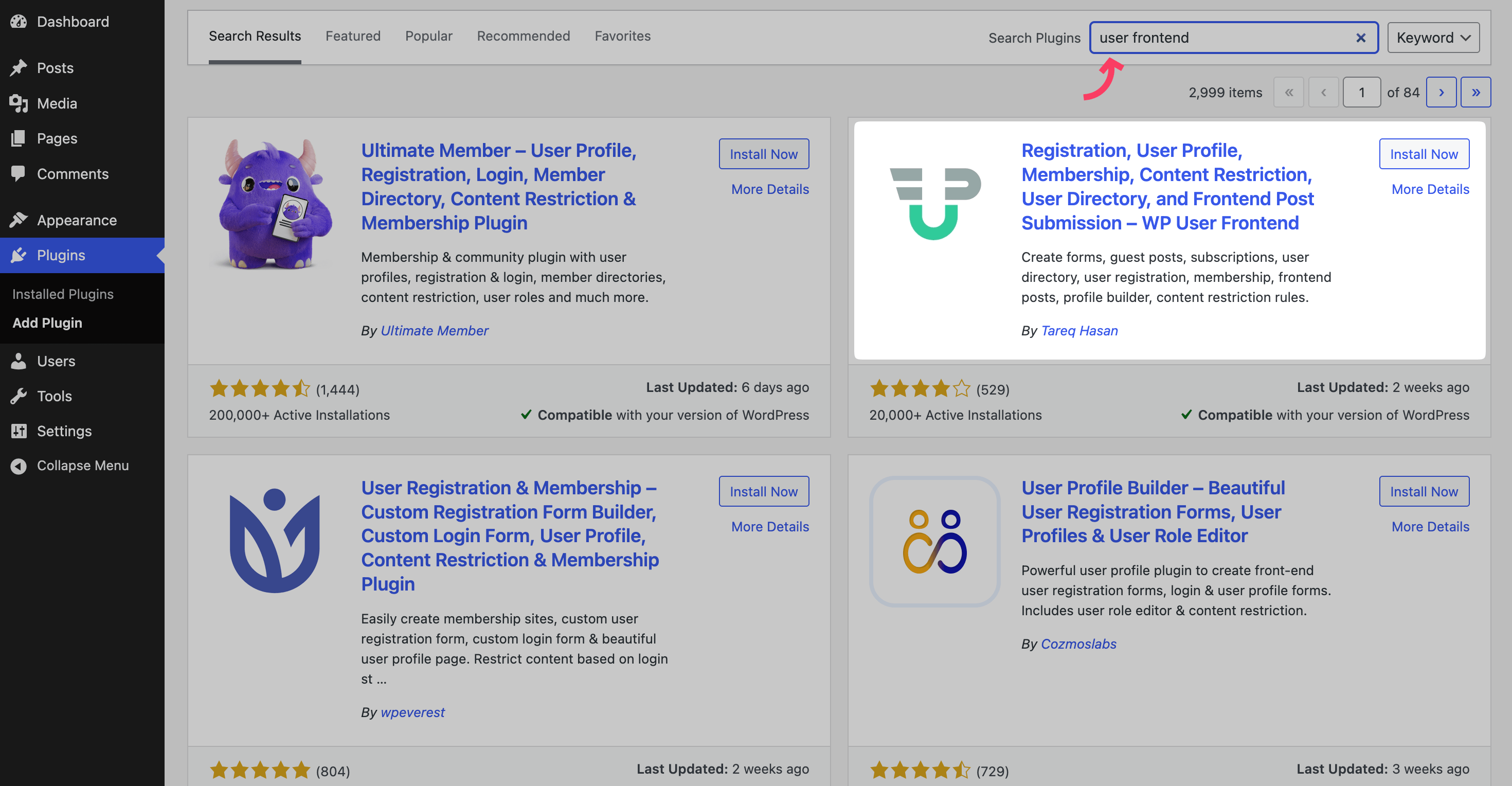
As the uploading file feature is available only in Pro plans, you need the WP User Frontend paid version to accept assignments using it. Buy a Pro version, then activate it.
Step 2: Create a Submission Form
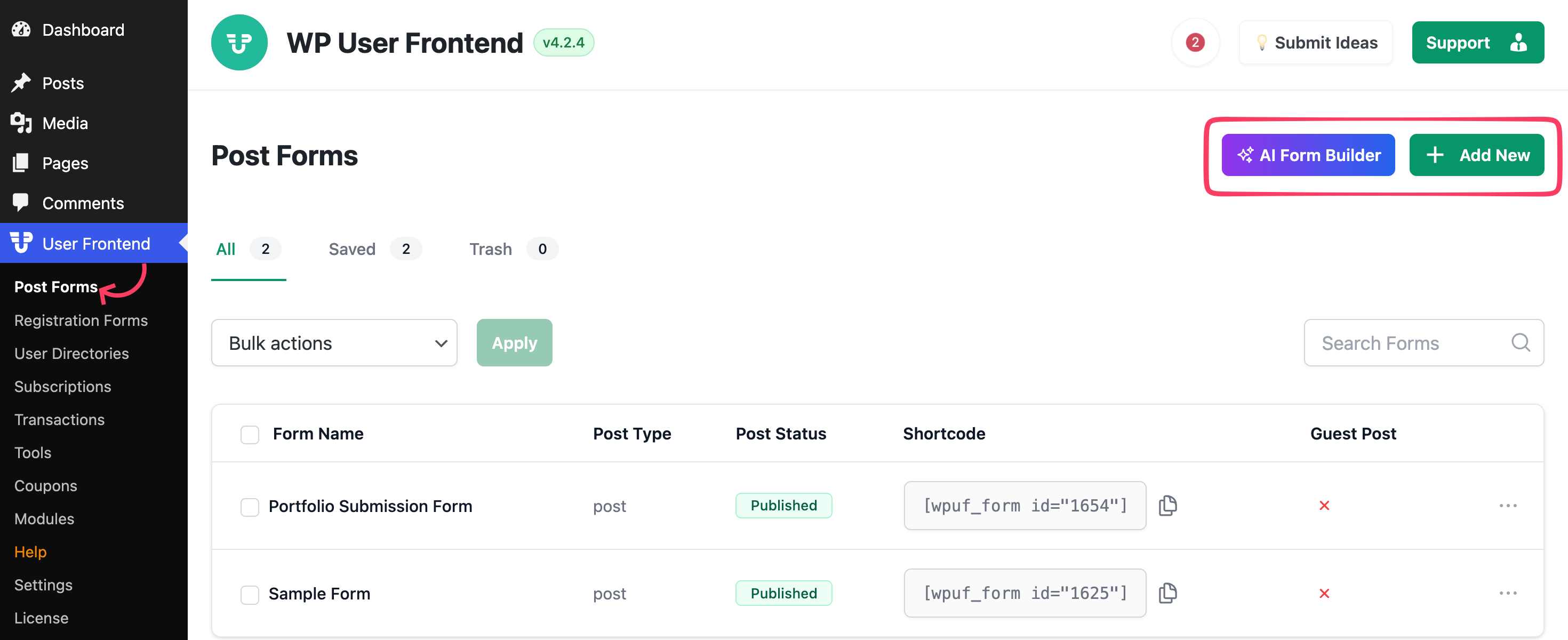
Go to User Frontend → Post Forms. Then you'll get two options: AI powered form builder and the regular form editor. Choose whichever is convenient for you.
Learn how to create a form using the AI Form Builder. Or you can start from scratch by clicking ‘Add New'.
Add fields such as:
- Student Name
- Assignment Title
- File Upload
- Notes or Comments
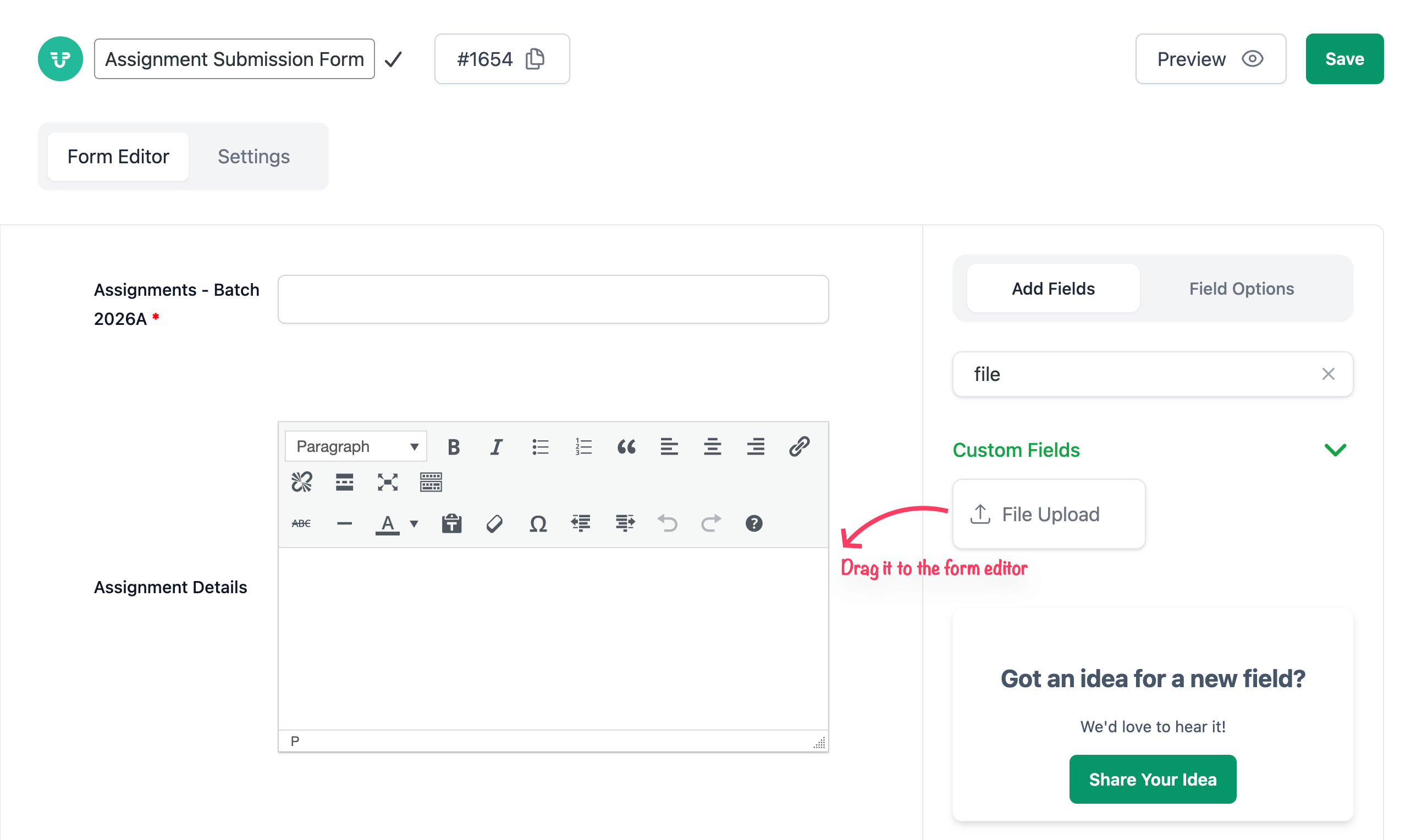
In this section of the tutorial, we'll discuss the ‘File Upload' custom field, as this is the functionality that makes your assignment submission complete.
Search the File Upload field from the right side panel of the editor. Drag it to the left side.
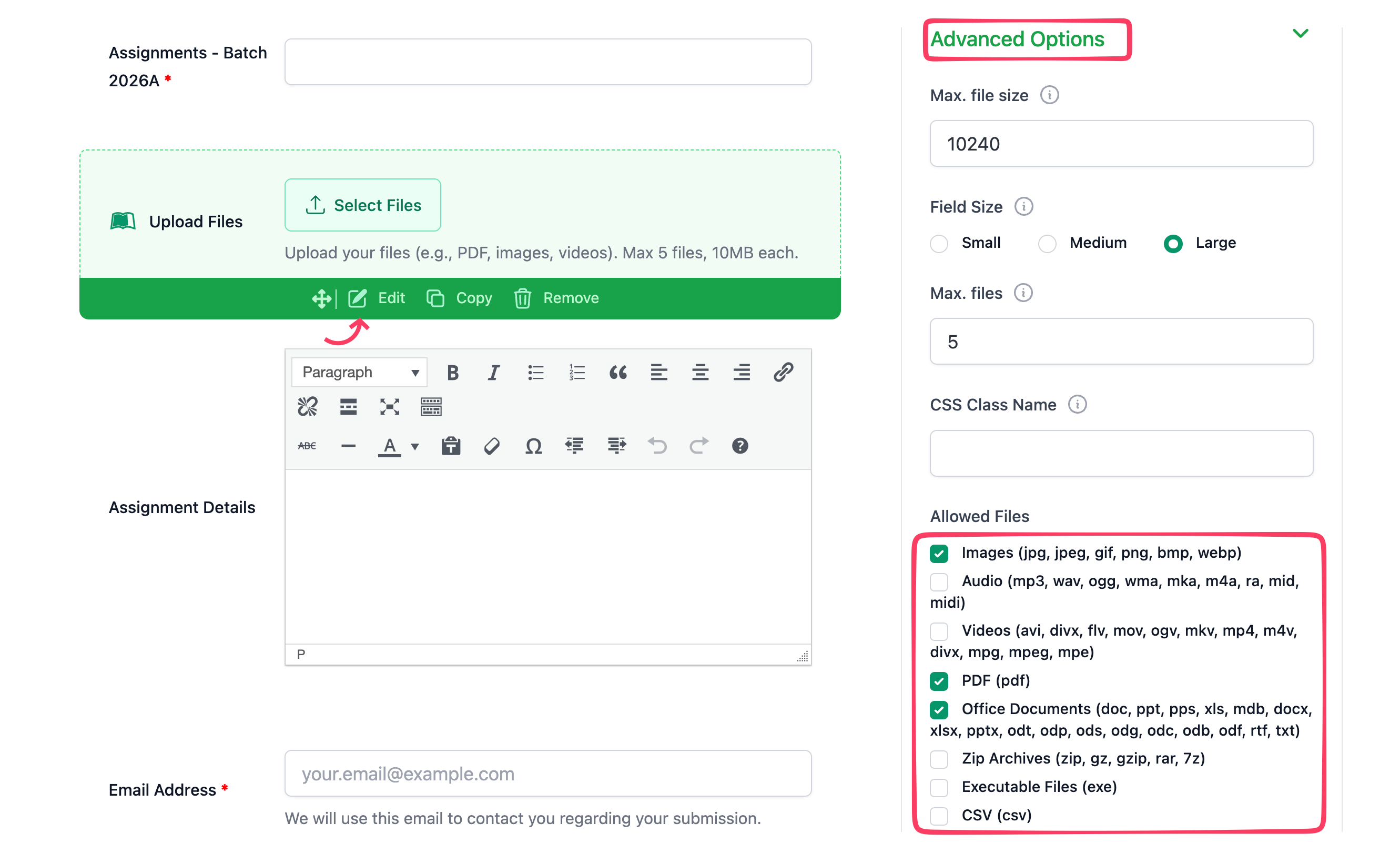
Then customize it as per your needs. The ‘Advanced Options' area has most of the things you need when accepting submissions. You can define the maximum file size, maximum number of files, file formats and more from here.
Once you configure the filed settings, save the form.
Step 3: Publish the Form on a Page
Create a new page called “Submit Assignment” or give a suitable name that fits your use case. Paste the form shortcode. Publish the page
Students can now submit homework from this page, no backend access needed.
Step 4: Review Student Submissions
All submissions are saved as posts. Go to All Posts in your WordPress dashboard. You’ll see every post users submitted, along with any extra details they added through custom fields.
Scroll down to the WPUF Custom Fields section and download the file if you need.
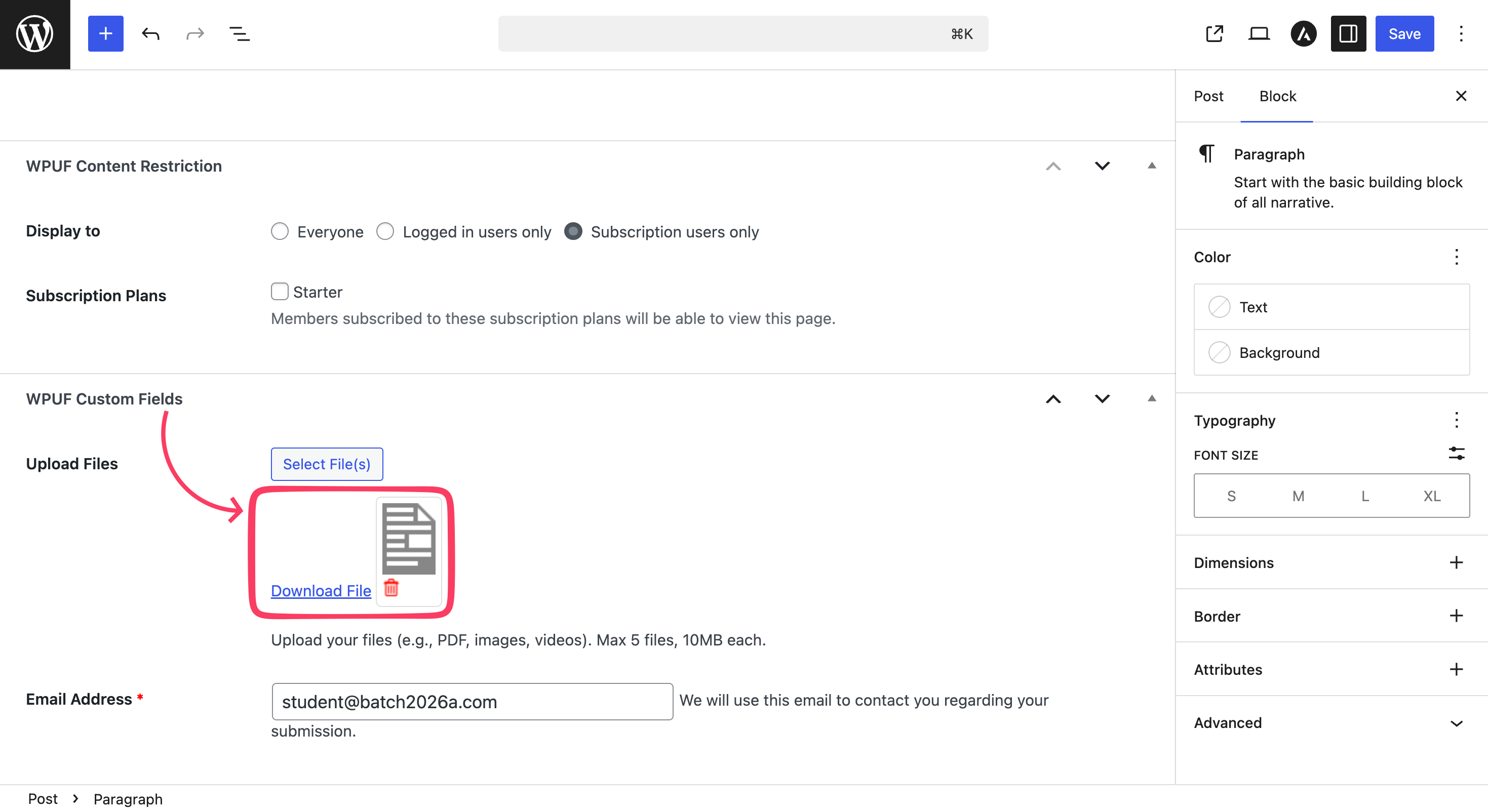
And, this is how, you get every file in one organized place.
If you want to show the assignments inside the post content area, you need to adjust the settings accordingly. Then the submission will appear on the frontend as well.
Helpful Extras (Optional but Powerful)
- Student Dashboard: Students can log in and see previous submissions. This makes your site feel like a real online classroom.
- Email Notifications: Send automatic confirmation emails after submission. No manual follow-ups.
- File Type and Size Control: Accept only the formats you want: PDF, DOCX, PPT, images, or ZIP files.
- Show Uploads to Students Only: Show submissions only to logged-in or enrolled users.
Best Practices for Secure Student Assignment Uploads
A few smart settings can save you from messy uploads, security risks, and storage headaches. Set these up once, and you stay stress-free later.
Allow only safe file types: Stick to common formats like PDF, DOC, DOCX, PPT, images, and ZIP files when needed. Skip uncommon or executable files.
Set clear file size limits: Big files slow down your site and eat up storage fast. Set a reasonable limit like 5 MB or 10 MB, depending on your course needs. Smaller limits keep things fast and tidy.

Limit the number of uploads: If one assignment needs one file, allow just one upload. This keeps submissions clean and makes reviewing easier for you.
Keep regular backups: WordPress stores uploaded files, but backups give you peace of mind. Use your hosting backup or a reliable backup plugin to automate this step.
Restrict access with login or CAPTCHA: Block spam and random uploads by limiting submissions to logged-in students. Adding CAPTCHA gives you an extra layer of protection when needed.
With these simple checks in place, your assignment uploads stay secure, organized, and easy to manage.
Real Use Cases That Actually Work with WP User Frontend Pro
Accepting student assignments in WordPress fits far more scenarios than most people expect. You can use the same setup across different learning models without changing your workflow.
| Use Case | How Assignment Uploads Work |
|---|---|
| Schools and Colleges | Teachers collect homework, research papers, and class projects from a single page. Students upload PDF or DOCX files, and nothing gets lost in email threads. |
| Coding Bootcamps | Instructors receive code files or GitHub links in one place. Submissions stay organized, making reviews and feedback easier. |
| Music and Art Instructors | Students upload audio recordings, practice videos, or artwork photos. You can track progress over time without digging through folders. |
| Coaching and Training Programs | Coaches collect worksheets or task files directly from students or clients. This keeps everyone accountable and organized. |
| eLearning Membership Sites | Assignment uploads stay restricted to logged-in or paying students. Your courses remain structured and professional. |
Final Thoughts
Accepting student assignments in WordPress does not need complex tools or extra platforms. With the right setup, you can collect files, manage submissions, and review work from one familiar dashboard. Students get a simple upload experience, and you stay in control of everything.
Whether you run a school site, a coaching program, or a paid course, this approach scales with you. Set User Frontend Pro up once, and let WordPress handle assignments the smart way.

