Most teams run the same kind of project again and again. A web studio builds one website after another. A marketing team launches a campaign every month. Each time, someone creates the same task lists, types the same tasks, and works out the same deadlines from scratch.
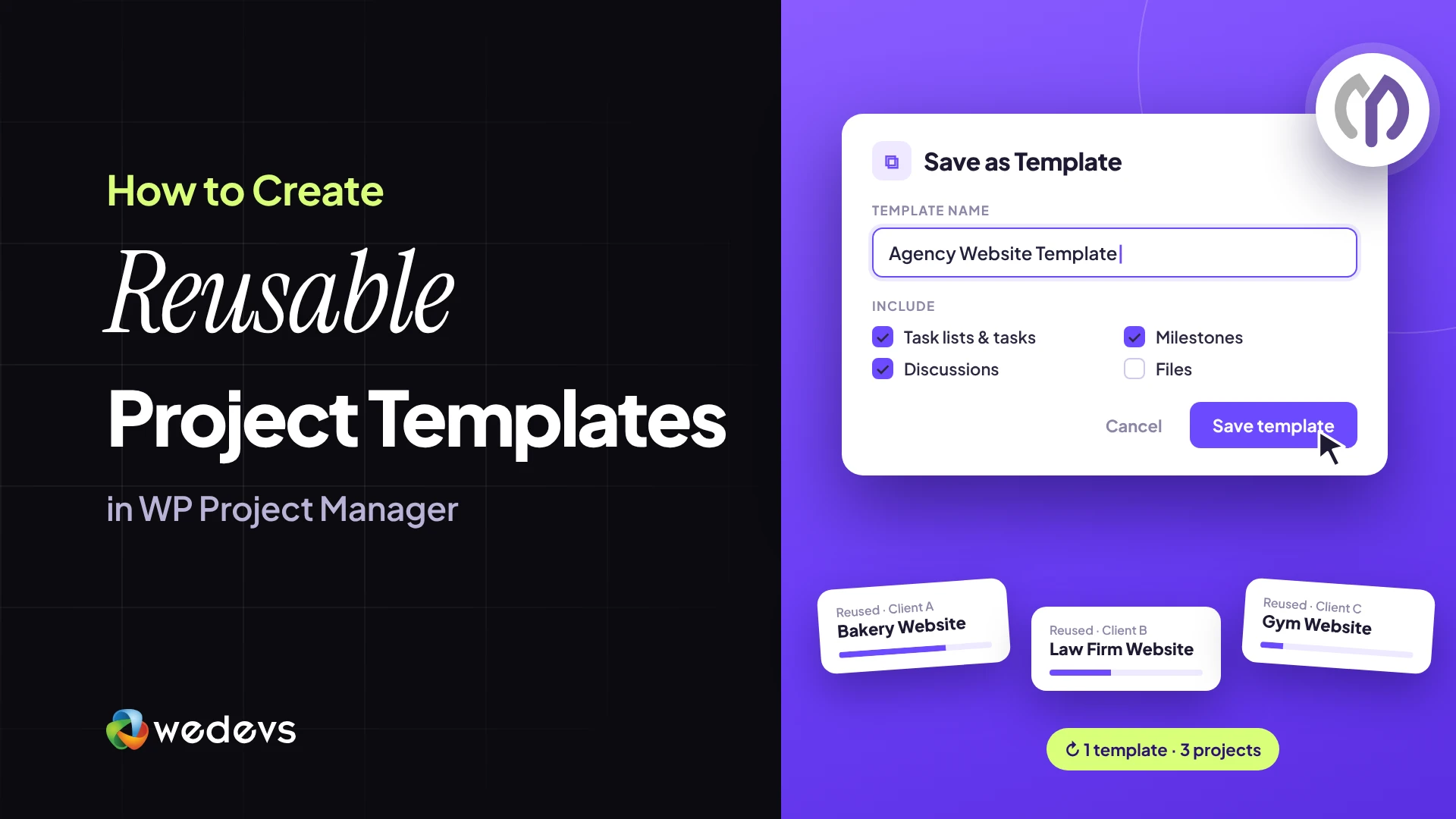
Reusable project templates in WP Project Manager end that routine. You build the plan once, with its task lists, tasks, and the day each task is due. After that, every new project can start from the template in one click, with all its due dates already set.
In this blog post, we'll show you how project templates work and how to create, use, and manage them step by step. We'll build a template for a small website launch and use it to start a real client project. Let's get started!
What Are Project Templates in WP Project Manager?
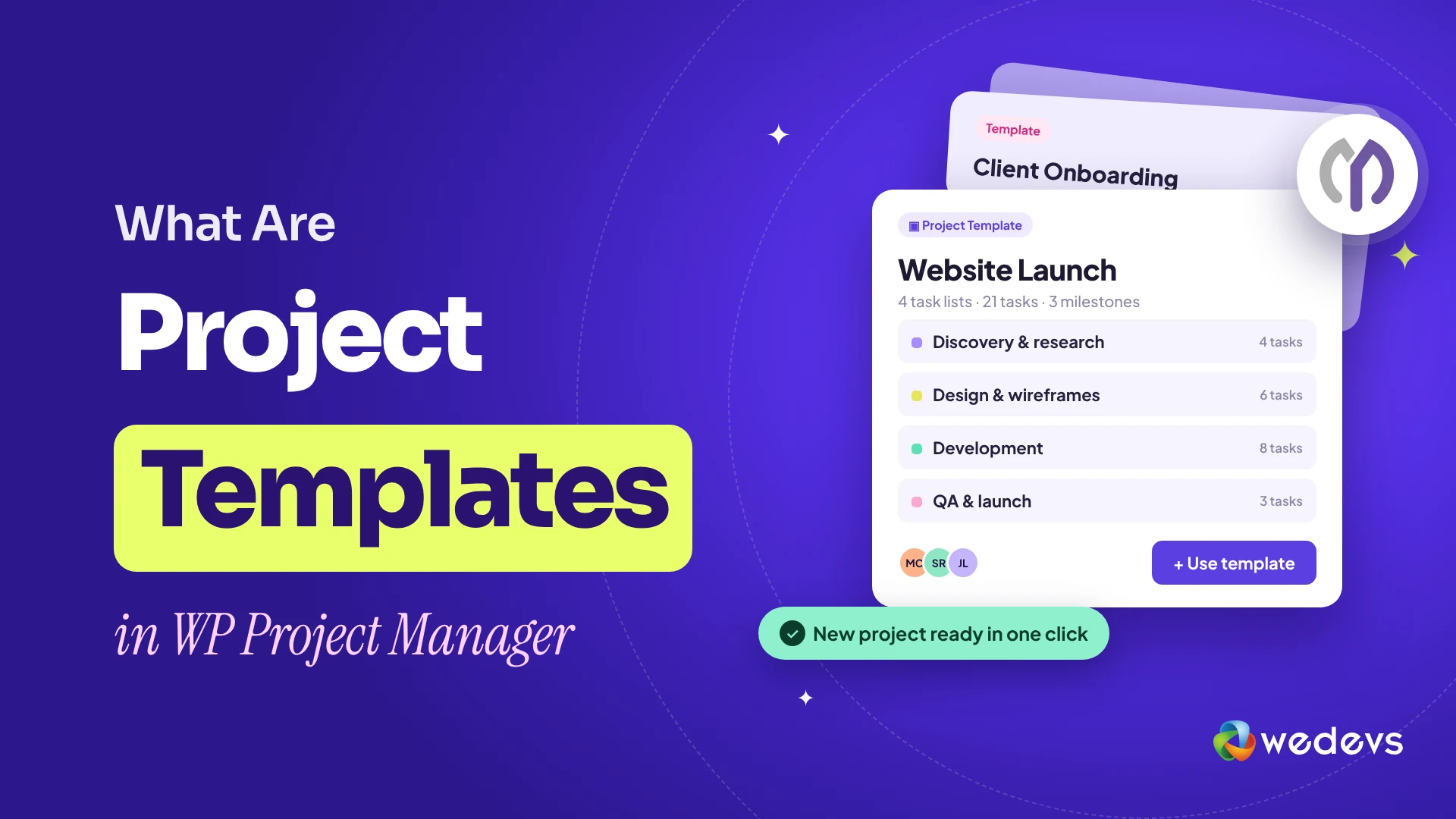
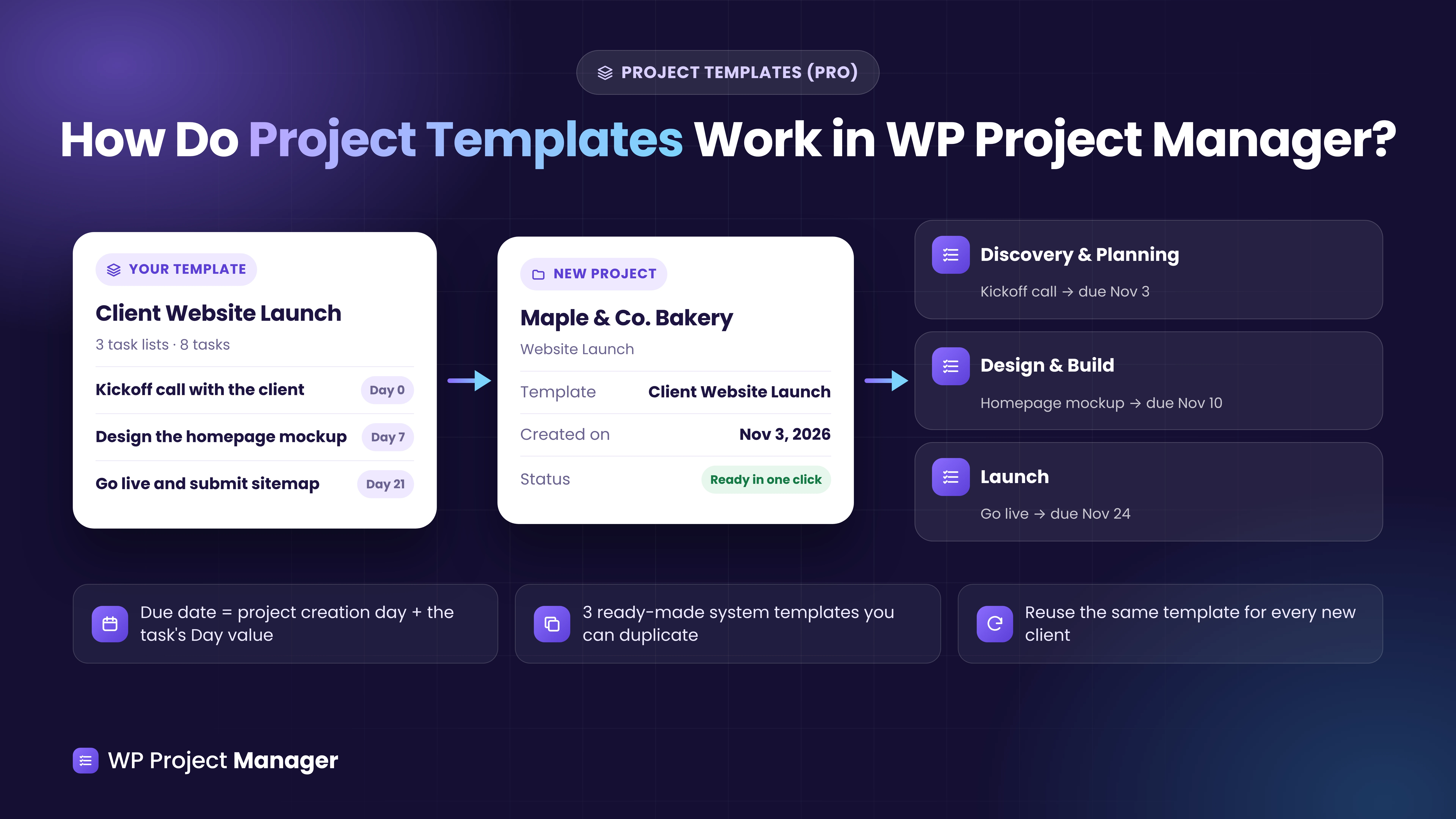
A project template is a saved plan for a type of project. It holds the task lists and tasks your team always follows. Each task can also have a Day value, which says how many days after the start the task is due.
A template has three parts:
- Template Name and Description: Helps your team pick the right template.
- Task Lists: The stages of the work, such as Discovery, Design, and Launch.
- Tasks with a Day value: The steps inside each list, and when each one is due. Day 0 is the day you create the project.
When you create a new project and choose a template, WP Project Manager adds all the task lists and tasks to it. Then it works out every due date from the day you created the project.
Why Use Project Templates?
Templates take a few minutes to build and save you that time on every project after. Here's what you gain.
a. Start New Projects in Seconds
There's no need to type the same lists and tasks for every new client. Pick the template when you create the project, and the plan is ready before you open it.
b. Due Dates Are Set for You
Each task gets its due date from its Day value. So you don't have to count days on a calendar or fix deadlines one by one.
c. The Same Process for Every Project
Every project of the same type follows the same steps. Nothing gets skipped, even when a new team member runs the project.
d. Easy to Improve Over Time
When you find a better way to work, update the template once. Every project you create after that uses the new plan.
e. Ready-Made Templates to Start From
WP Project Manager Pro comes with three system templates: Event Planning, Marketing Campaign, and Software Development Sprint. You can use them as they are or copy them as a starting point.
What You Need Before You Start
You need only a few things to follow along. None of them requires coding.
- A WordPress website where you have administrator access.
- WP Project Manager (free), installed and activated.
- WP Project Manager Pro, installed and activated with your license.
- A clear list of the stages and steps your team follows for one type of project.
Note: Project templates are a Pro feature. The free plugin shows the Template option as an upgrade prompt. Admins and users with the Project Manager manager role can create and edit templates.
This tutorial uses WP Project Manager 4.1.2 and WP Project Manager Pro 4.1.2. Once both plugins are ready on your site, start following the tutorial explained below.
How to Create Reusable Project Templates in WP Project Manager (Step-by-Step)
We'll use one example throughout the tutorial:
| Item | Example |
|---|---|
| Agency | BrightDesk Studio, a WordPress web studio |
| Template | Client Website Launch, a 3-week plan for small business websites |
| Task lists | Discovery & Planning, Design & Build, and Launch |
| Tasks | 8 tasks, due from Day 0 to Day 21 |
| New project | Maple & Co. Bakery – Website Launch |
Use your own project type, lists, and tasks. The steps stay the same.
Step 01: Open the Project Templates Page
Navigate to Project Manager > Templates from your WordPress dashboard. You'll land on the Project Templates page.
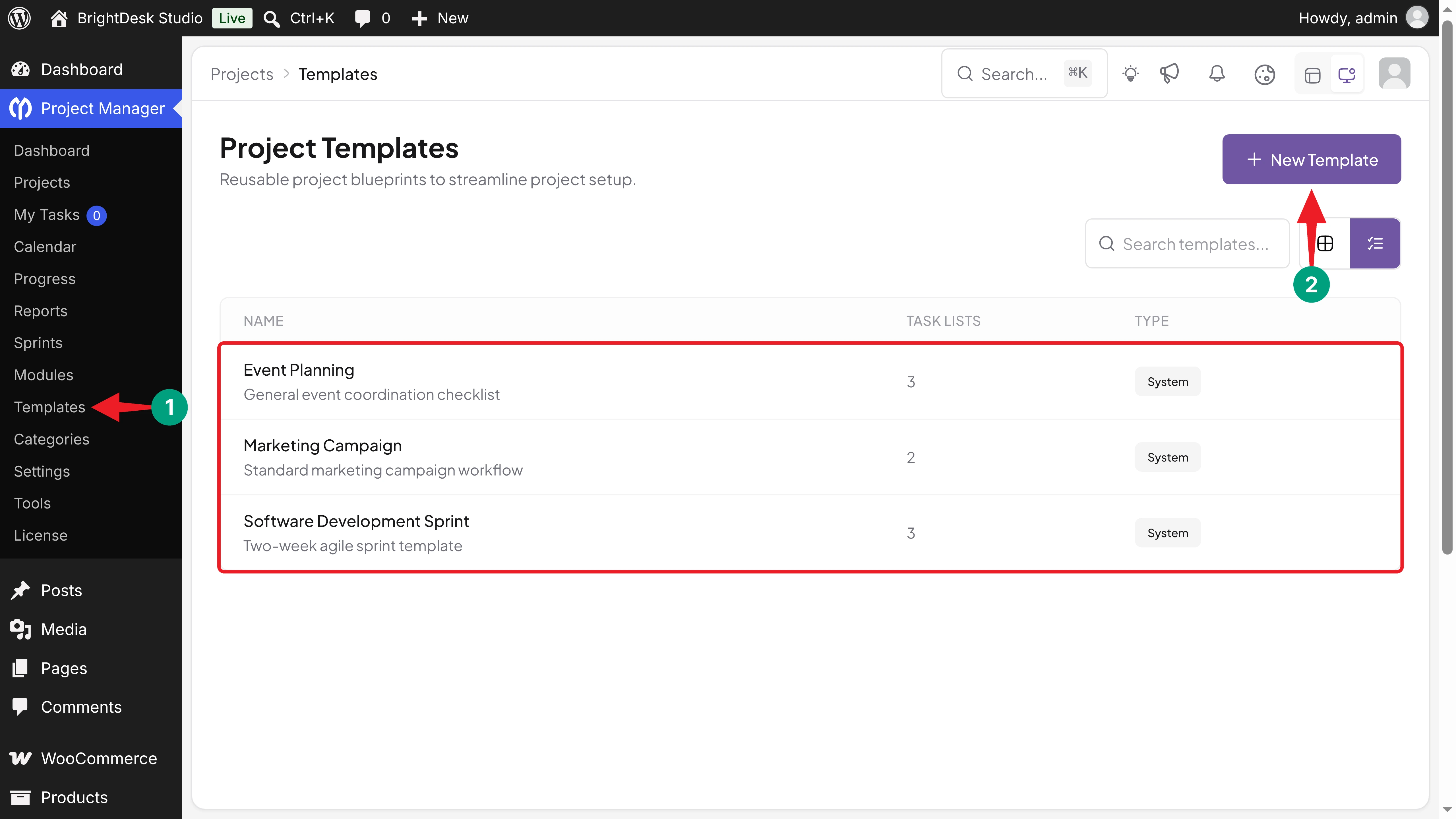
You'll see the three system templates here, marked System. To build your own, click New Template at the top right.
Step 02: Add the Template Name and Description
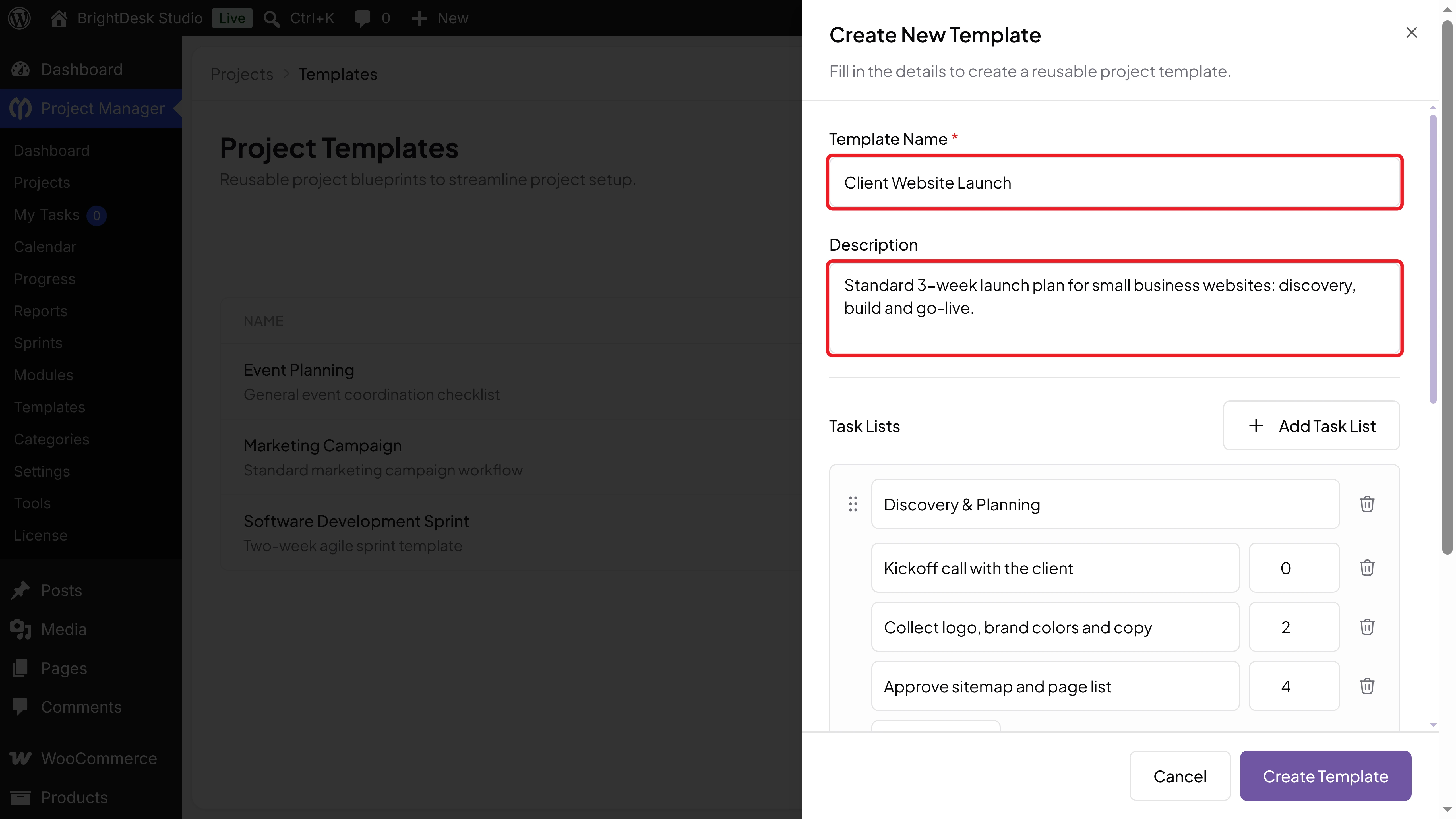
A Create New Template panel opens on the right. Enter a clear name in Template Name. We've used Client Website Launch.
Then add a short note in Description, so your team knows when to use it. Ours says: Standard 3-week launch plan for small business websites: discovery, build and go-live.
Tip: Name the template after the type of project, not a client. You'll reuse it for many clients.
Step 03: Add Task Lists and Tasks
Scroll down to Task Lists. The panel already has one empty task list for you.
Name the First Task List
Type the name of the first stage in the Task list name field. We've used Discovery & Planning.
Add Tasks and Their Day Values
Click Add Task under the list. Type the task in Task title and enter a number in Day. Repeat this for each task in the list.
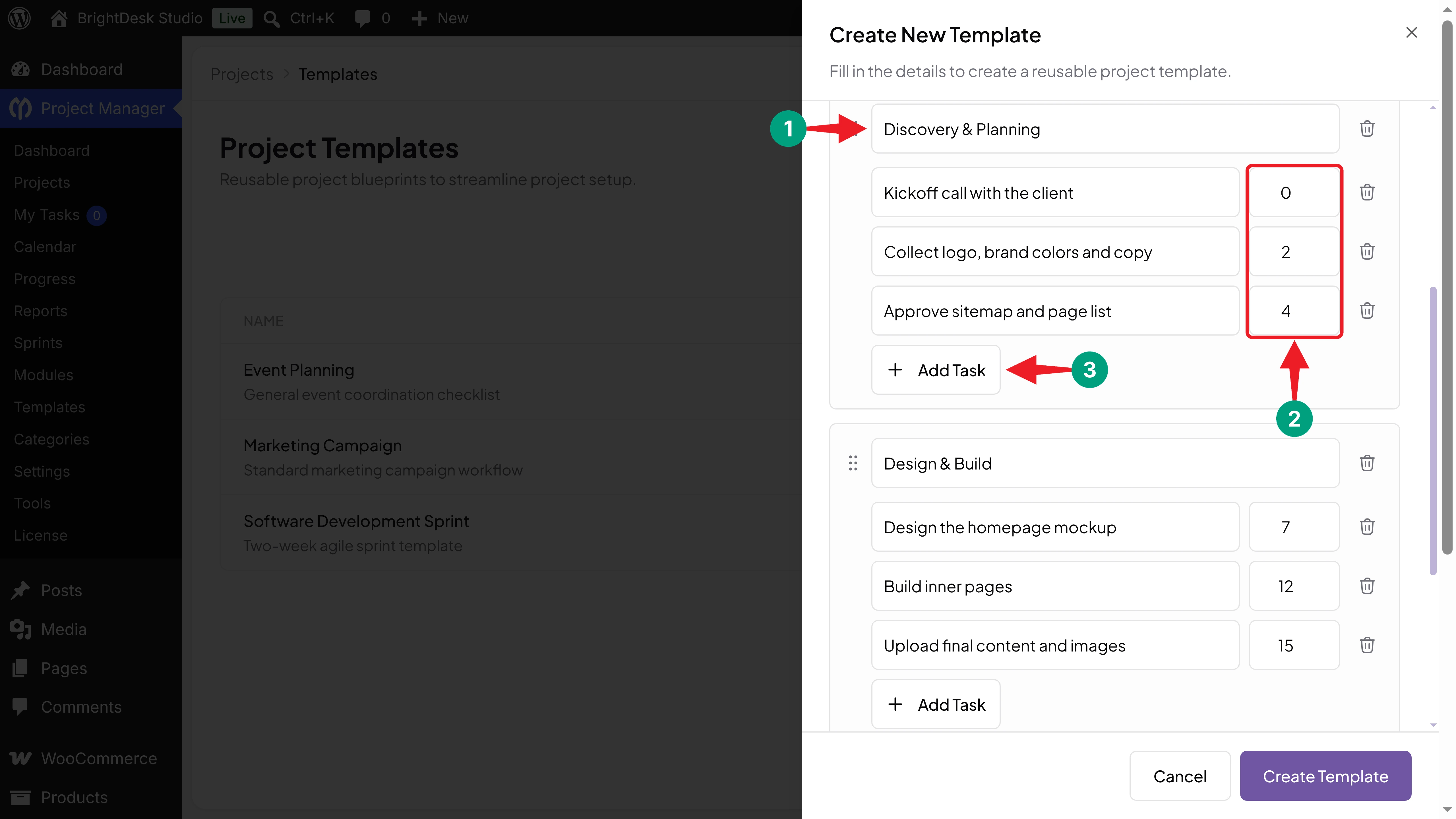
The Day value is the number of days after the project starts. Here's what we've added to the first list:
- Kickoff call with the client: Day 0, the day the project starts.
- Collect logo, brand colors and copy: Day 2.
- Approve sitemap and page list: Day 4.
Note: Leave Day empty if a task shouldn't have a due date. It will be added without one.
Add More Task Lists
Click Add Task List at the top of the section to add the next stage. Then add its tasks the same way. We've added two more lists:
- Design & Build: Design the homepage mockup (Day 7), Build inner pages (Day 12), and Upload final content and images (Day 15).
- Launch: QA and cross-browser testing (Day 18), and Go live and submit sitemap (Day 21).
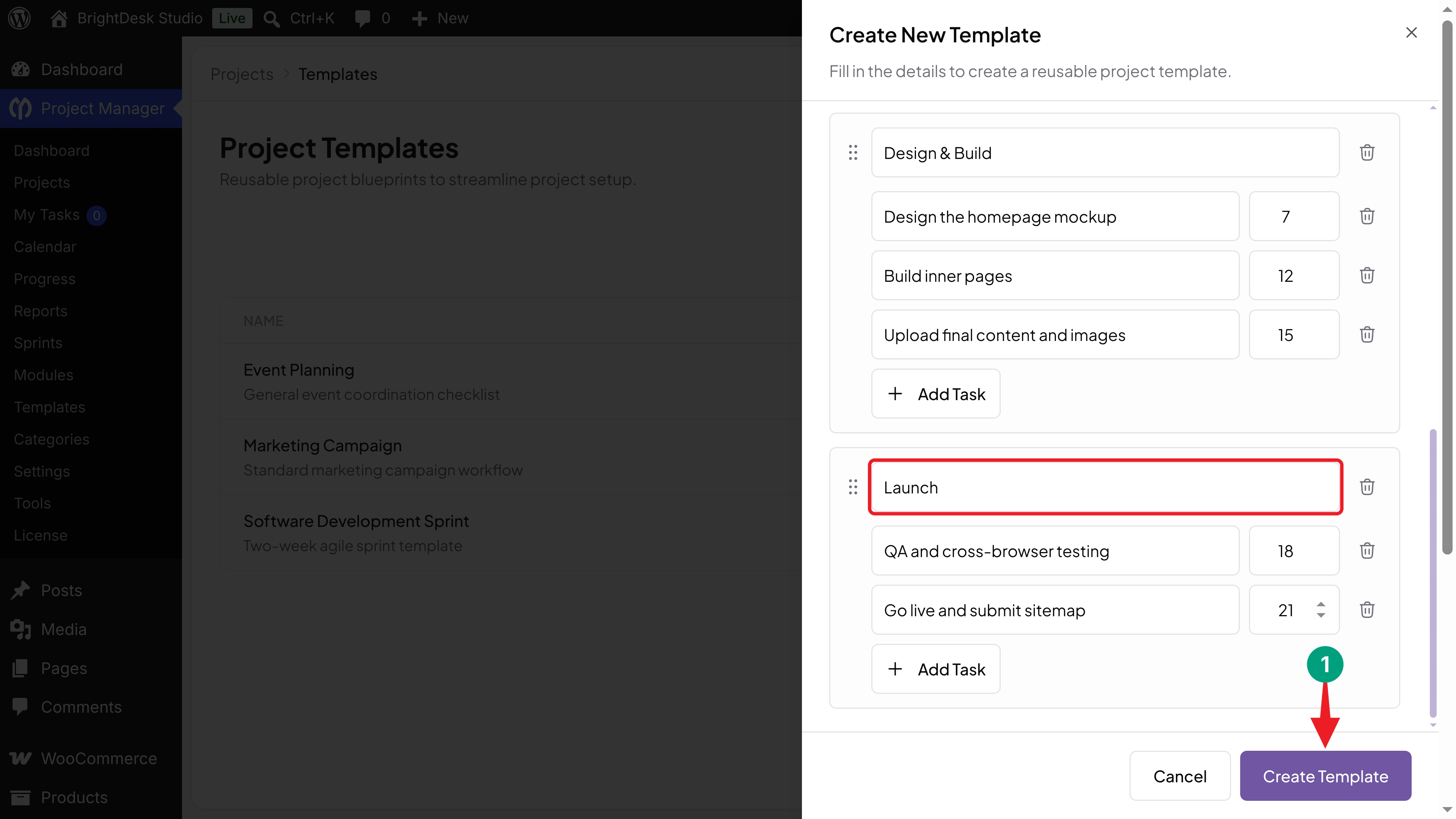
To remove a task or a list, click the trash icon next to it.
Step 04: Save the Template
Click Create Template at the bottom of the panel. Your new template appears in the list with the Custom label and the number of task lists it holds.
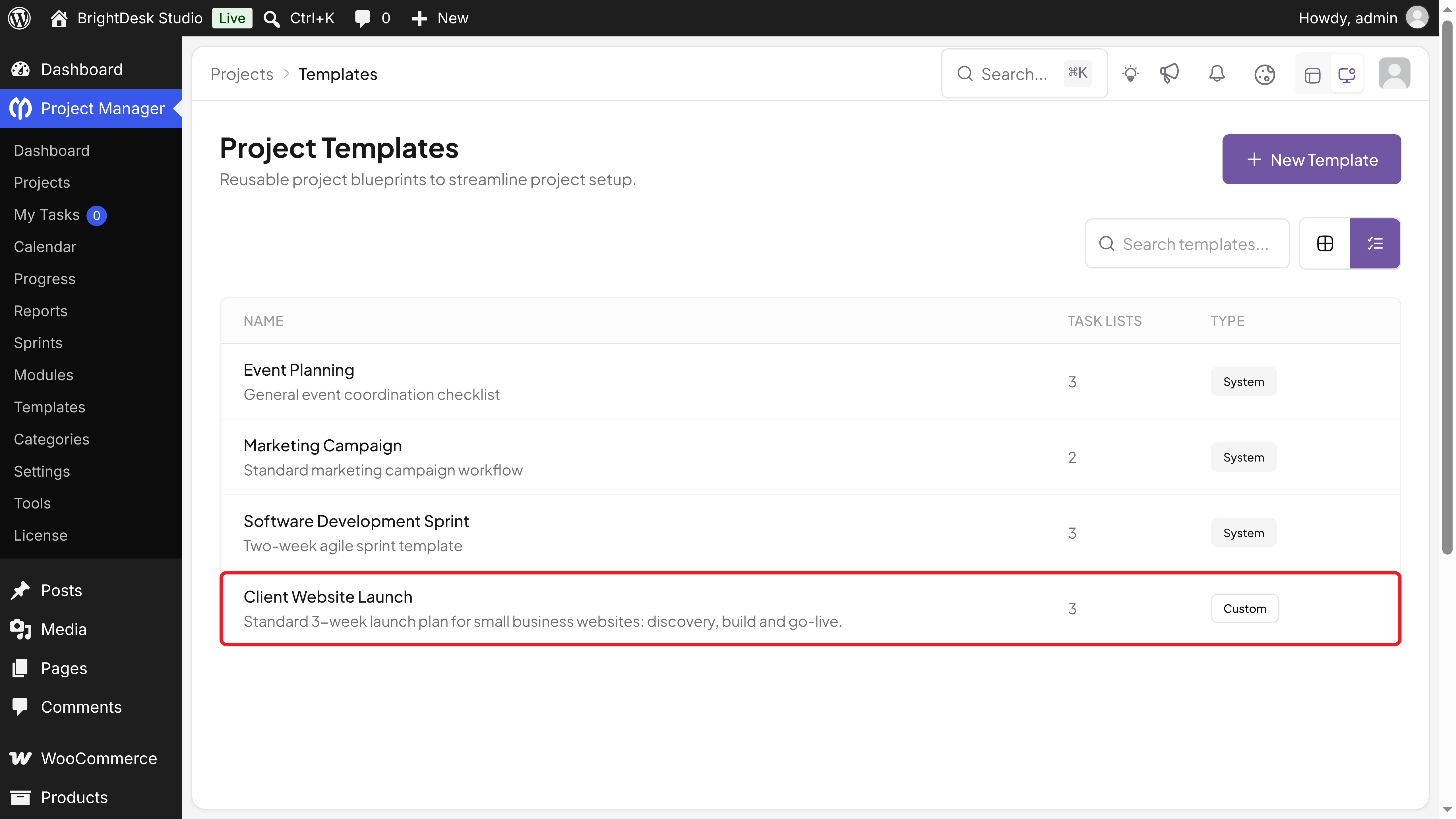
Your template is now ready to use for any new project.
Step 05: Create a New Project from the Template
Now let's use the template for a real client.
Open the New Project Panel
Go to Project Manager > Projects and click New Project. Enter the Project Name. Ours is Maple & Co. Bakery – Website Launch. You can also choose a Category and a Project Color.
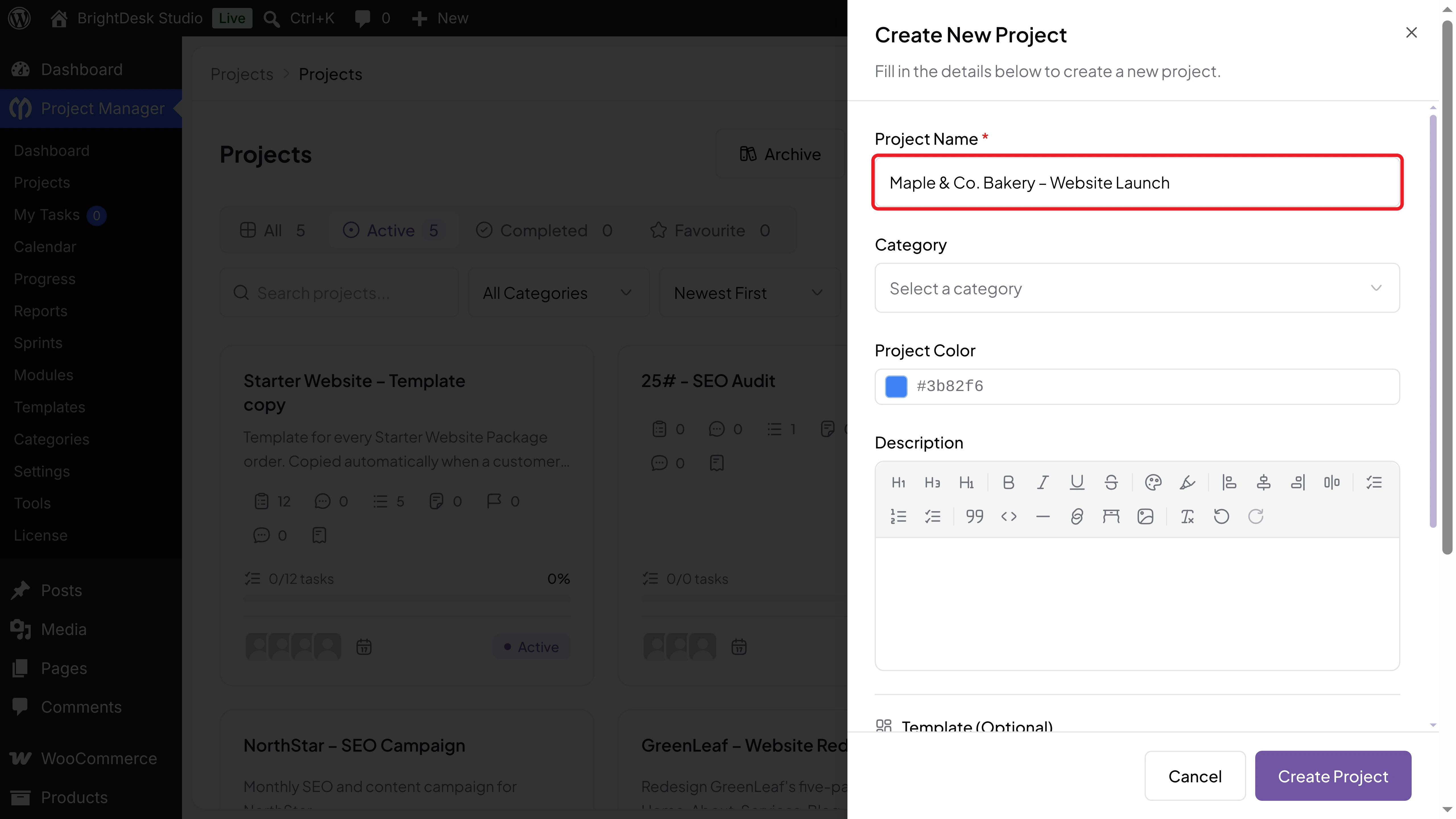
Choose the Template
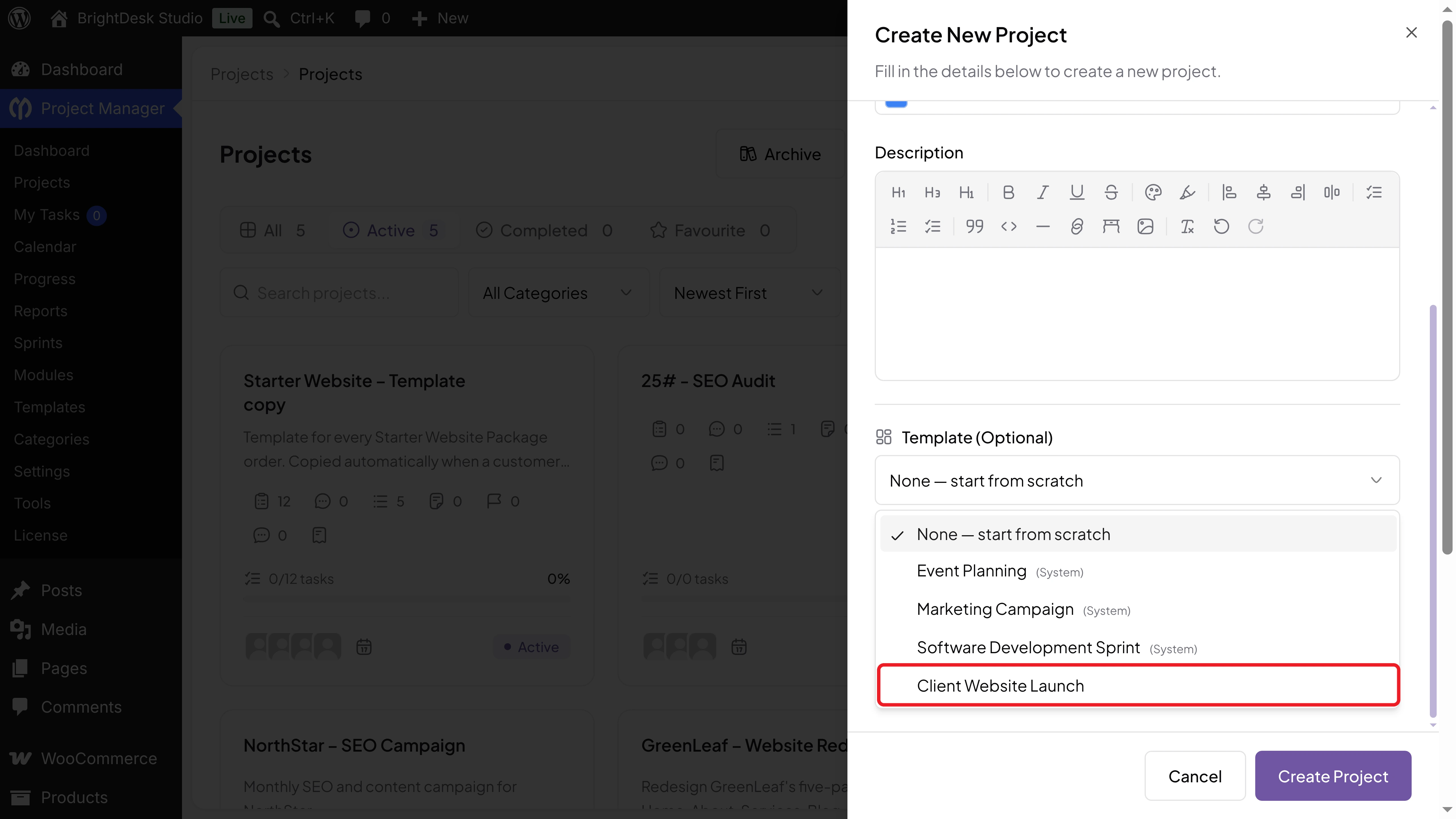
Scroll down to Template (Optional). Click the dropdown, which shows None — start from scratch by default, and select Client Website Launch.
Preview the Task Lists and Create the Project
The template's description appears below the dropdown. Click Preview task lists to see the lists and how many tasks each one has.
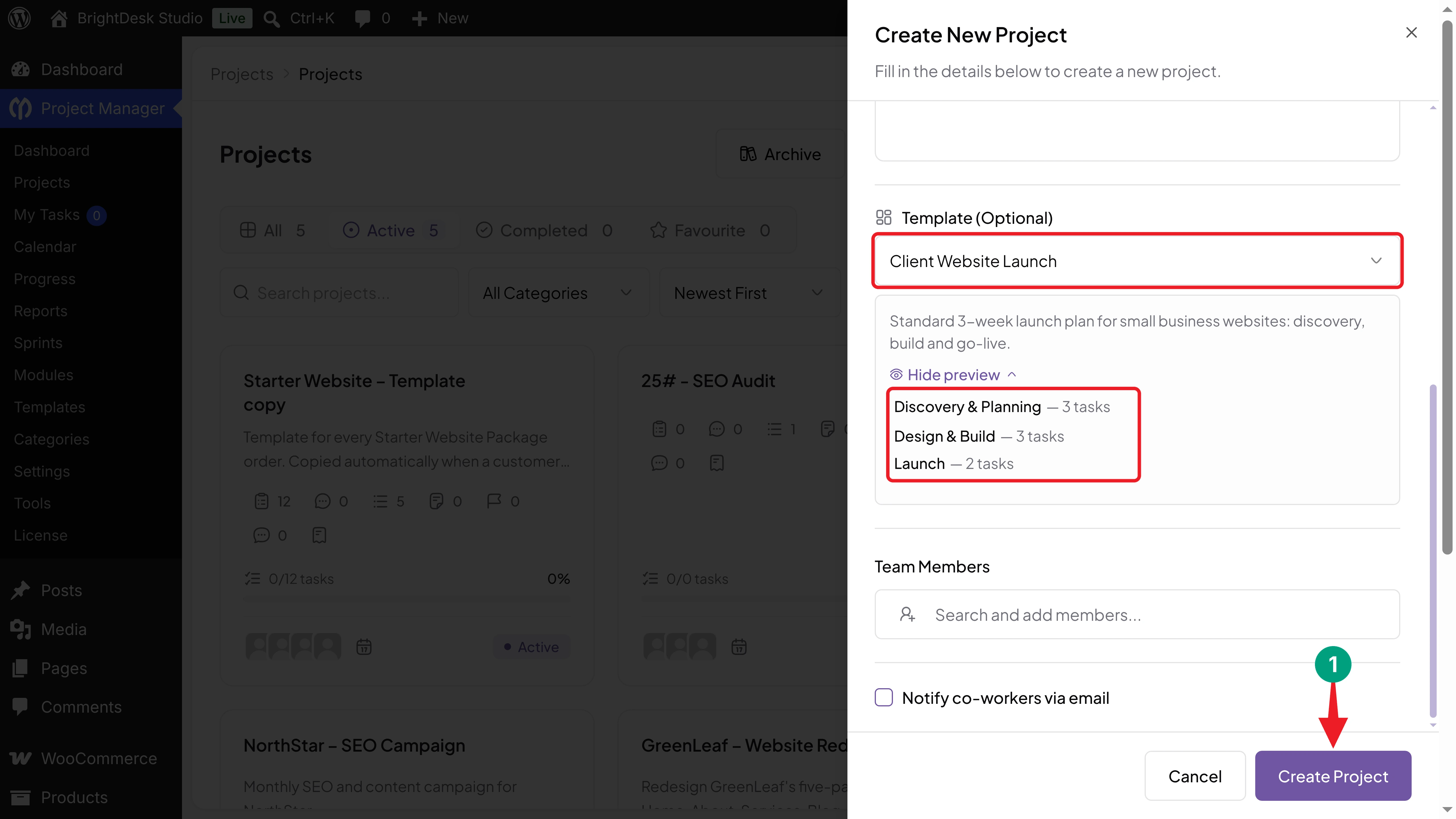
Add your Team Members if you like, then click Create Project.
Step 06: Check the Task Lists and Due Dates
Open the new project. The Task Lists tab now has all three lists from the template, along with the default Inbox list.
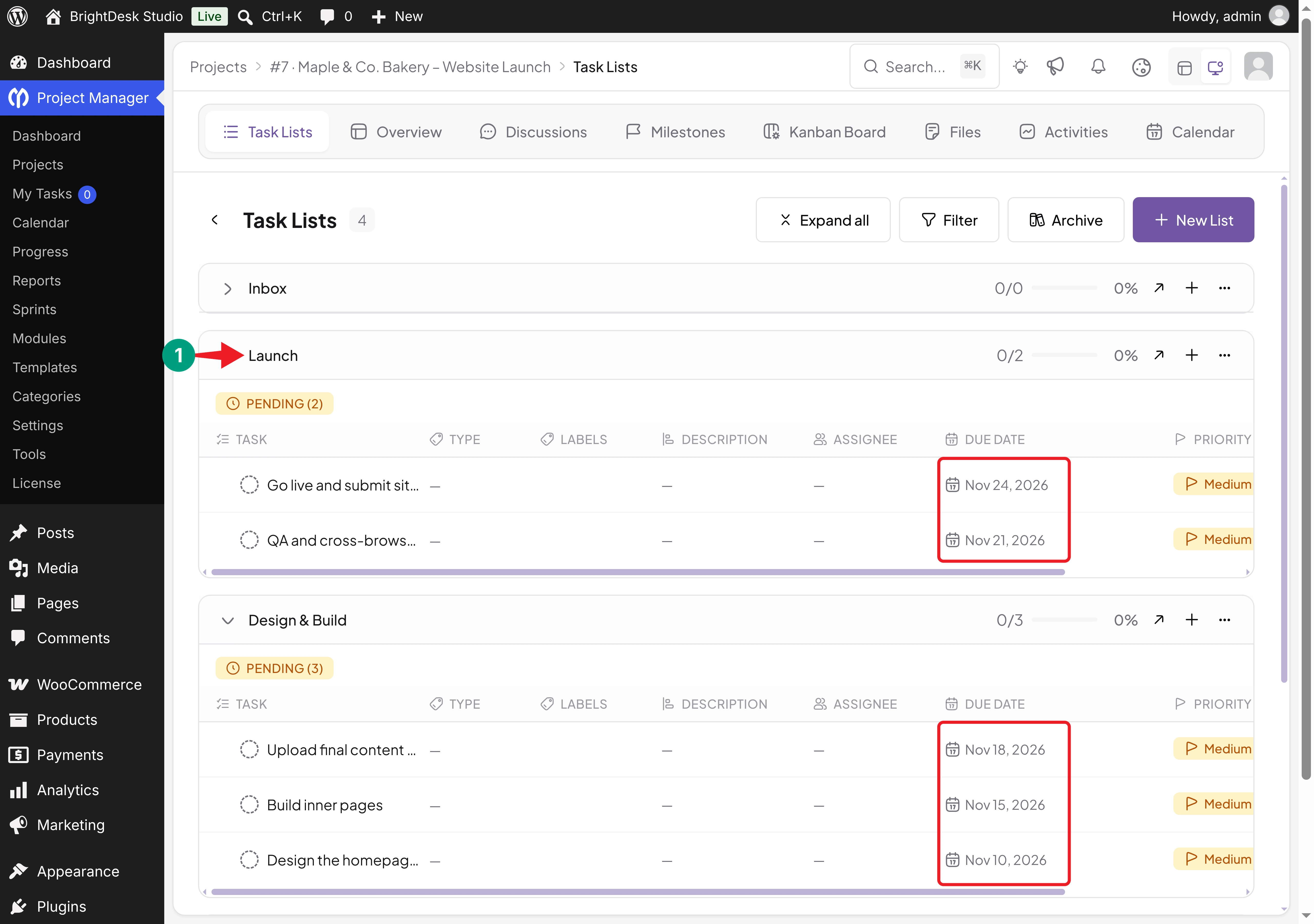
We created the project on Nov 3, 2026. So the plugin set the due dates like this:
| Task | Day | Due Date |
|---|---|---|
| Kickoff call with the client | 0 | Nov 3, 2026 |
| Collect logo, brand colors and copy | 2 | Nov 5, 2026 |
| Design the homepage mockup | 7 | Nov 10, 2026 |
| Upload final content and images | 15 | Nov 18, 2026 |
| Go live and submit sitemap | 21 | Nov 24, 2026 |
The tasks come without assignees. Open each task and click Add assignee to give it an owner.
Note: In version 4.1.2, the lists appear in the reverse order of the template, with the last list (Launch) at the top. The tasks inside each list are reversed too. Their due dates are correct.
Step 07: Edit, Duplicate, or Delete Your Templates
Your plan will change over time, so let's see how to manage your templates.
Open the Template Actions
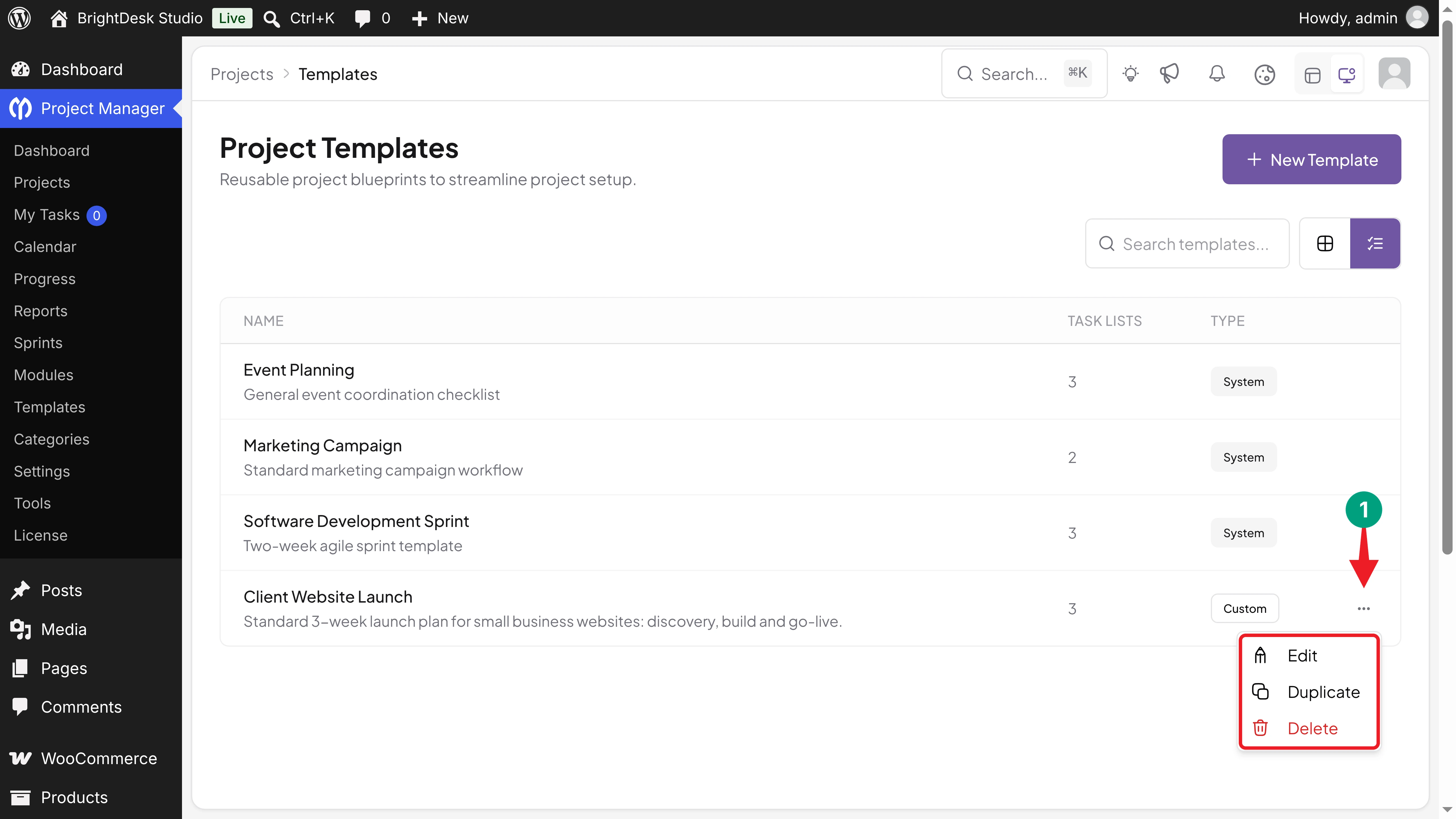
Go back to Project Manager > Templates. Hover over a template and click the three dots (...) on the right. You'll see three options:
- Edit: Opens the Edit Template panel. Change anything and click Update Template.
- Duplicate: Makes a copy of the template, named with (Copy) at the end.
- Delete: Removes the template. Projects you already created from it don't change.
Customize a System Template
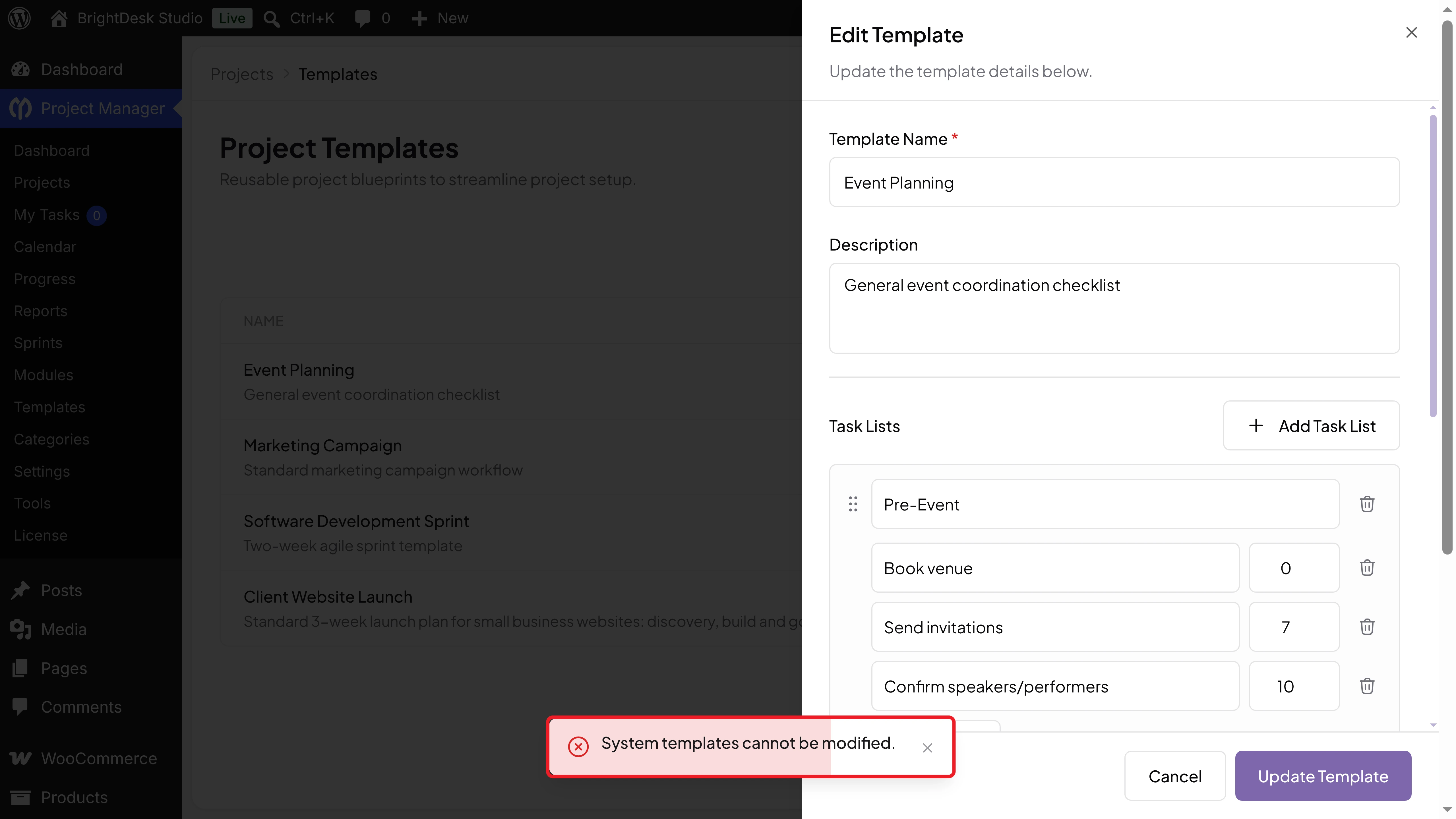
System templates show only Edit and Duplicate. You can open them in Edit, but you can't save changes. If you click Update Template, you'll see the message System templates cannot be modified.
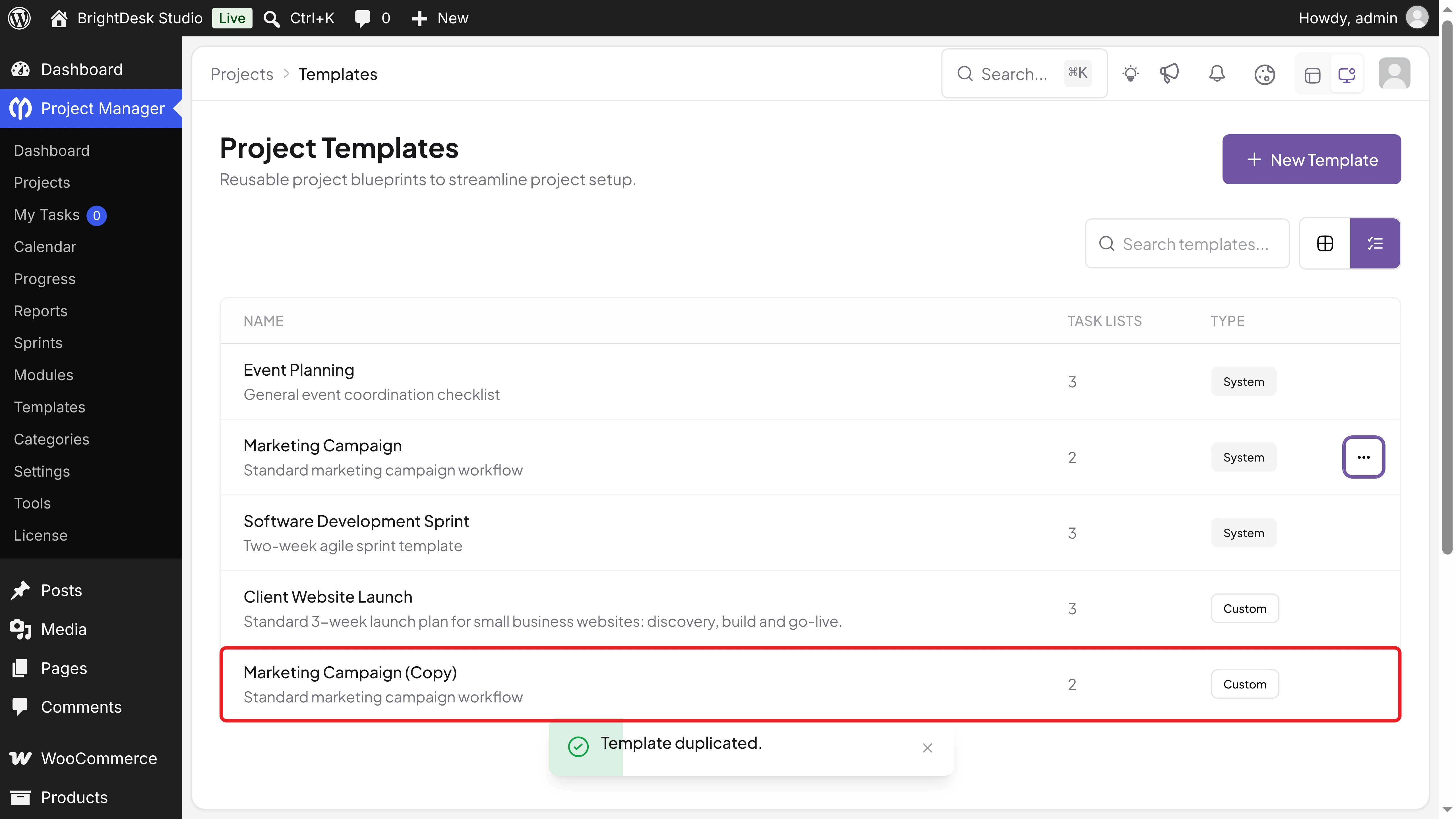
To change one, click Duplicate instead. We've duplicated Marketing Campaign, and the copy appears as Marketing Campaign (Copy) with the Custom label. Now you can edit it like your own template.
Thus, you can create reusable project templates in WP Project Manager and start every new project with its plan and deadlines already in place.
How Are Due Dates Calculated?
The rule is simple: due date = the day you create the project + the task's Day value. Here are a few examples for a project created on Nov 3:
| Day value | Result |
|---|---|
| 0 | Due on the day you create the project (Nov 3) |
| 7 | Due one week later (Nov 10) |
| 21 | Due three weeks later (Nov 24) |
| Empty | The task is added without a due date |
The New Project panel doesn't ask for a start date, so the count always starts on the day you create the project. If the client work starts later, create the project on the start day, or move the dates after you create it.
Project Templates vs Duplicating a Project
WP Project Manager Pro also has a Duplicate Project option. Both save time, but they work in different ways.
| Project Template | Duplicate Project | |
|---|---|---|
| What you build | A plan on the Templates page | A full project that you copy |
| Task lists and tasks | Yes | Yes |
| Due dates | Set from each task's Day value | Copied as they are, so you move them by hand |
| Assignees and members | Not included. You add them | Copied from the original project |
| Shows in your project list | No. Templates have their own page | Yes. The original is a real project |
| Best for | Repeat projects with a fixed timeline | Projects that always use the same team |
If your deadlines depend on when the project starts, a template is the better choice. If you need the same people and owners every time, a duplicated project fits better.
Ready-Made System Templates in WP Project Manager Pro
If you're not sure where to start, look at the three system templates. Each one is a complete plan you can copy and adjust.
| Template | Task Lists | Example Tasks (Day) |
|---|---|---|
| Event Planning | Pre-Event, Event Day, Post-Event | Book venue (0), Send invitations (7), Run the event (14), Compile feedback (17) |
| Marketing Campaign | Content Creation, Promotion | Write blog posts (3), Design social media graphics (5), Run paid ads (10) |
| Software Development Sprint | Planning, Development, QA & Release | Sprint planning meeting (0), Code review (10), Production release (14) |
Duplicate the one closest to your work, then rename it and change the tasks to fit your process.
Best Practices for Reusable Project Templates
A few habits keep your templates useful as your team grows:
- Build from a finished project: Look at a project you've already completed and turn its real steps into the template.
- Use Day 0 for the kickoff: Start the plan with a task due on the first day, so the project starts with a clear action.
- Leave a buffer: Give each stage a day or two of extra time, so one late task doesn't push every deadline.
- Keep task titles short and clear: Anyone on the team should understand the task without asking.
- Write a helpful description: Say what type of project the template is for and how long it usually takes.
- Copy system templates before changing them: You can't save changes to a system template, so work on a duplicate.
- Review your templates every few months: Remove steps your team no longer does and add new ones.
Troubleshooting Common Project Template Problems
| Problem | Possible Cause | What to Check |
|---|---|---|
| Templates is missing from the menu | WP Project Manager Pro isn't active | Activate Pro and your license under Project Manager > License |
| The Template option shows an upgrade prompt | Only the free plugin is active | Install and activate WP Project Manager Pro |
| "System templates cannot be modified." when saving | You edited a system template | Duplicate the template and edit the copy |
| Delete is missing from the menu | It's a system template | System templates can't be deleted |
| A task has no due date | Its Day field was empty | Edit the template and add a Day value |
| Due dates start too early | Dates count from the day you create the project | Create the project on the start day, or move the dates |
| Tasks have no assignees | Templates don't store assignees | Assign the tasks after you create the project |
| Task lists appear in reverse order | Known behavior in version 4.1.2 | Work by the due dates, or reorder the lists by hand |
FAQ on Project Templates in WP Project Manager
In this section, we have answered some frequently asked questions about project templates in WP Project Manager.
Are project templates available in the free version of WP Project Manager?
No. Project templates come with WP Project Manager Pro. The free plugin shows the Template option in the New Project panel as an upgrade prompt.
Does changing a template update projects I've already created?
No. A template is used only when you create a project. Changes apply to the projects you create after that.
Can I pick a start date when I use a template?
Not in version 4.1.2. The due dates count from the day you create the project. You can move them later if the work starts on another day.
Can I change or delete the system templates?
You can't save changes to them or delete them. Duplicate a system template to get a copy you can edit and delete.
Do templates include assignees, files, or milestones?
No. A template holds task lists, tasks, and their Day values. Add assignees, milestones, and files after you create the project.
How many templates can I create?
As many as you need. Create a separate template for each type of project your team runs.
Final Thoughts!
Congratulations! You now know how to create reusable project templates in WP Project Manager. Instead of building every project from an empty page, you can start each one with its task lists, tasks, and due dates already in place.
Start with the project type your team runs most often. Turn its real steps into a template, test it on your next project, and improve it as you learn. Then add templates for your other services, or duplicate a system template to get a head start.
Learn more about how to set up recurring tasks with WP Project Manager.
If you have any questions, mention them in the comment box below. Thanks for being with us till the end.