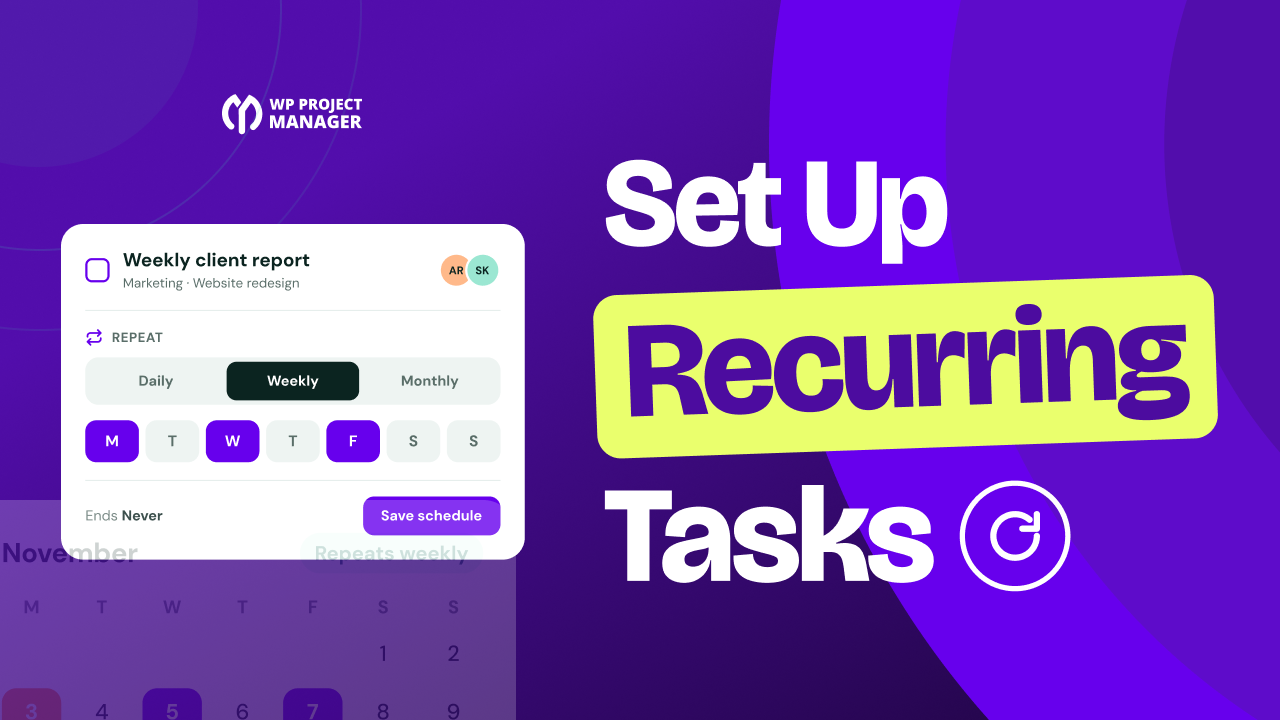
Some tasks come back again and again. You prepare a newsletter every week, send a client report every month, and review your support queue every day. Creating the same task by hand each time takes minutes you could spend on the real work, and one forgotten task can break the routine.
WP Project Manager can do this part for you. With its Recurring Task module, you set up a task once, choose how often it repeats, and the plugin creates a fresh copy on schedule, right inside your WordPress dashboard.
In this blog post, we'll show you how to set up recurring tasks with WP Project Manager step by step. We'll build a weekly newsletter task together, then you'll learn how to check the copies, change the schedule, and stop it when the work is done. Let's get started!
What Are Recurring Tasks?
Recurring tasks are tasks that repeat on a schedule. Instead of adding the same work by hand, you set a rule such as every day, every Monday, or every three months, and the task shows up when it's due.
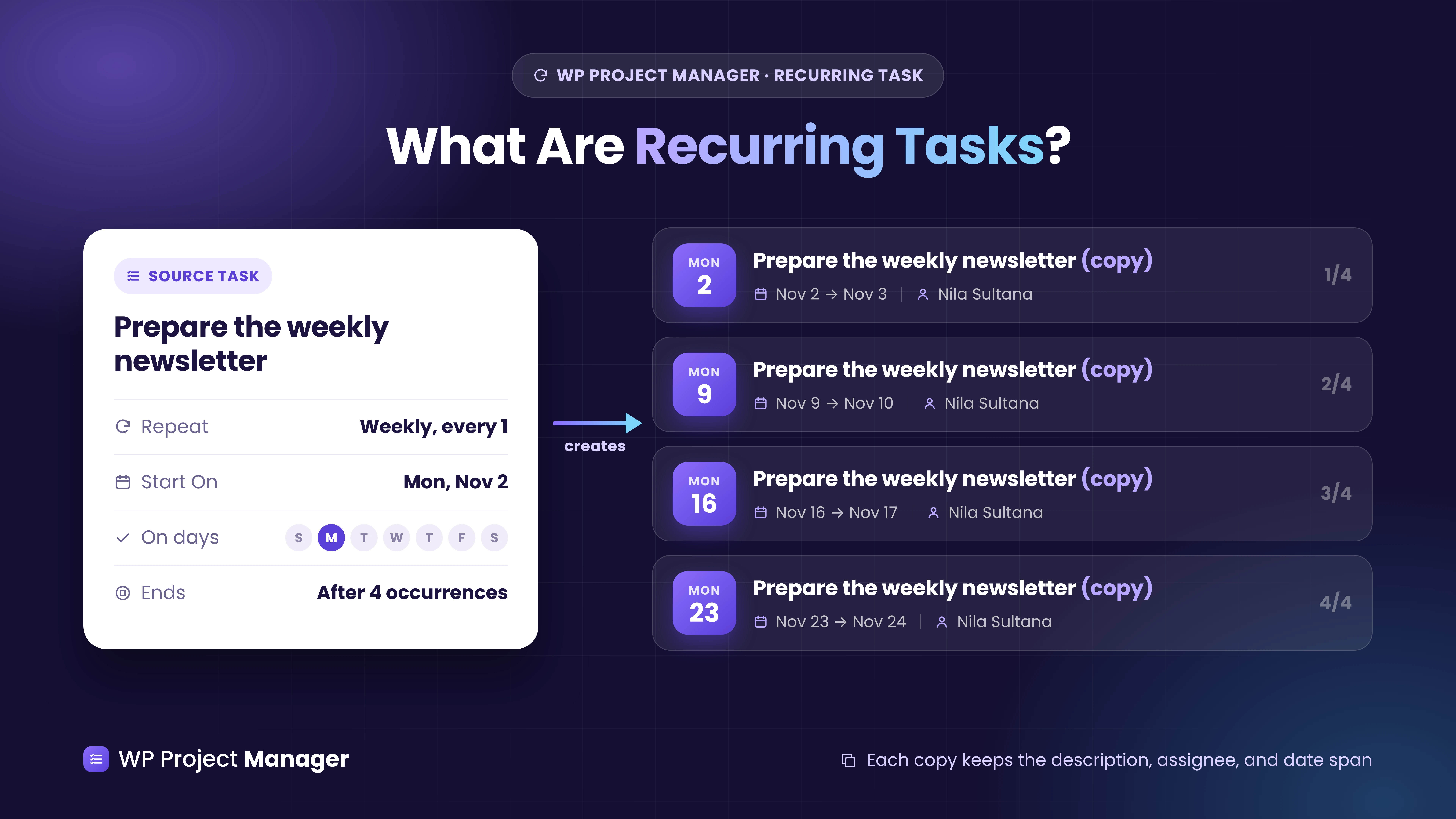
In WP Project Manager, you add the rule to one task, which we'll call the source task. On each scheduled date, the plugin creates a copy of it with the same description, assignees, and labels. Each copy is a separate task your team can complete on its own.
Recurring tasks work well for:
- Content routines: Weekly newsletters, blog posts, and social media plans.
- Client reporting: Monthly performance or SEO reports.
- Website maintenance: Regular checks for updates, backups, and broken links.
- Support work: Daily reviews of the support queue or inbox.
- Planning reviews: Quarterly goal reviews and yearly policy checks.
Note: A recurring task creates the work item. It doesn't do the work itself. For example, a recurring newsletter task reminds your editor to prepare the newsletter, but it doesn't send your email campaign.
What You Need Before You Start
Get these few things ready before you follow along. None of them requires coding.
- A WordPress website where you have administrator access.
- WP Project Manager (free), installed and activated.
- WP Project Manager Pro with the Business plan, installed and activated.
- A project and a task list where the repeated work belongs.
- Permission to manage that project, such as the Manager role.
Note: You need WP Project Manager Pro with the Business plan because the Recurring Task module isn't part of the free plugin. The Personal and Professional plans don't include it either.
It's also worth checking your website's timezone, because the plugin uses it to decide which day it is. Go to Settings > General in your WordPress dashboard, choose your team's city under Timezone, and save the changes.
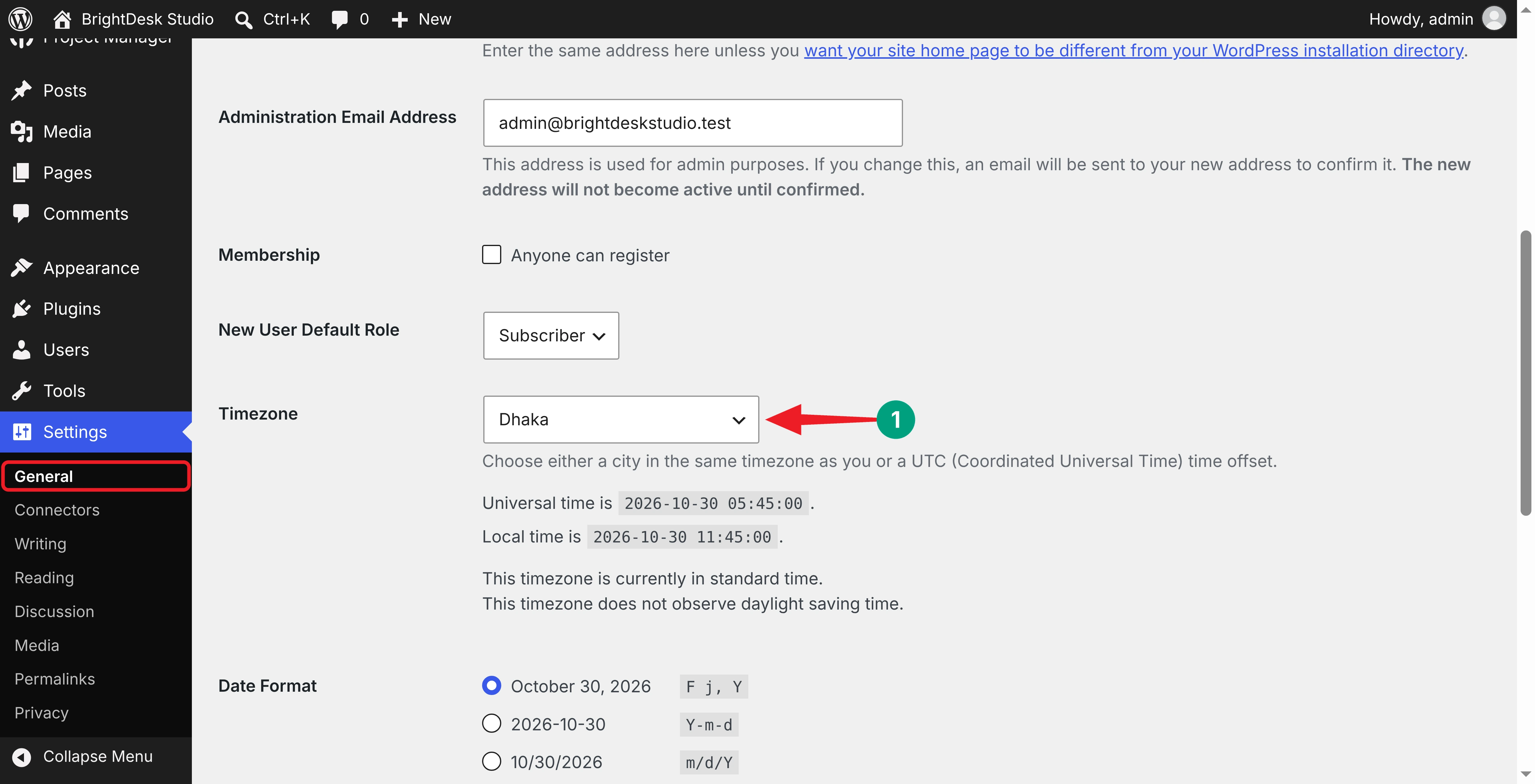
This tutorial uses WP Project Manager 4.1.2 and Project Manager Pro 4.1.2. Older versions show different labels. Once these plugins are ready on your site, start following the tutorial explained below.
How to Set Up Recurring Tasks with WP Project Manager
We'll use one example throughout the tutorial:
| Item | Example |
|---|---|
| Project | Content Marketing |
| Task list | Weekly Marketing Tasks |
| Task | Prepare the weekly newsletter |
| Assignee | Nila Sultana, the newsletter editor |
| Repeat pattern | Every Monday |
| Start date | Monday, November 2, 2026 |
| End condition | After four occurrences |
Use your own project and team member names. What matters is how the schedule settings work together.
Step 01: Enable the Recurring Task Module
Navigate to Project Manager > Modules from your WordPress dashboard. Find the Recurring Task card and toggle on its switch.
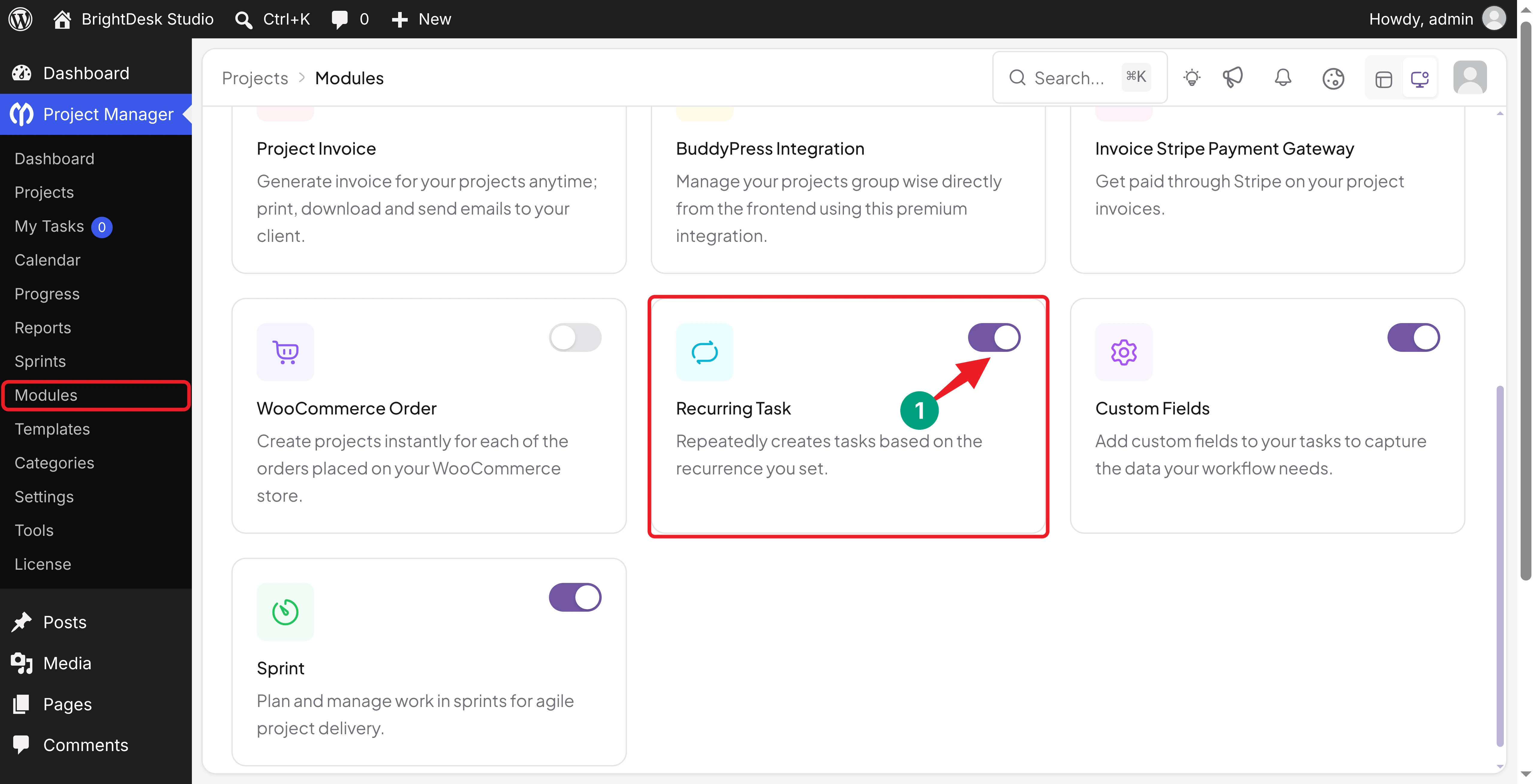
This adds the Recurring option to your task details. If you can't turn the module on, make sure Pro is active and your Business license is activated under Project Manager > License.
Step 02: Open a Project and Create the Source Task
Go to Project Manager > Projects and open the project that will hold the repeated work. For our example, we open Content Marketing.
In the Task Lists tab, find the Weekly Marketing Tasks list and click the + (Add task) icon on its header. Type Prepare the weekly newsletter and click Add Task.
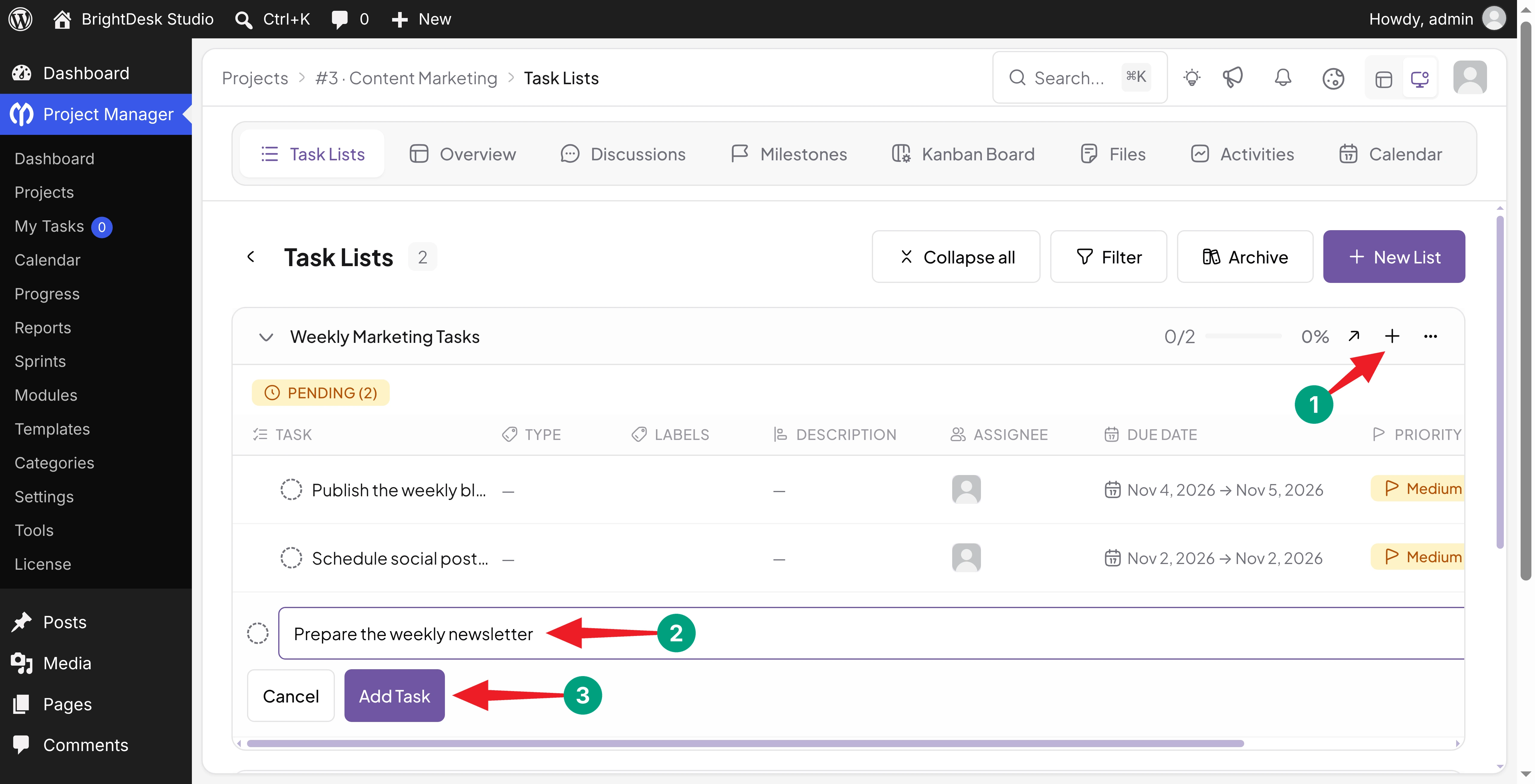
Now click the task title to open its details. This is your source task. Every copy takes its details from it, so set it up carefully.
Add Clear Task Instructions
In the Description section, click Edit and write instructions that stay true every week. We've added:
Select the content for this week's newsletter. Write the subject line and preview text. Add the content to the email template. Check links, send a test email, and submit the draft for approval.
Keep specific dates out of the title and description, because every copy repeats them. You can also add a link to your newsletter guidelines, so the editor always has the same reference for tone, format, and approvals.
Assign the Responsible Team Member
Next to Assignees, click + Add and select the person who owns this work. We've picked Nila Sultana, our newsletter editor. Every copy keeps the same assignees.
If you assign several people, say in the description who owns the final result. Otherwise, everyone may assume someone else will finish it.
Set the Task Dates
Click Add dates, set the Start and Due dates, and click Save. We've set Monday, November 2, as the start date and Tuesday, November 3, as the due date.
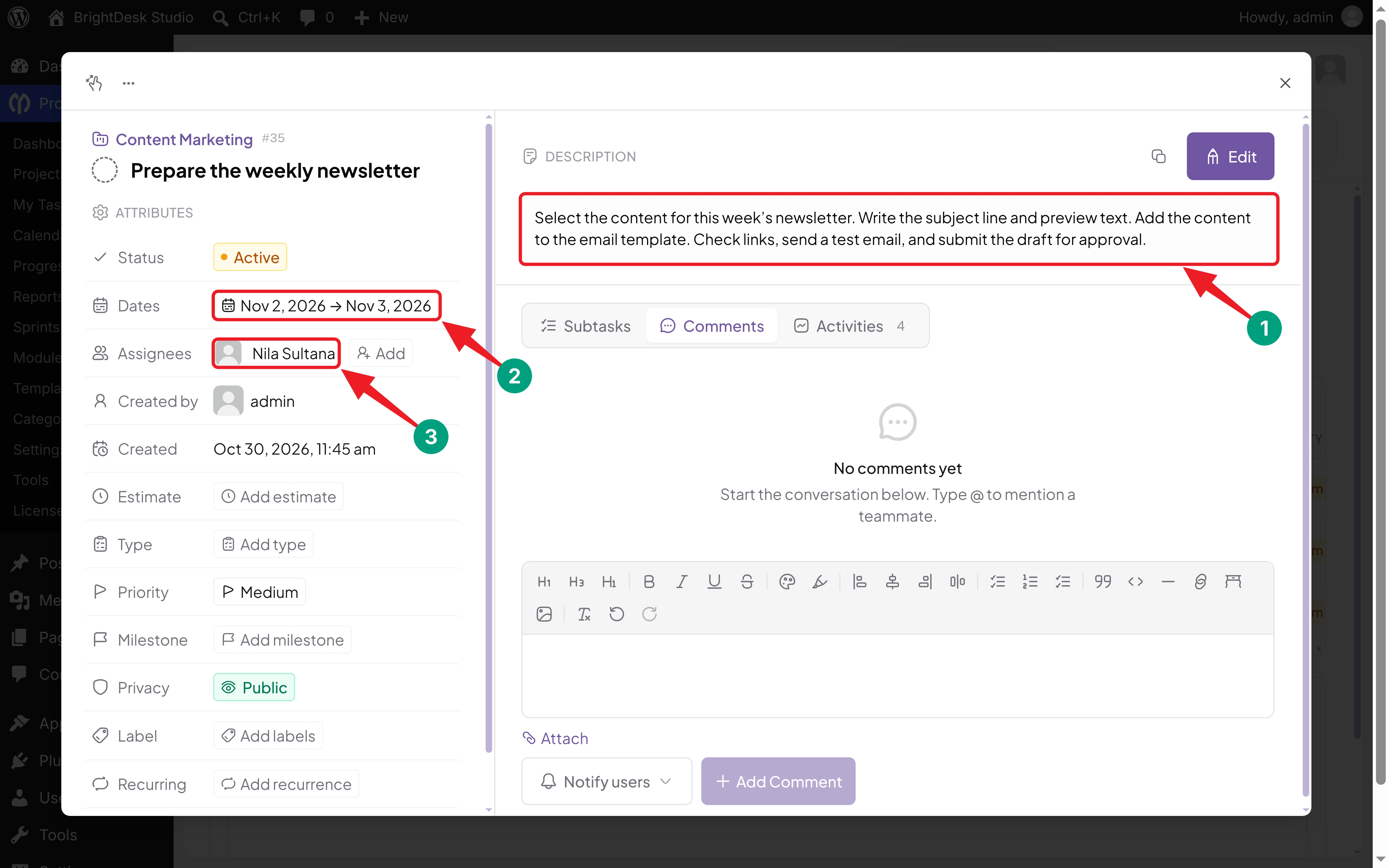
Each copy moves these dates to its own occurrence and keeps the same gap. So the copy created on November 9 runs from November 9 to November 10.
Note: The task dates and the recurrence's Start On date do different jobs. Task dates set the working period of each task. Start On sets when the schedule begins. If you don't see the Start field, turn on Task Start Date under Pro Settings in Project Manager > Settings > General.
Step 03: Open the Recurrence Settings
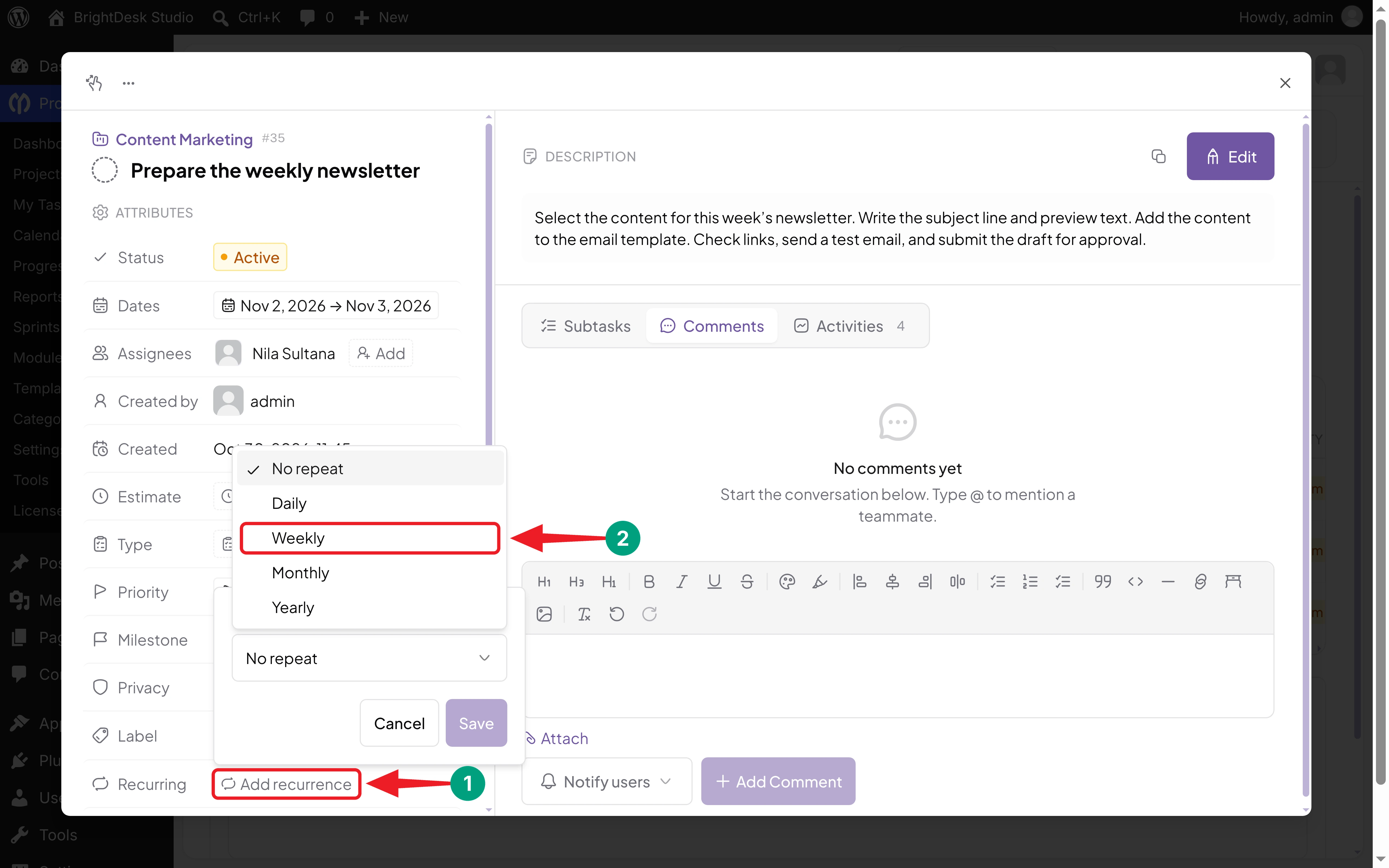
In the task's Attributes section, find Recurring and click Add recurrence. Then click the Repeat dropdown. You'll get these options:
| Option | What It Means |
|---|---|
| No repeat | The task doesn't repeat |
| Daily | Repeats every set number of days |
| Weekly | Repeats every set number of weeks, on the days you select |
| Monthly | Repeats every set number of months, on the same day of the month as the start date |
| Yearly | Repeats every set number of years, on the start date |
Choose Weekly for our newsletter example.
Step 04: Set the Interval and Starting Date
Once you choose Weekly, three more settings appear: Every, Start On, and On days.
Set Every to 1
Enter 1 in the Every field. Weekly and 1 together mean the task repeats every week. If you enter 2, it repeats every other week.
Choose the Start On Date
Click the Start On field and select the day the schedule should begin. We've chosen 11/02/2026, which is a Monday.
Pick today or a future date. If you choose a past date, the occurrences before today still count toward an end limit, but they aren't created. And if you leave this field empty, the schedule starts from the date the task was created.
Select Monday Under On Days
Under On days, click M to select Monday. Leave the other days unselected for this example.
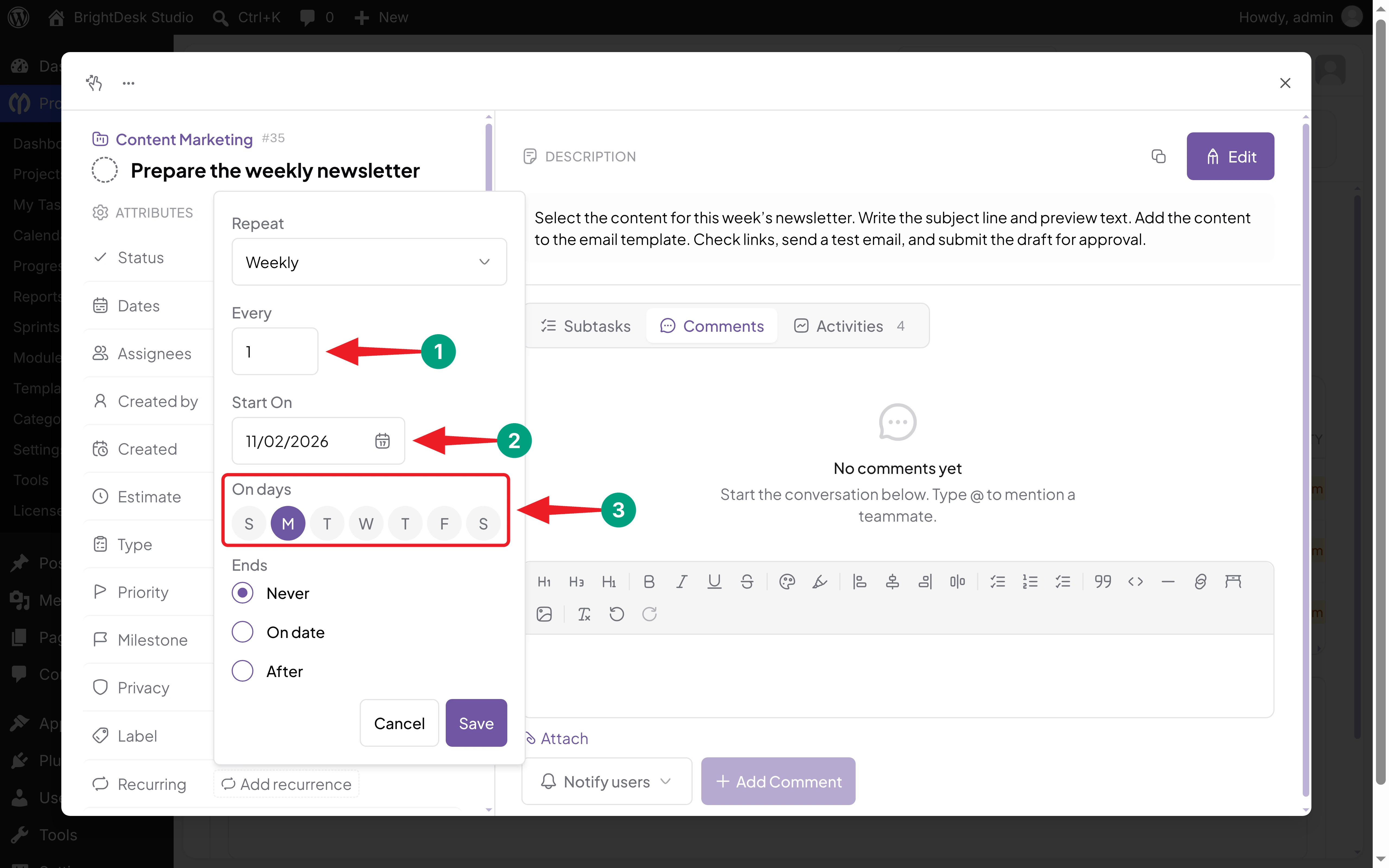
The day buttons run from Sunday to Saturday, and they only show initials. Since there are two Ts and two Ss, check the position before you click.
Tip: A weekly schedule needs at least one selected day. The plugin doesn't pick one for you, and a weekly rule without a day can't create any copies.
Step 05: Decide When the Recurrence Ends
The Ends section controls how long the schedule keeps running. You have three choices:
- Never: Use it for ongoing work, such as a weekly team review. The schedule runs until you remove it.
- On date: Use it when the work belongs to a campaign with a fixed end. Select the last date. The date picker won't let you choose a date before Start On.
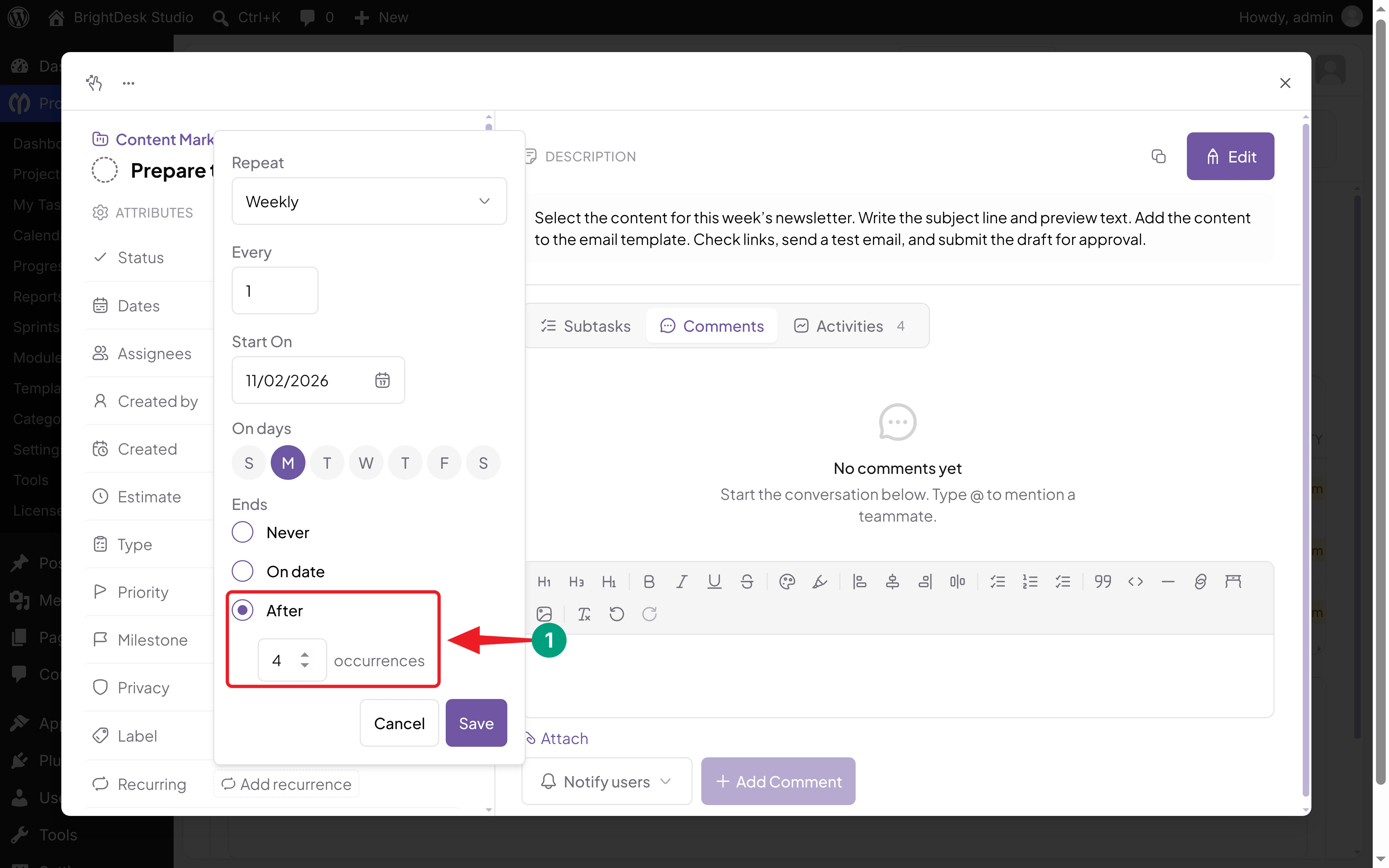
- After: Use it when you know how many times the task should repeat. Enter the number of occurrences.
For our example, select After and enter 4 in the occurrences field (it starts at 10). WP Project Manager will create four copies, one on each of the first four Mondays from the start date. The source task doesn't count toward the four.
Step 06: Save the Recurrence
Review the full setup before you save:
| Setting | Newsletter Example |
|---|---|
| Repeat | Weekly |
| Every | 1 |
| Start On | 11/02/2026 (Monday) |
| On days | M (Monday) |
| Ends | After 4 occurrences |
Click Save. You'll see a Recurrence saved message, and the Recurring attribute now shows a short summary: Every 1 week.
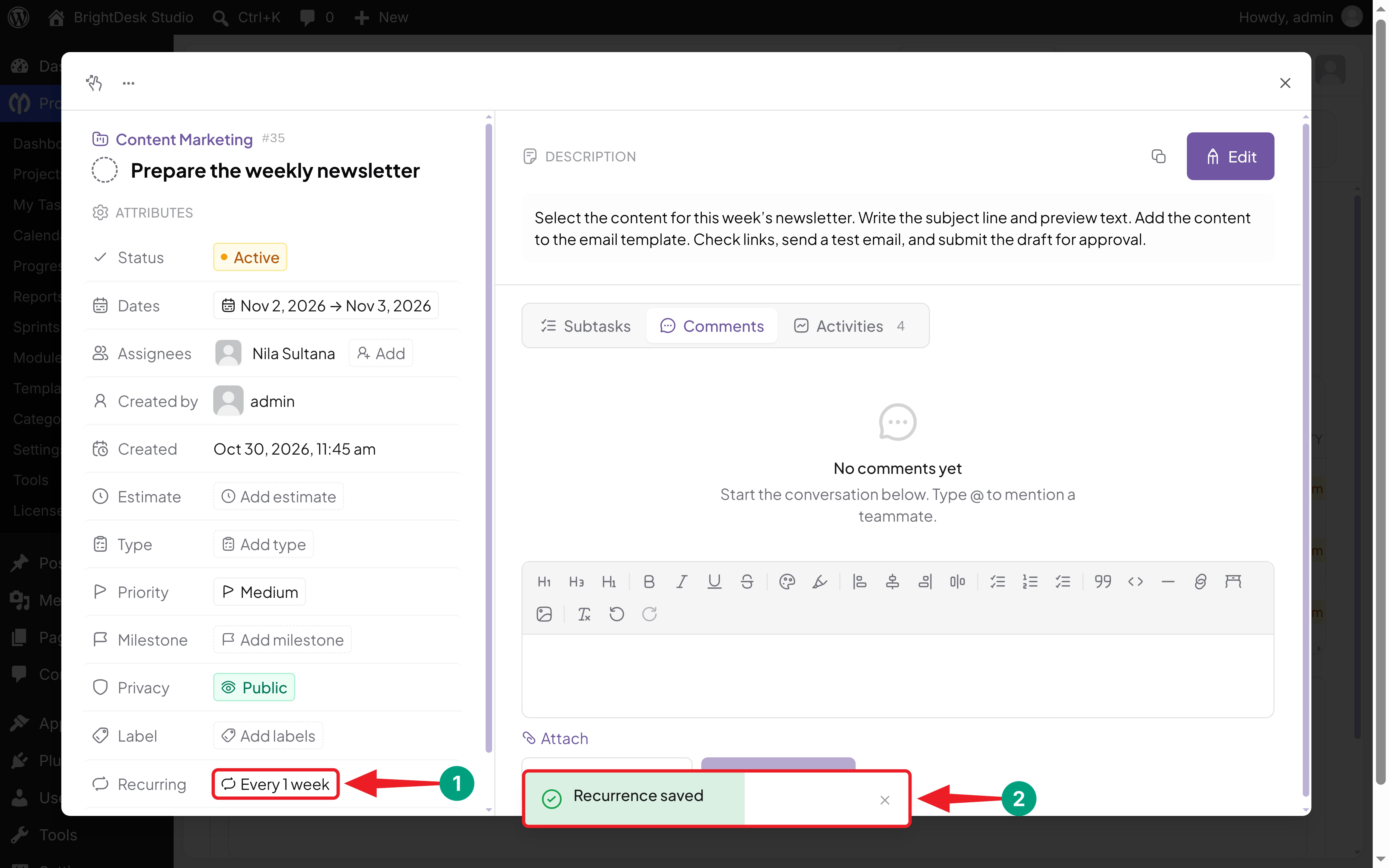
The summary doesn't show the selected day or the end condition. So click it once to double-check your settings. Cancel closes the panel without changing anything.
Step 07: Check the Generated Task
Copies don't appear right after you save. WP Project Manager checks your schedules in the background using WordPress scheduled events (WP-Cron), and it creates each copy on its occurrence date.
After the first occurrence, click Search at the top of the Project Manager screen and type the task name. Each copy has (copy) added to its title, so you can tell it apart from the source task. You can also find the copies in the same task list.
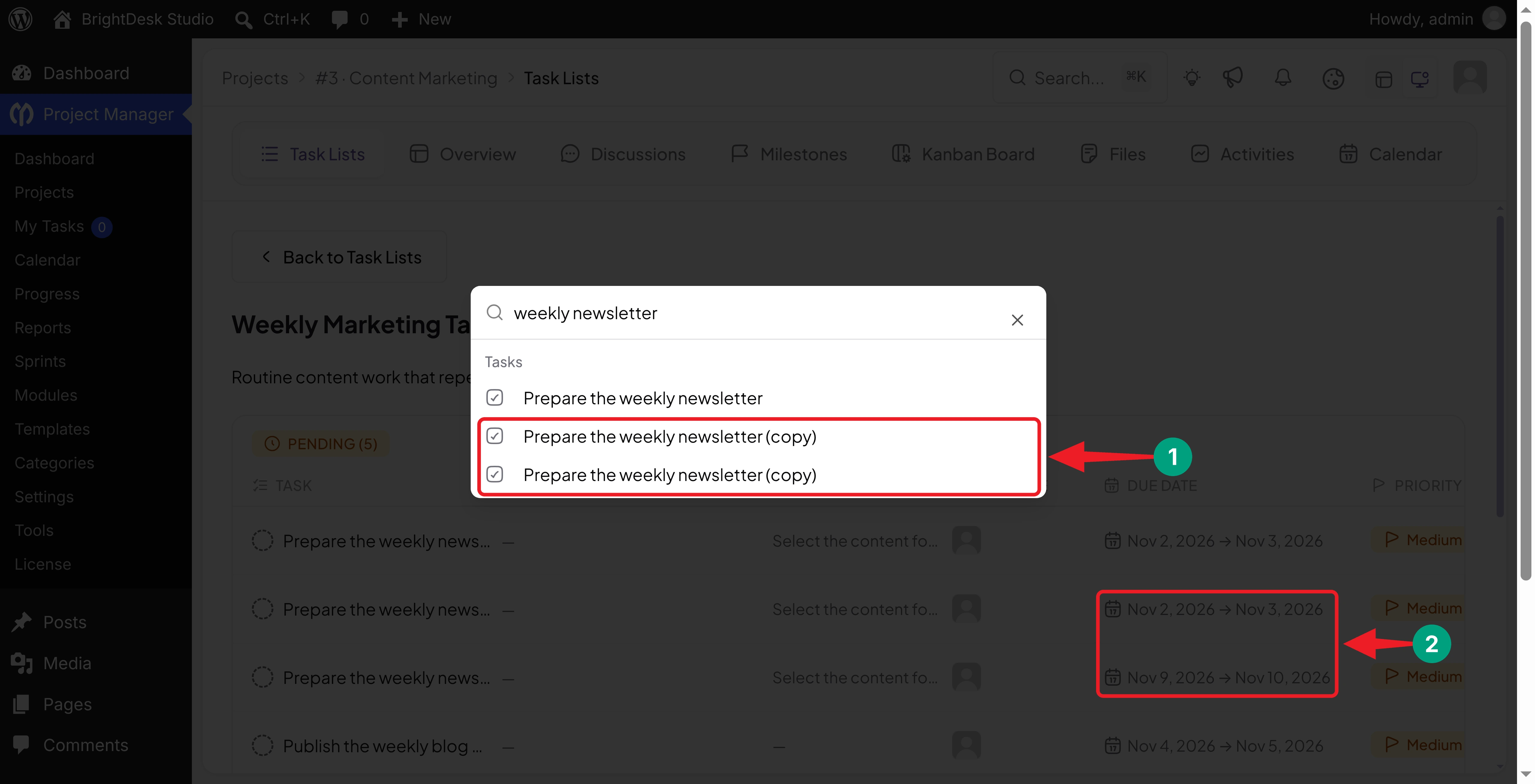
Open a copy and check the following:
- It's in the right project and task list.
- The title ends with (copy).
- The description has the right instructions.
- The right team members are assigned.
- The dates match the occurrence. Our second copy runs from November 9 to November 10.
- Recurring shows Add recurrence, which means the copy doesn't start its own schedule.
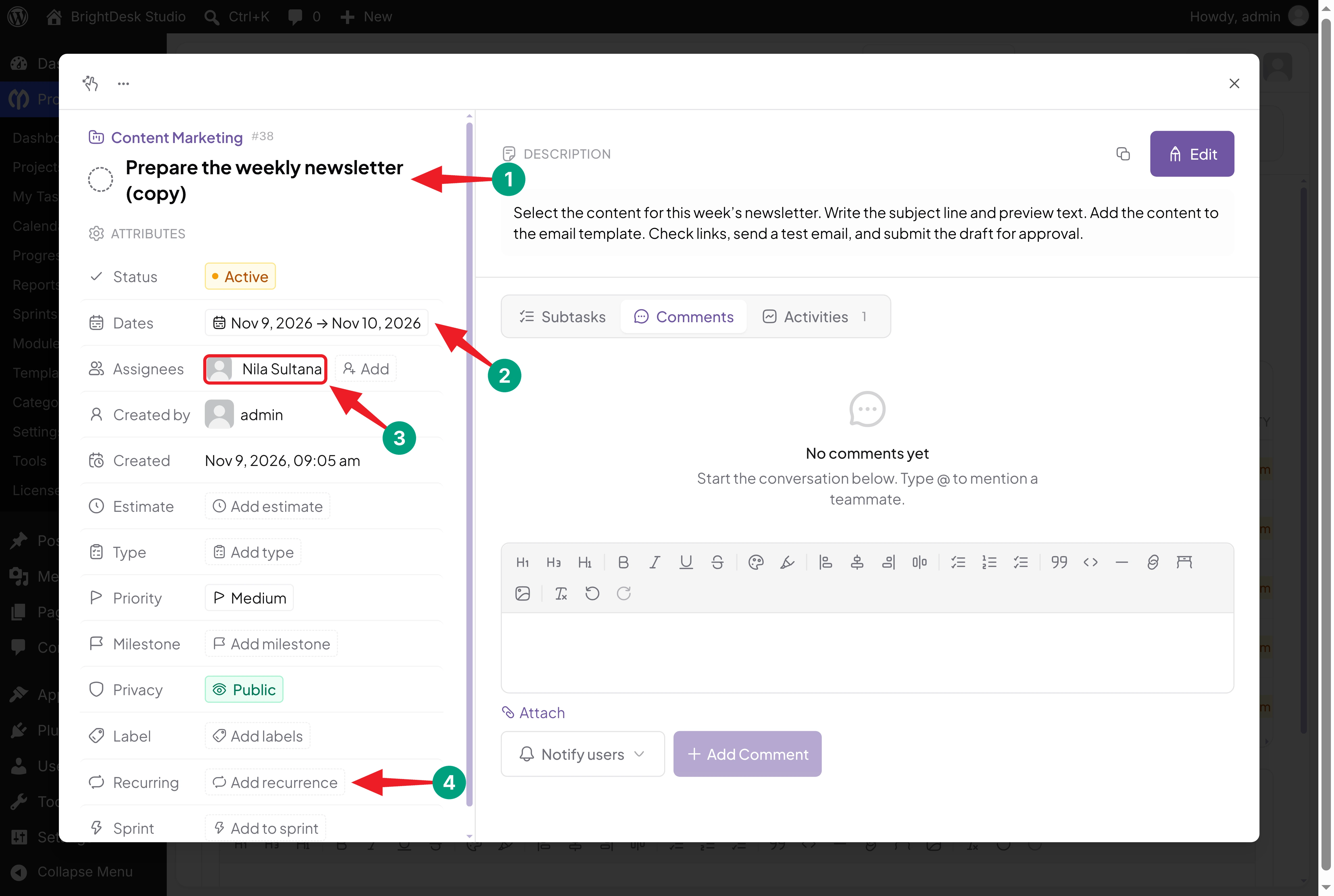
Each copy starts as an active, unfinished task, and the source task stays in charge of future copies.
Important: Saving the rule is only half the job. Wait for the first occurrence and make sure a copy appears before you rely on the workflow.
Thus, you can set up recurring tasks with WP Project Manager.
How to Create Daily, Monthly, and Yearly Recurring Tasks
The same settings support many other routines. Just change Repeat and Every, then choose a suitable start date and end condition.
| Task | Repeat | Every | Other Settings |
|---|---|---|---|
| Review the support queue | Daily | 1 | Start On: the first review day |
| Check campaign results every other day | Daily | 2 | Start On: the first check |
| Review content every Monday and Thursday | Weekly | 1 | On days: Monday and Thursday |
| Prepare a monthly performance report | Monthly | 1 | Start On: your reporting day, such as the 1st |
| Review quarterly goals | Monthly | 3 | Start On: the first review day |
| Review annual operating procedures | Yearly | 1 | Start On: the review date |
Keep these points in mind:
- Weekdays only: Daily includes weekends. For Monday to Friday work, choose Weekly and select those five days.
- Monthly dates: A monthly task repeats on the same day of the month as its start date. If it starts on the 31st, months without a 31st are skipped. So pick a day from the 1st to the 28th.
- Quarterly work: Choose Monthly and enter 3 in Every.
How to Edit or Stop a Recurring Task
Once a schedule is running, you may need to adjust it or stop it altogether. Both actions start from the recurrence panel on the source task.
Change an Existing Schedule
Open the source task, not a copy. Click its summary next to Recurring, such as Every 1 week. Change the interval, start date, days, or end condition, and click Save.
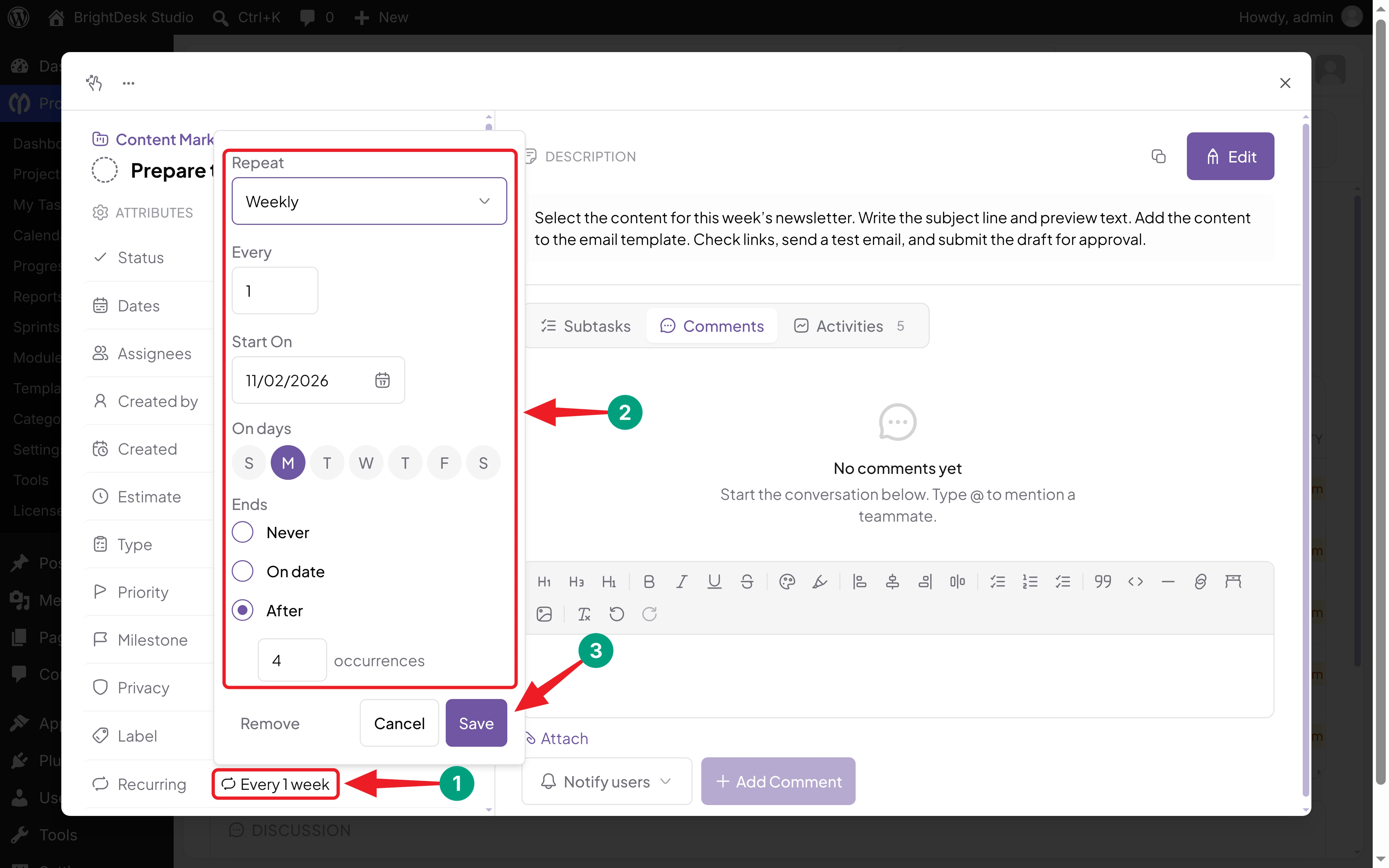
Your changes apply to future copies only. Copies that already exist are separate tasks, so edit them yourself if the changes should apply there too.
Stop Future Task Generation
Open the source task, click its recurrence summary, and click Remove.
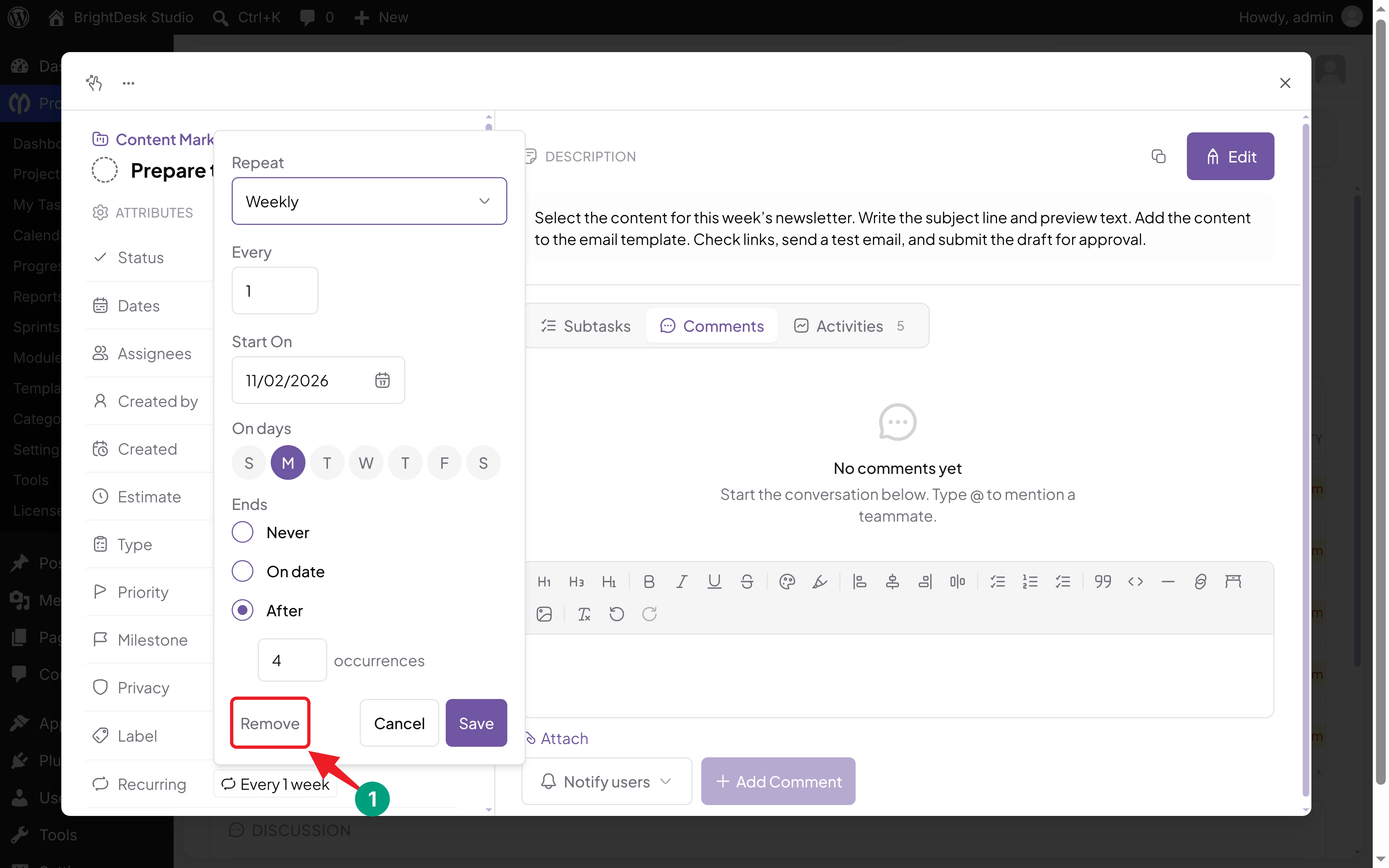
You'll see a Recurrence removed message, and the attribute goes back to Add recurrence.
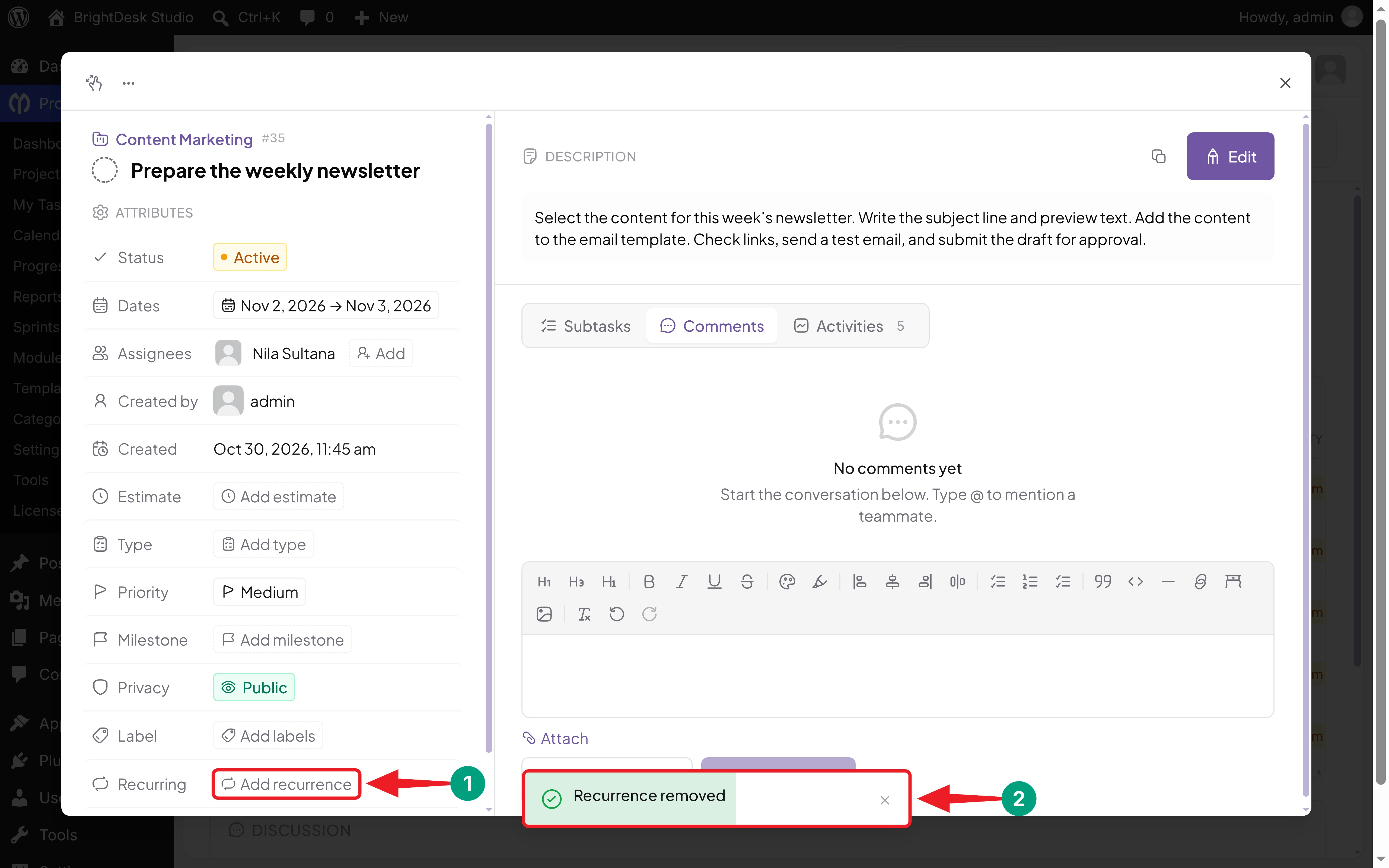
Removing the rule stops new copies from that source task. It doesn't delete copies that already exist, so complete, archive, or delete them as your workflow needs.
Tip: Marking the source task as complete doesn't stop the schedule. New copies keep coming until you remove the rule.
What Happens to Dates and Assignments in Recurring Tasks?
Knowing what carries over helps you prepare a better source task. Here's what happens in version 4.1.2:
| Item | What Happens to the Copy |
|---|---|
| Title | Copied, with "(copy)" added |
| Description | Copied from the source task |
| Assignees and labels | Copied from the source task |
| Status | Starts as active (not completed) |
| Start and due dates | Moved to the occurrence date, keeping the same gap |
| Recurrence rule | Not copied, so the copy doesn't repeat |
| Comments, files, and subtasks | Not copied; they stay with the source task |
| Existing copies | Not updated when you edit the source task |
If the source task has only a due date, the copy's due date moves to the occurrence date. The same goes for a start date on its own. And if the source task has no dates, the copies won't have any either.
Best Practices for Managing Recurring Tasks
A few habits keep recurring tasks helpful rather than noisy:
- Keep the instructions timeless: Write "Review this week's support trends" instead of naming one reporting period. Add changing details to each copy when needed.
- Match the schedule to the real work: A new copy appears on schedule even if the last one isn't finished. If the work takes several days, choose a pace your team can keep.
- Use end conditions for temporary work: A campaign report needs a final date. An ongoing maintenance review can use Never.
- Rename a copy when the date matters: Every copy has the same title. Add the week or month to a copy's title if your team needs to tell them apart.
- Review the source task regularly: Team members and instructions change. Update the source task before the next occurrence.
- Keep the project active: Copies are only created in active projects. Completing or archiving the project stops them.
- Test one schedule first: Start with a low-risk task and check its first copy. Then set up the rest of your routines.
Troubleshooting Common Recurring Task Problems
| Problem | Possible Cause | What to Check |
|---|---|---|
| Recurring is missing from task details | The Recurring Task module is off, or the Business plan isn't active | Turn on the module in Project Manager > Modules and check the license |
| No copy appears on the expected date | A schedule setting, or the project isn't active | Check Start On, the selected days, and Ends. Make sure the project isn't completed or archived |
| A weekly schedule creates nothing | No day is selected under On days | Select at least one day and save again |
| A copy for one date never appeared | WordPress scheduled events didn't run that day | Copies are created on the occurrence date only, not later. Ask your host about a server cron job |
| Copies appear later in the day than expected | WP-Cron runs when someone visits the site | Set up a server cron job for a low-traffic site |
| Tasks appear on weekends | Daily is selected | Use Weekly and select only the days you need |
| The schedule stops early | The end date or occurrence limit is reached, or Start On was in the past | Reopen the panel and review Start On and Ends |
| A monthly task skips a month | Start On is the 29th, 30th, or 31st | Use a day from the 1st to the 28th |
| Old copies show old instructions | Editing the source doesn't update existing copies | Edit those copies separately |
| Two similar tasks appear | Two source tasks have a recurrence rule | Remove the rule you don't need |
WP Project Manager checks recurring tasks through WordPress scheduled events every few minutes. By default, these events run only when someone visits your website. So on a private or low-traffic site, ask your hosting provider about running WP-Cron from the server's task scheduler.
FAQ on Recurring Tasks in WP Project Manager
In this section, we have answered some frequently asked questions about recurring tasks in WP Project Manager.
Can I create recurring tasks with the free version of WP Project Manager?
No. The free plugin gives you the core task management tools. The Recurring Task module comes with WP Project Manager Pro in the Business plan.
Can I repeat a task every two weeks?
Yes. Choose Weekly, enter 2 in Every, select the day, and set the start date and end condition.
Can I repeat a task on several weekdays?
Yes. Choose Weekly and select the days under On days. For example, select Monday and Thursday to get two copies every week.
Does the next task wait until I complete the previous one?
No. Copies are created by calendar date, so a new copy appears even if the previous one is still open.
Will the same team members stay assigned?
Yes. Each copy keeps the source task's assignees. Check the first copy to confirm it matches your workflow.
Will a recurring newsletter task send my newsletter automatically?
No. A recurring task creates the work item for your team. Sending the campaign still needs your email marketing tool and its own workflow.
Final Thoughts!
Recurring tasks take the repeated setup work off your plate. You write the source task once, choose a schedule, and WP Project Manager creates the copies when they're due. Your team always knows what's coming without anyone adding the same task by hand.
Start with one routine, such as a newsletter, a weekly review, or a monthly report. Write instructions that stay true every time, assign a clear owner, set an end condition for temporary work, and check the first copy before you rely on it. Explore the Recurring Task module to see what else it can handle.
Learn how to set up WP Project Manager for a WordPress agency.
If you have any questions, mention them in the comment box below. Thanks for being with us till the end.