

How to Integrate Trello
Overview
Section titled “Overview”WP Project Manager's Import Tools feature allows you to migrate your entire Trello workspace boards, lists, and cards directly into WP Project Manager as projects and tasks. This guide walks you through every step, from creating a Trello Power-Up App to completing the import.
| ℹ | What gets imported: Trello boards become Projects, Trello lists become Task Lists, and Trello cards become Tasks inside WP Project Manager. |
Prerequisites
Section titled “Prerequisites”- A Trello account with access to the boards you want to import
- WP Project Manager Pro plugin installed and activated on WordPress
- Admin access to your WordPress site
- A live WordPress site with a valid HTTPS URL (required for the Trello iframe connector)
Part 1: Create a Trello Power-Up App & Get API Credentials
Section titled “Part 1: Create a Trello Power-Up App & Get API Credentials”Step 1 — Visit the Trello Power-Ups Admin Page
Section titled “Step 1 — Visit the Trello Power-Ups Admin Page”Open your browser and navigate to: https://trello.com/power-ups/admin
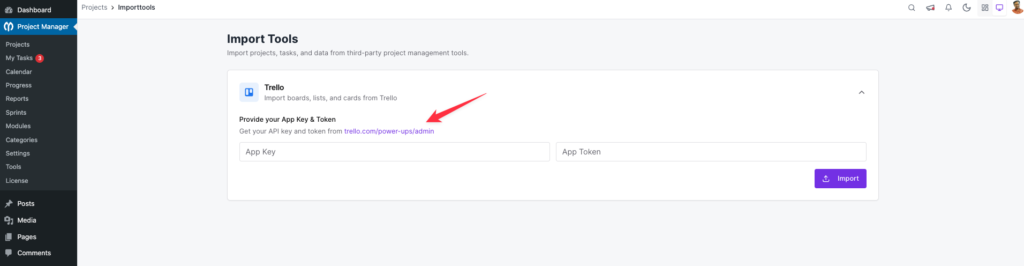
Sign in to Trello if prompted. You will land on the Your Apps dashboard.
| 📋 | First visit: If this is your first time on this page, you will see an empty ‘Your Apps' screen with a New button in the top right corner. This is expected. |
Step 2 — Accept the Privacy & Compliance Terms
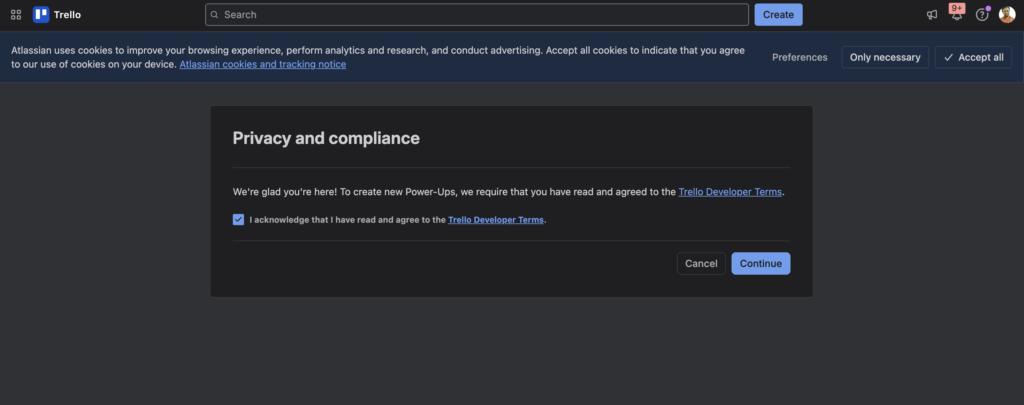
Section titled “Step 2 — Accept the Privacy & Compliance Terms”When you first attempt to create a Power-Up, Trello will display a Privacy and compliance dialog:
- Check the box: I acknowledge that I have read and agree to the Trello Developer Terms.
- Click Continue to proceed.
Step 3 — Create a New App
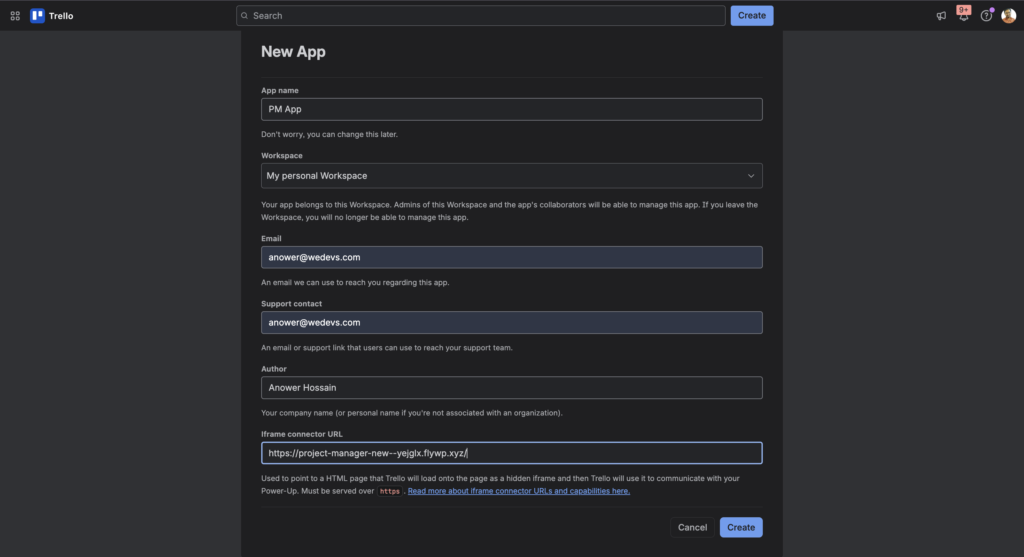
Section titled “Step 3 — Create a New App”On the Your Apps page, click the New button. A New App form will appear. Fill in the following fields:
| Field | Value / Notes |
| App name | PM App (or any name you prefer — you can change it later) |
| Workspace | Select your Trello workspace from the dropdown (e.g., My personal Workspace) |
| Your contact email, e.g. [email protected] | |
| Support contact | Same as email or a dedicated support address |
| Author | Your name or company name, e.g. Anower Hossain |
| Iframe connector URL | Your WordPress site URL, e.g. https://your-site.com/ (must be HTTPS) |
| ⚠ | Important: The Iframe connector URL must be served over HTTPS. Trello will reject plain HTTP URLs. Use your live site domain or a staging URL that has an SSL certificate. |
Once all fields are filled, click Create.
Step 4 — Copy Your API Key & Secret
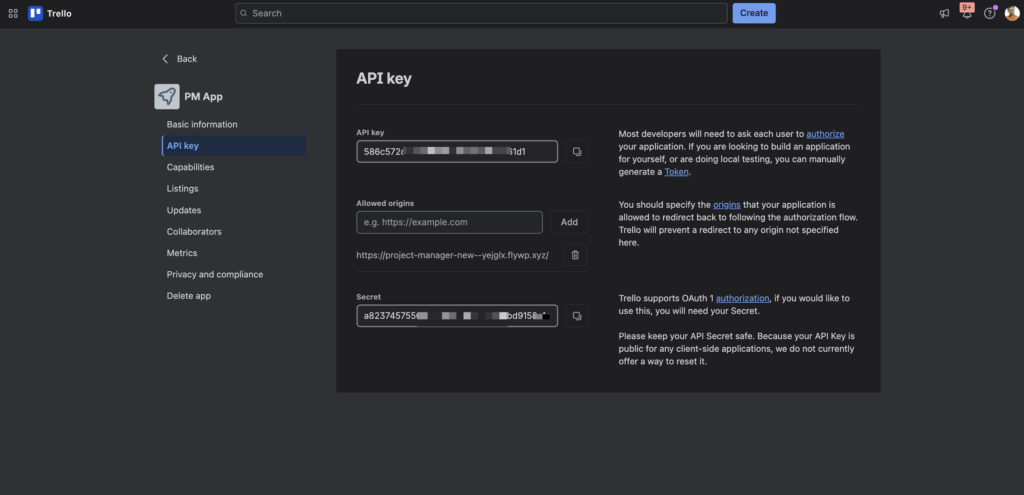
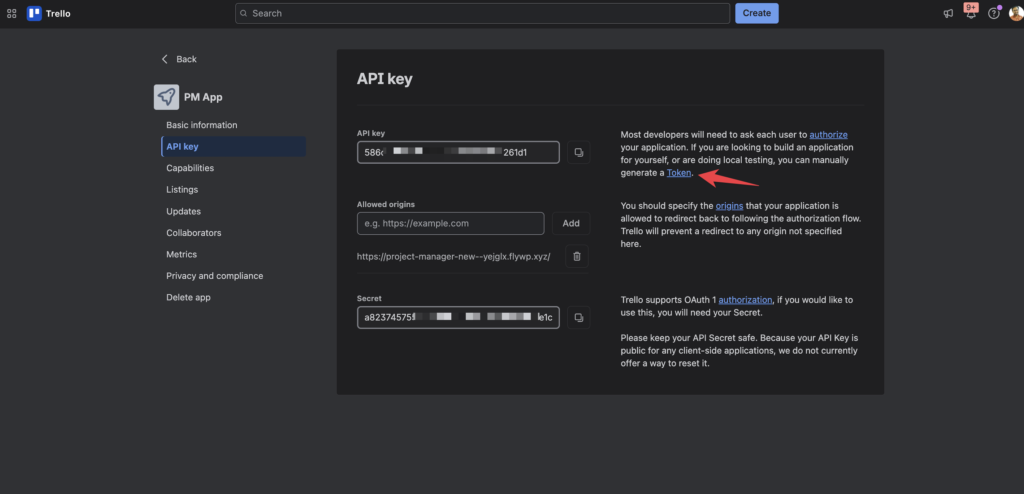
Section titled “Step 4 — Copy Your API Key & Secret”After the app is created, you will be taken to the app settings page. Click API key in the left sidebar. You will see:
| Field | Value / Notes |
| API key | A 32-character string (e.g., ************dd7d1e174261d1) — this is your public key |
| Secret | A 32-character string used for OAuth 1 authorization — keep this private |
| Allowed origins | Your iframe connector URL is pre-filled here automatically |
Click the copy icon next to the API key field and save it somewhere safe. You will need it in Part 2.
Step 5 — Generate a Token
Section titled “Step 5 — Generate a Token”To authorize WP Project Manager to access your Trello boards on your behalf, you need to generate a Token.
- On the API key page, click the Token link.
- Trello will ask you to confirm access. Click Allow.
- A new page will display your Token. It is a long alphanumeric string.
- Copy the token immediately and store it securely.
| 🔴 | Security warning: Only give this token to applications you know and trust. Never send it to another individual via email, chat, or any messaging service. |
| 💡 | Token tip: The token page shows your full token only once. If you lose it, you can revoke it from your Trello account settings and generate a new one. |
Part 2: Import Trello Data into WP Project Manager
Section titled “Part 2: Import Trello Data into WP Project Manager”Step 6 — Open Import Tools in WordPress
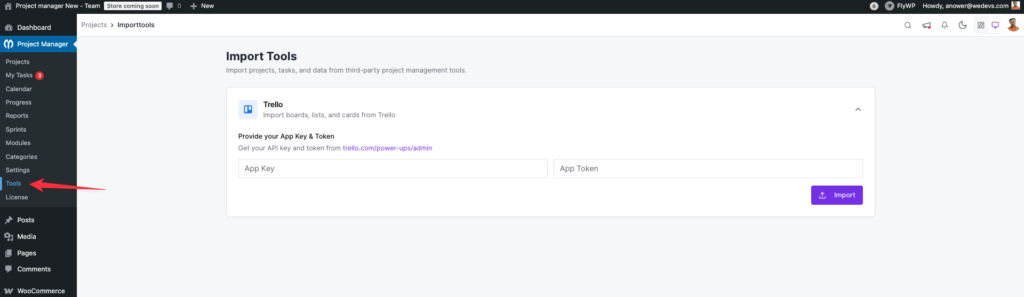
Section titled “Step 6 — Open Import Tools in WordPress”- Log in to your WordPress admin dashboard.
- In the left sidebar, click Project Manager.
- Navigate to Tools > Import Tools.
- You will see the Import Tools page with a Trello section.
Step 7 — Provide Your App Key & Token
Section titled “Step 7 — Provide Your App Key & Token”Inside the Trello import section, you will see two input fields labeled Provide your App Key & Token:
| Field | Value / Notes |
| Left field (App Key) | Paste your API Key copied from Trello in Step 4 |
| Right field (Token) | Paste your Token generated in Step 5 |
| 🔗 | Where to get them: Your API key and token are obtained from trello.com/power-ups/admin as described in Part 1 above. |
Step 8 — Start the Import
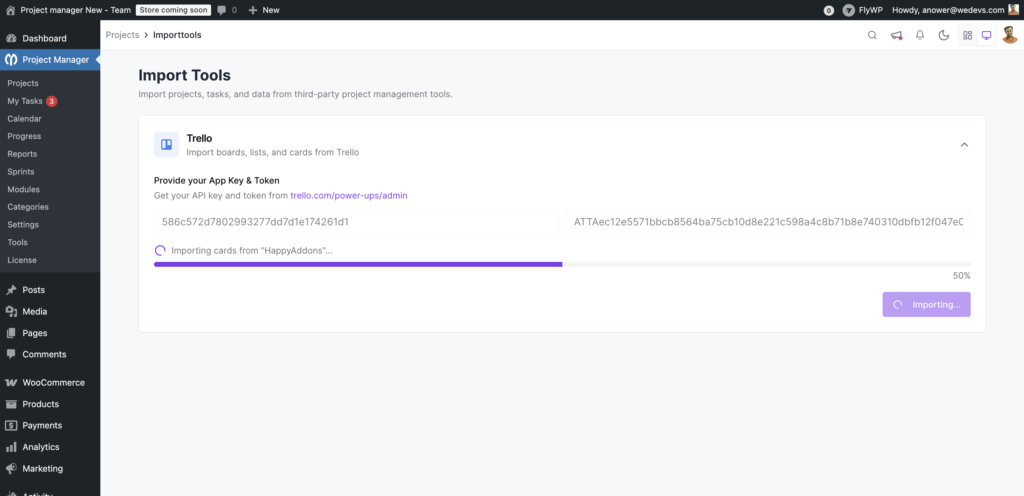
Section titled “Step 8 — Start the Import”- After entering both credentials, click the Import button.
- WP Project Manager will connect to Trello and begin fetching your boards.
- A progress bar will appear showing the import status (e.g., Importing cards from ‘HappyAddons'… 50% as seen in Image).
- Wait for the process to complete. Do not close or refresh the browser tab during the import.
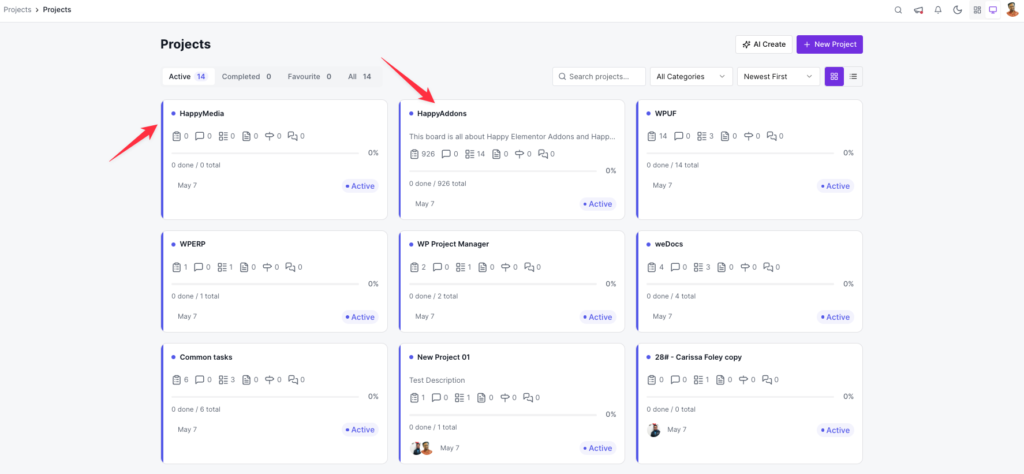
- Once finished, your Trello boards will appear as Projects in WP Project Manager.
| ⏳ | Import time: Larger boards with many cards may take several minutes to import. The progress bar will update in real time. |
Quick Reference — All Steps at a Glance
Section titled “Quick Reference — All Steps at a Glance”| # | Step | What to Do |
| 1 | Visit Power-Ups Admin | Go to trello.com/power-ups/admin and sign in |
| 2 | Accept Developer Terms | Check the terms checkbox and click Continue |
| 3 | Create New App | Click New, fill in app name, workspace, email, author, and iframe URL |
| 4 | Copy API Key | Go to API key section and copy the 32-character key |
| 5 | Generate Token | Click the Token link, authorize access, and copy the long token string |
| 6 | Open Import Tools | In WordPress admin go to Project Manager > Tools > Import Tools |
| 7 | Enter Credentials | Paste API Key in the left field and Token in the right field |
| 8 | Run Import | Click Import and wait for the progress bar to complete |
Finally, you will see your Trello projects in your WordPress > Project Manager:
Troubleshooting
Section titled “Troubleshooting”Import fails or shows an authentication error
Section titled “Import fails or shows an authentication error”- Verify the API key and Token are pasted correctly with no extra spaces.
- Ensure the Token has not been revoked. Generate a new one if needed.
- Confirm your WordPress site URL matches the Allowed origins value in your Trello app.
Iframe connector URL rejected by Trello
Section titled “Iframe connector URL rejected by Trello”- The URL must use HTTPS. HTTP URLs will not be accepted.
- Make sure there are no trailing spaces or typos in the URL.
- If using a local development environment, use a tunneling tool (e.g., ngrok) to expose HTTPS.
Import gets stuck or freezes at a certain percentage
Section titled “Import gets stuck or freezes at a certain percentage”- Check your server's PHP memory limit and max execution time. Increase them in wp-config.php if needed.
- Try importing one board at a time by archiving others temporarily in Trello.
- Deactivate other plugins temporarily to rule out conflicts.
Boards are not visible after import
Section titled “Boards are not visible after import”- Go to Projects in WP Project Manager and check if they were created.
- Ensure you are logged in as an admin or a user with project access.
- Check the WP Project Manager settings for any role permission restrictions.
Thats it. You have successfully Configured Trello.