Discussions
While managing a project, you need to communicate with all the people involved in that project. With the discussions, you can discuss anything online with your co-workers. You or other participants can also attach files to their comments when necessary.
Step: 1
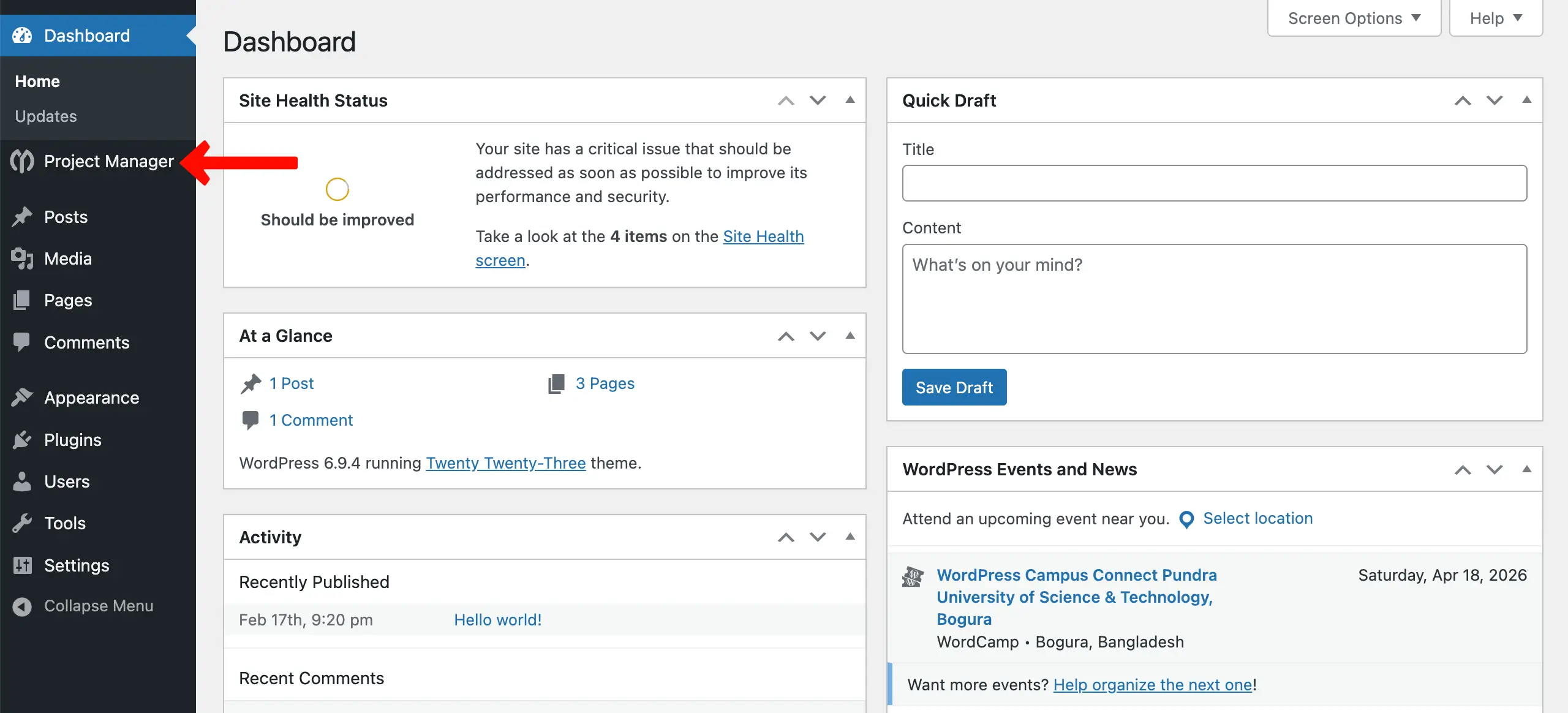
To use the feature, you must navigate to WP Admin Dashboard → Project Manager.
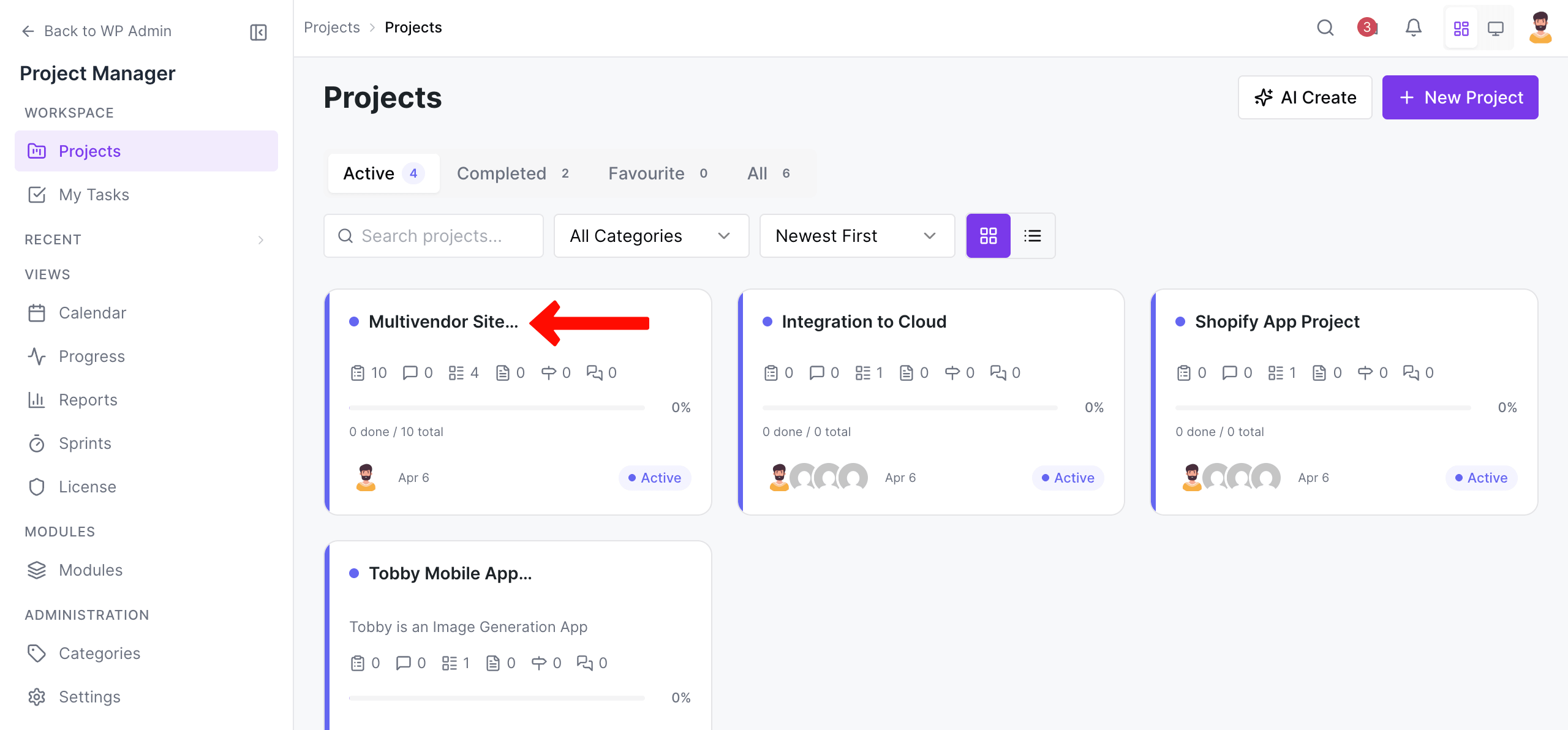
From the dashboard, select any project you want. Get into it.
Step: 2
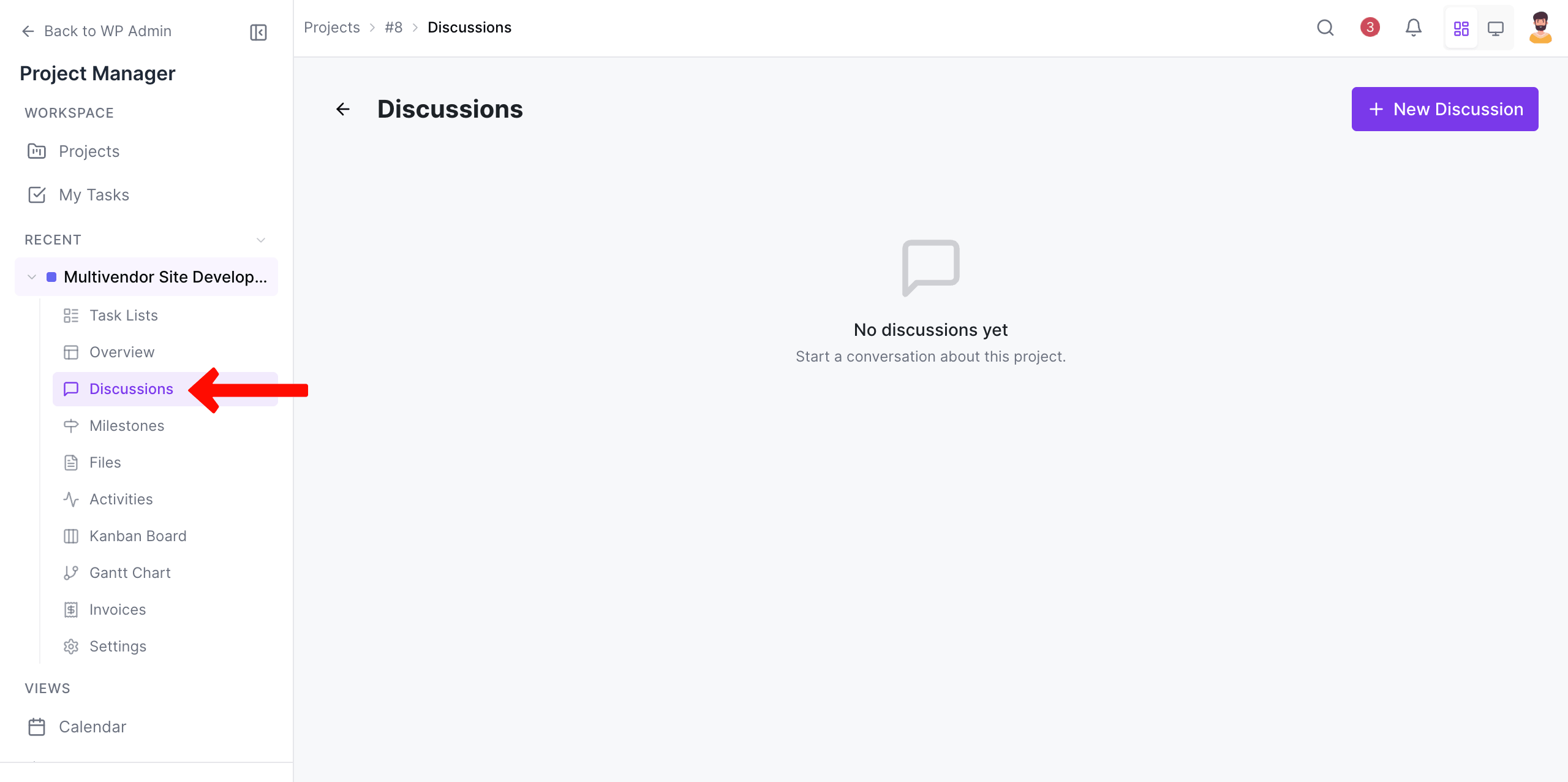
Next, click on the ‘Discussions‘ tab.
Step: 3
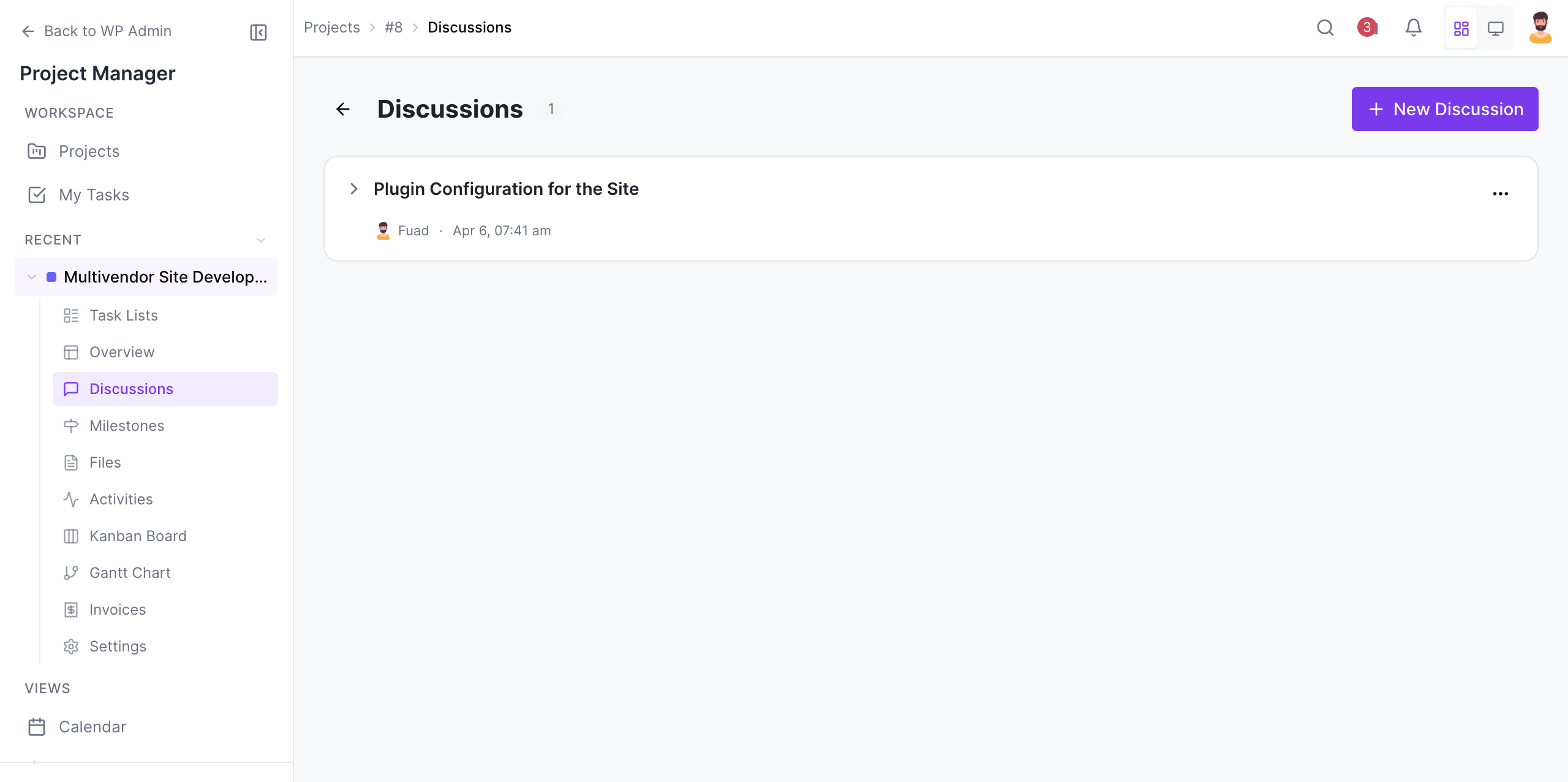
After that, you will get a discussion panel, which can be used to create an open discussion, group discussion, or private conversation. Click on the “Add New Discussion” button to get options for creating a discussion.
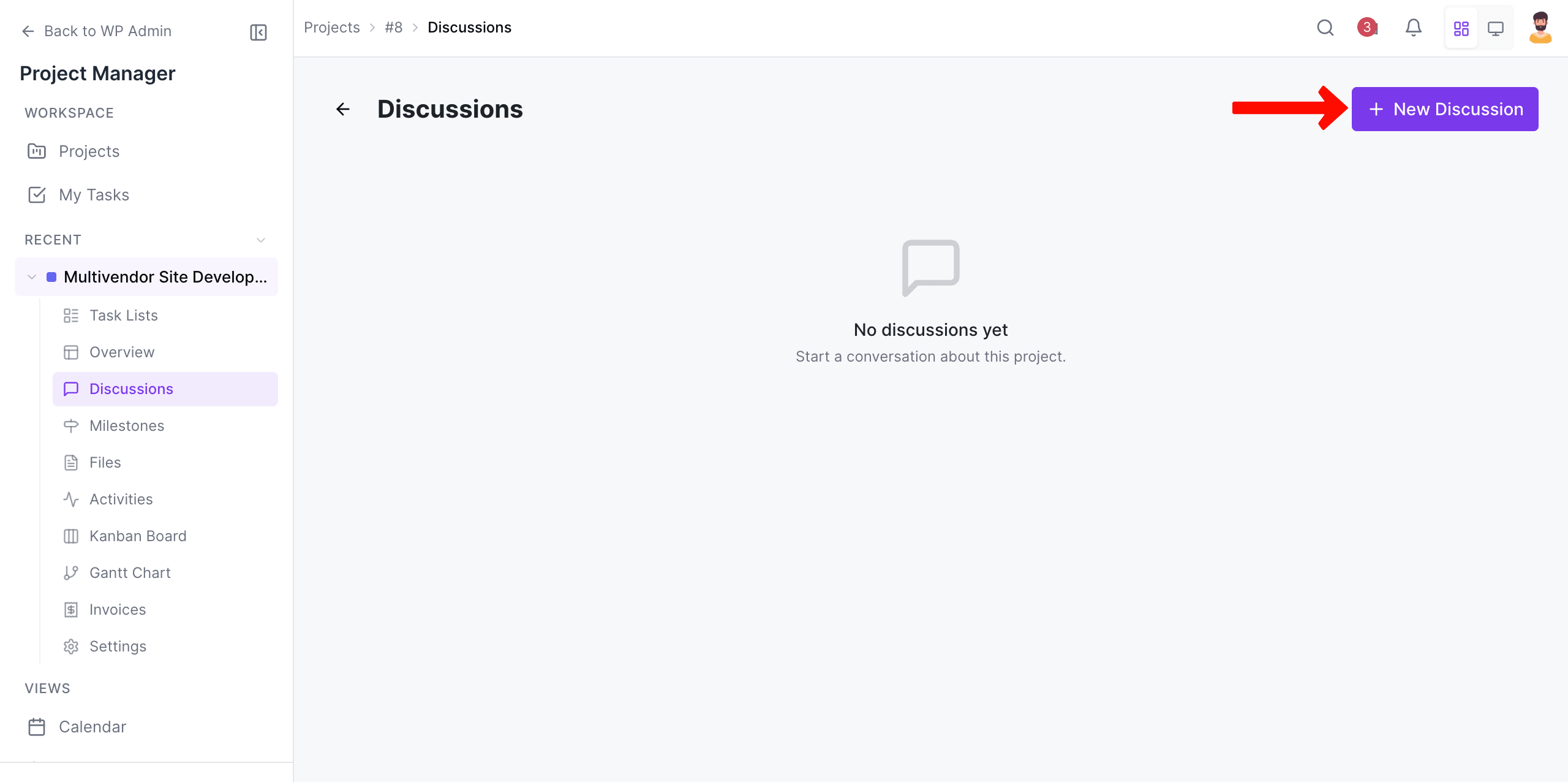
After clicking on the button, you will get the following interface with a view to giving a name to your discussion, adding a comment, attaching files, selecting relevant milestones, selecting users, etc.
Hit the “Add Message” button to create the conversation:
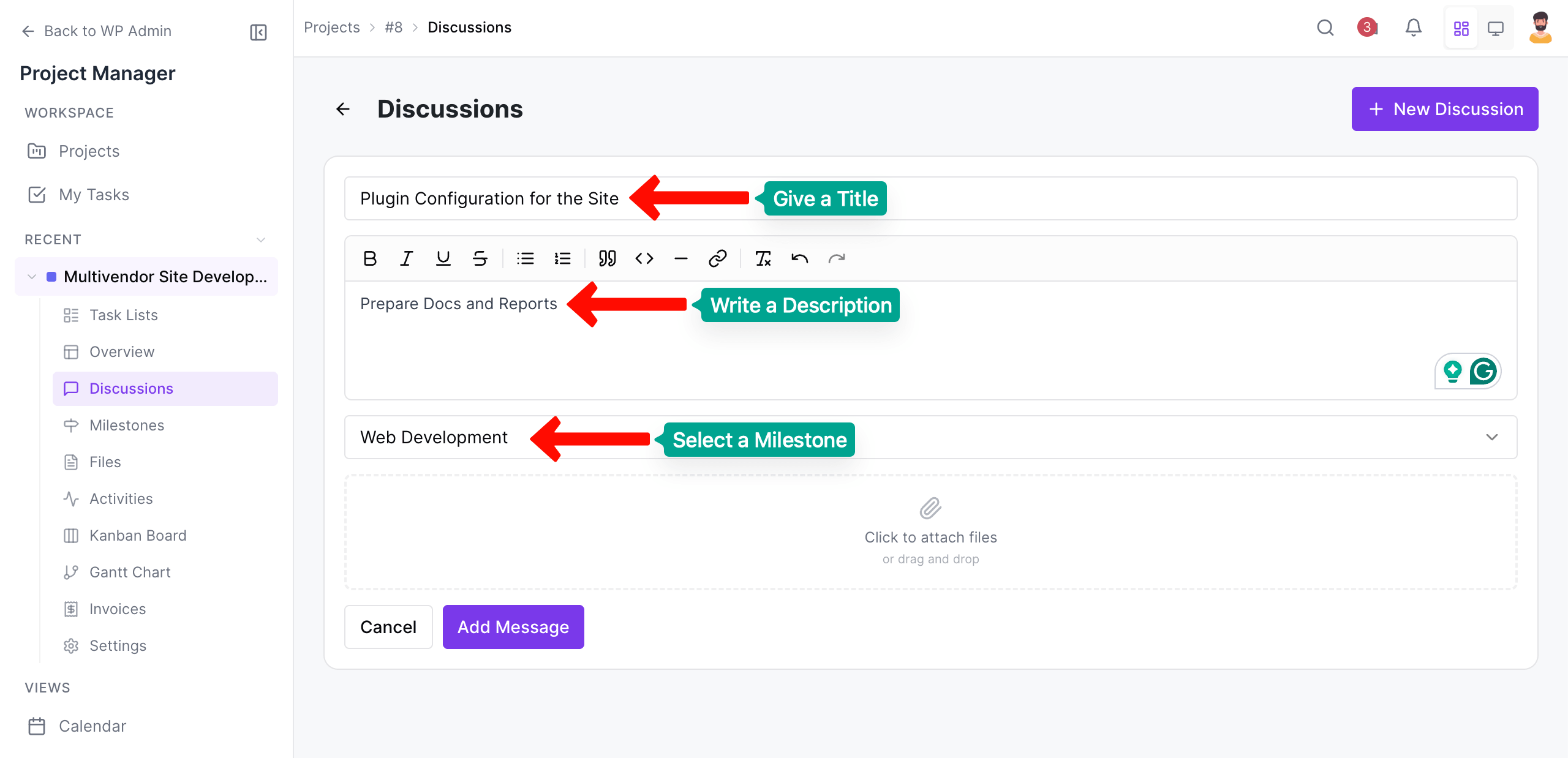
Note: You can select all the users to make the discussion open, or create a group discussion by selecting a few users from the total list of users.
What's more?
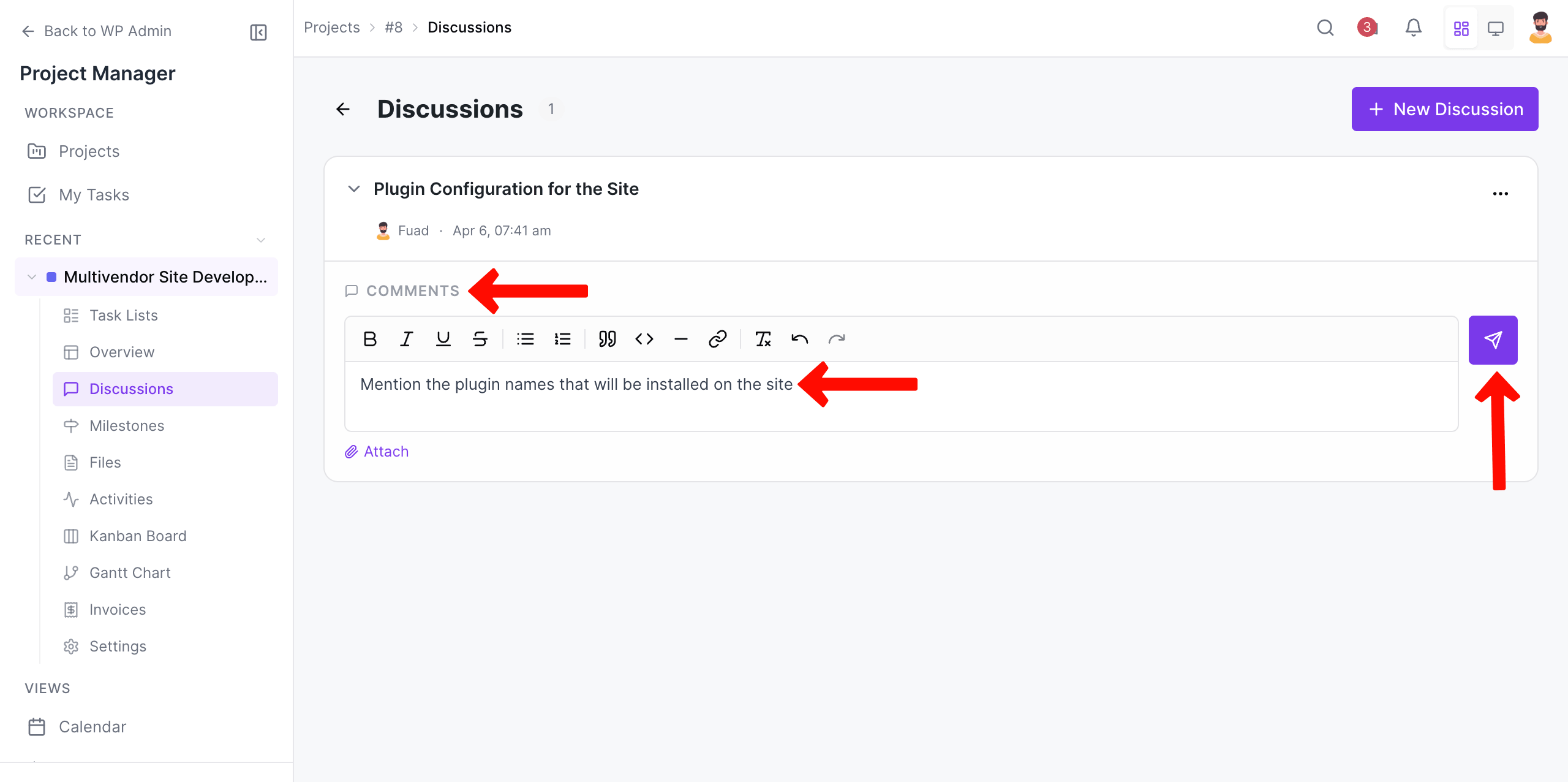
Your notified users can participate in the discussion by commenting.
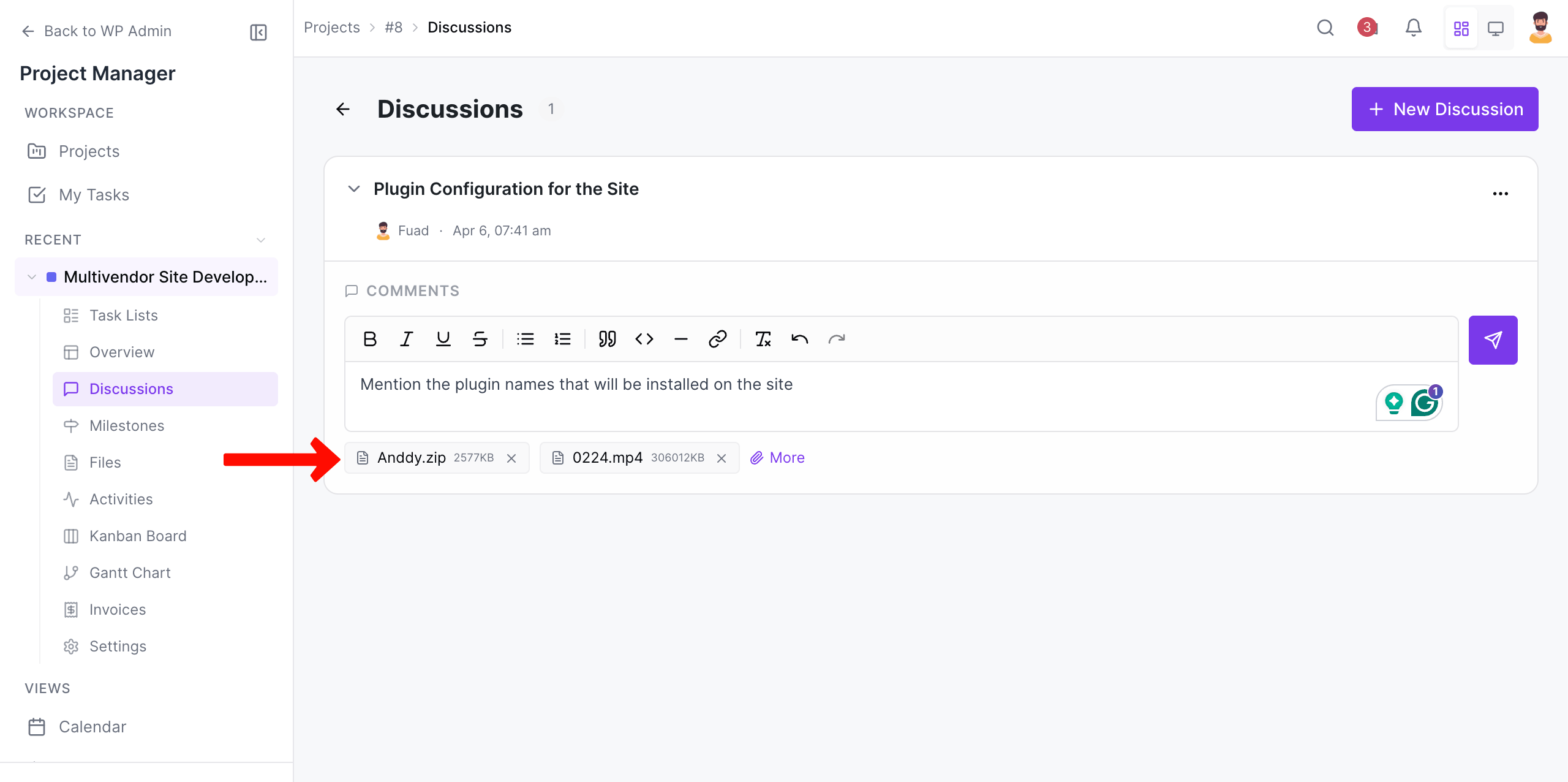
Any participant can also attach files to submit their tasks in the form of documents, images, zip files, and so on.
If you have created multiple discussions, you can view them easily by navigating to the discussion tab. That's how you can use the discussion feature of WP Project Manager.
