How to Restrict Content in WordPress Using WP User Frontend Pro
If you run a membership site, an online community, or a premium blog, you've probably needed to control who can see specific content. Maybe certain posts should be visible only to logged-in users. Maybe entire categories should be locked behind a paid subscription. Or maybe you just want to hide a navigation link from visitors who don't have access anyway.
WP User Frontend Pro gives you several built-in ways to do exactly this – no extra membership plugin required. This guide walks through each method, from restricting a single post to gating entire categories and even hiding menu items.
What Is WordPress Content Restriction?
WordPress content restriction is the process of limiting access to posts, pages, categories, menus, or sections of content based on login status, user roles, or paid subscriptions. WP User Frontend Pro provides built-in tools to manage these restrictions without manually configuring every post.
When to Use Content Restriction in WordPress Sites
Content restriction isn't just for paid memberships. Depending on how your website is organized, you can use WPUF Pro's built-in restriction features to create different experiences for different types of users.
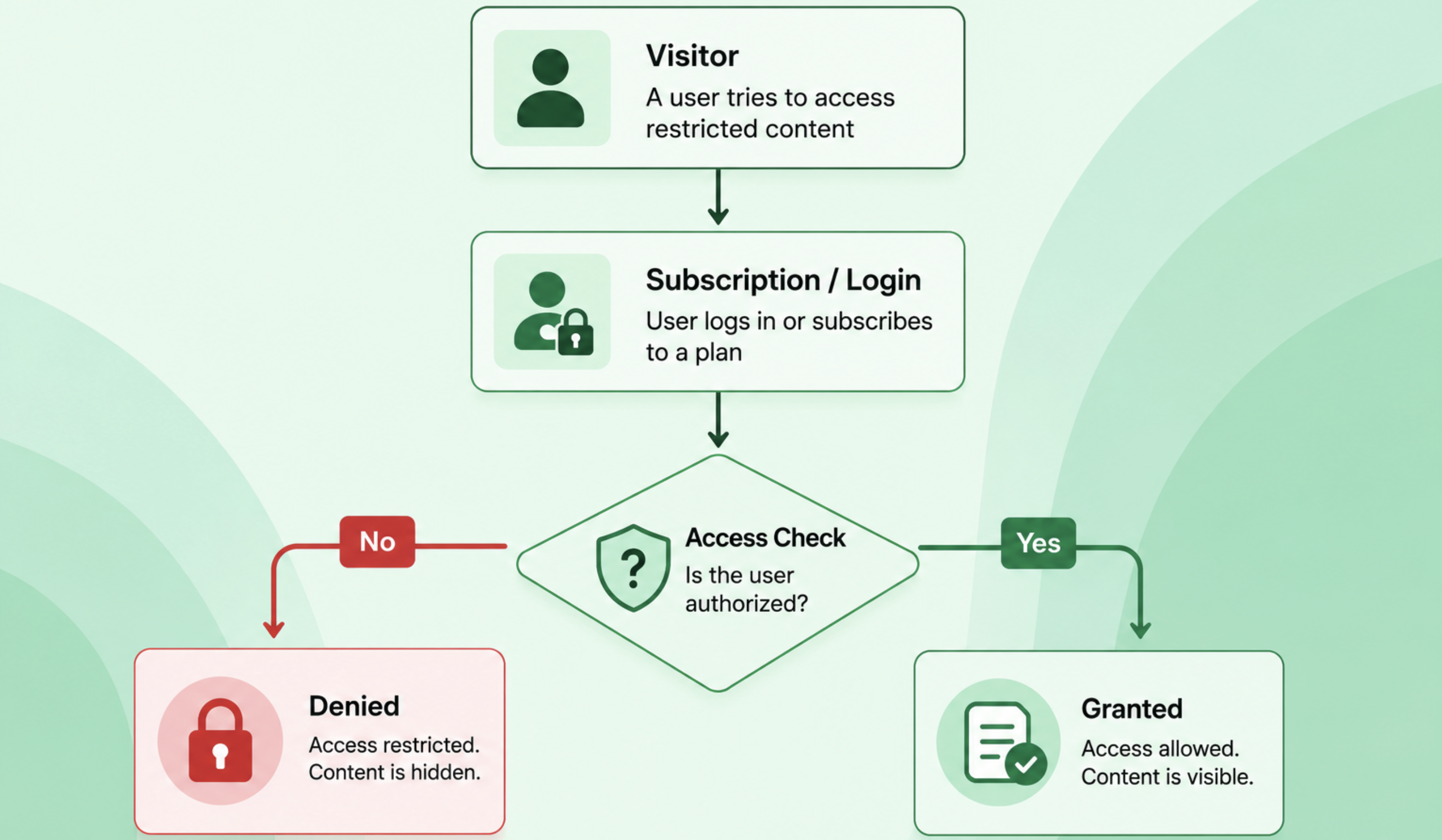
Here are a few common scenarios:
- Premium blogs: Offer free previews while reserving full articles for subscribers.
- Membership websites: Give paying members access to exclusive posts, pages, or categories.
- Online learning platforms: Restrict lesson content until students purchase the appropriate subscription.
- Private communities: Share announcements, documentation, or resources only with registered members.
- Customer portals: Provide user manuals, downloads, or support documents exclusively to customers.
- Internal company sites: Limit access to employee resources based on user roles.
Because WPUF Pro supports restrictions based on login status, user roles, and subscription packs, you can create anything from a simple members-only blog to a multi-tier content platform without manually configuring every piece of content.
Best Ways to Restrict WordPress Content with WPUF Pro
Learn how to protect WordPress posts, pages, categories, and menus using WP User Frontend Pro's built-in content restriction features. Perfect for membership sites, premium blogs, and private communities.
1. Restrict an Individual Post or Page
The most common scenario is restricting an entire post or page from certain visitors.
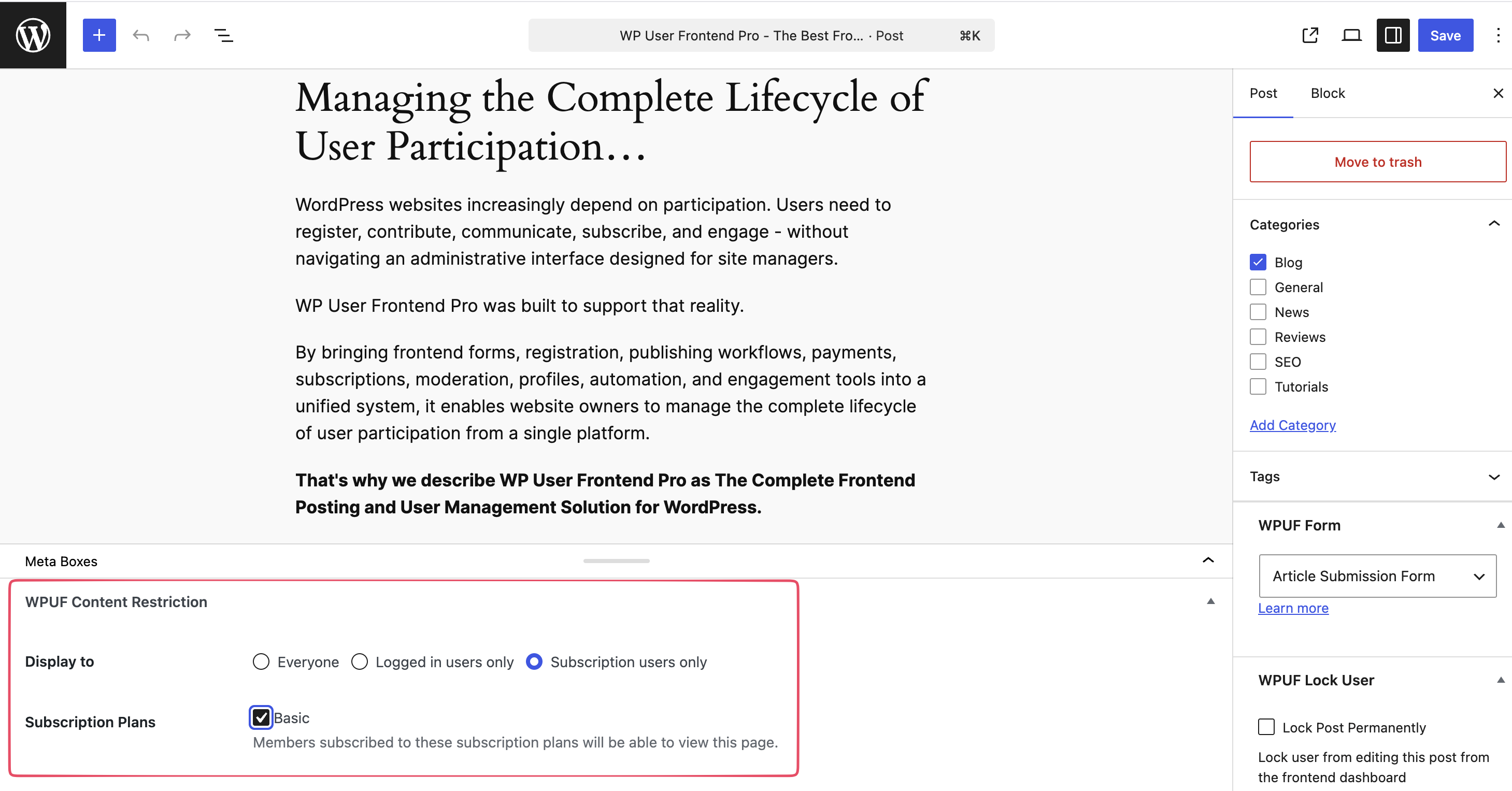
Open any post or page in the WordPress editor and scroll down to the WPUF Content Restriction meta box. Under Display To, you'll see three options:
- Everyone — no restriction; the content is fully public.
- Logged-in users only — only signed-in visitors can access the content.
- Subscription users only — only visitors with an active WPUF subscription pack can access the content.
Restricting by User Role
If you select Logged-in users only, a User Roles section appears, letting you narrow access even further. You can restrict the post to specific roles such as Subscriber, Customer, Shop Manager, Seller, or any custom role you've created on your site. This is useful when different roles should see different content for example, a post meant only for Sellers, not regular Customers.
2. Restrict Only Part of a Post
Sometimes you don't want to lock an entire post you want visitors to read an introduction or preview before being asked to sign in or subscribe. This is exactly what the Partial Content Restriction block is designed for.
Using the Partial Content Restriction Block
In the block editor, insert the WPUF Partial Content Restriction block at the point where the free preview should end. Everything below that block becomes restricted.
Select the block, and the same Display To options appear in the sidebar: Everyone, Logged-in users only, or Subscription users only.
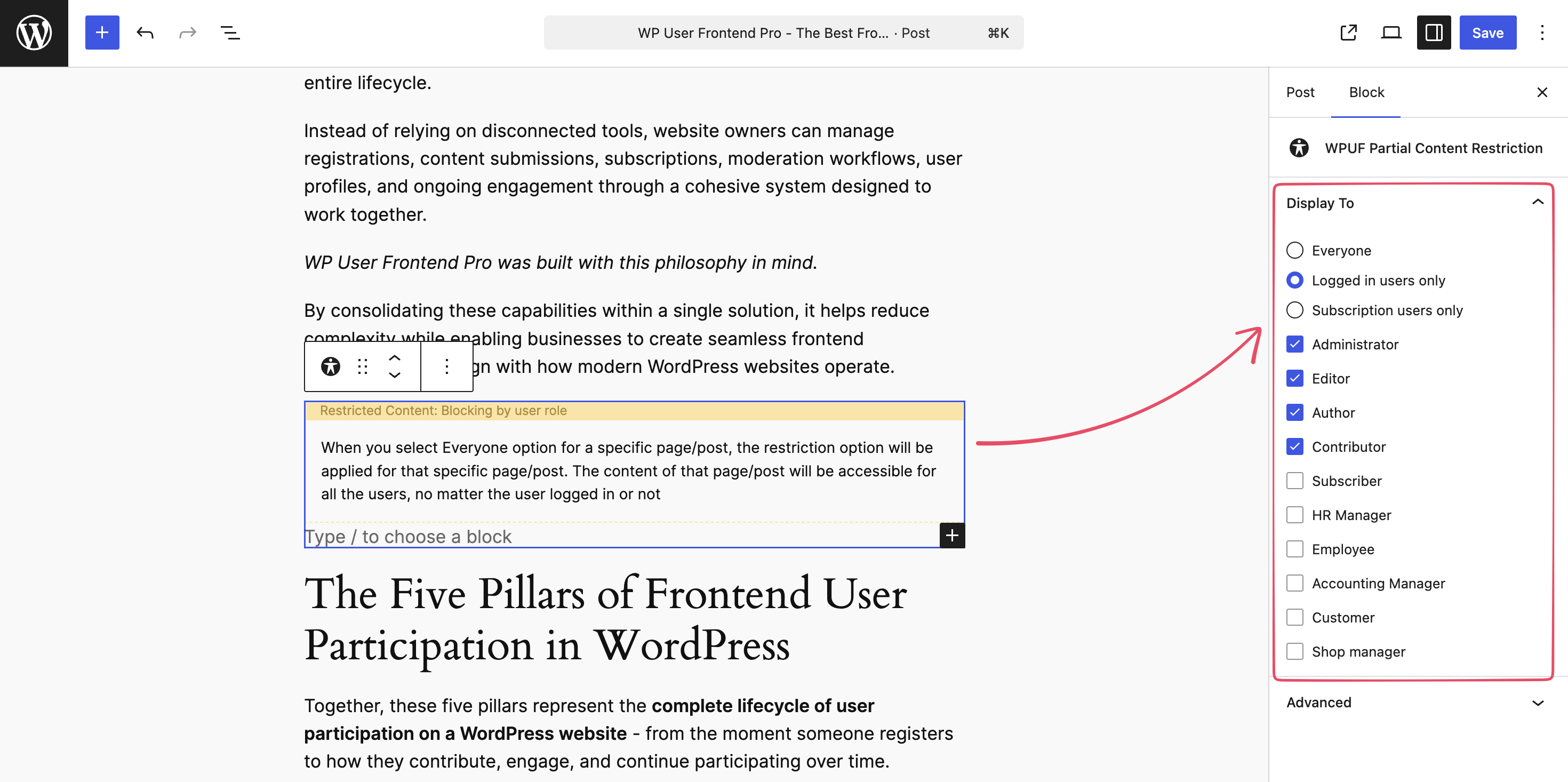
If you choose Subscription users only, you'll see a checklist of your active subscription packs. Simply check which packs should unlock the protected section. Visitors without access will only see the free preview, while eligible subscribers can continue reading the rest of the content.
3. Restrict Content Submitted Through a Form
If your site accepts user-generated content, you may want every post submitted through a specific form to follow the same visibility rules without configuring each post individually.
Enabling Post View Control
Go to WP User Frontend Pro → Settings and enable the Post View Control module. Then open the post submission form you want to configure for example, a form called “Premium Articles.”
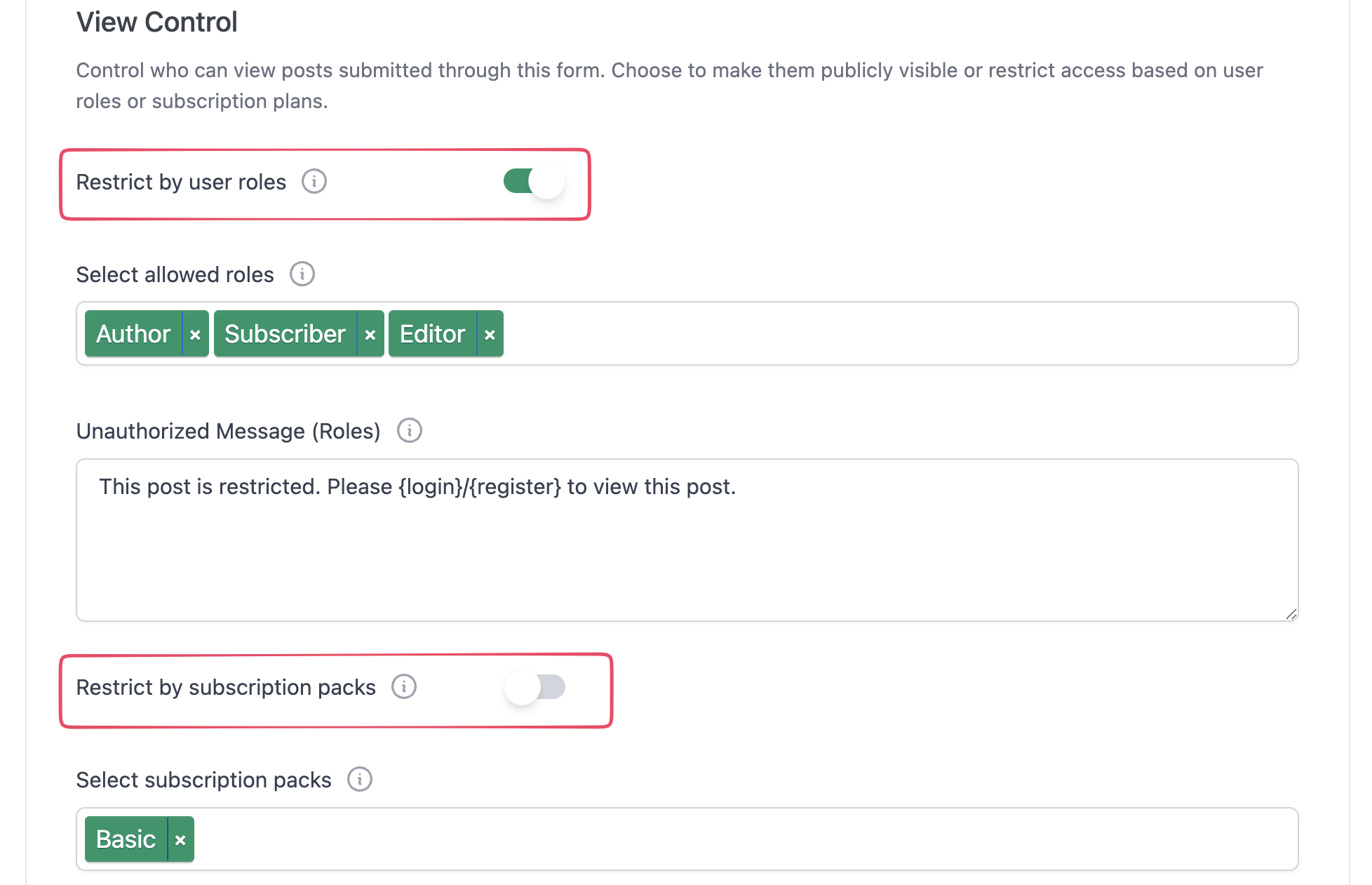
Inside the form settings, you'll find View Control, where you can decide who can view every post submitted through that form:
- Restriction based on user roles
- Restriction based on subscription packs
Unlike the meta-box method, this rule applies automatically to every post created through that form. It's a great solution when you maintain separate forms for free articles, premium content, guest posts, or internal documentation set the rule once, and the form handles the rest.
4. Restrict Categories with Subscription Packs
What if you want tiered access, for example, Basic members can read one category, while Premium members unlock everything?
Connecting Categories to Subscription Packs
Go to User Frontend → Subscriptions and create or edit a subscription pack. Then, open the Advanced Configuration tab, scroll down to Post View Categories, and choose the categories that subscribers can access.
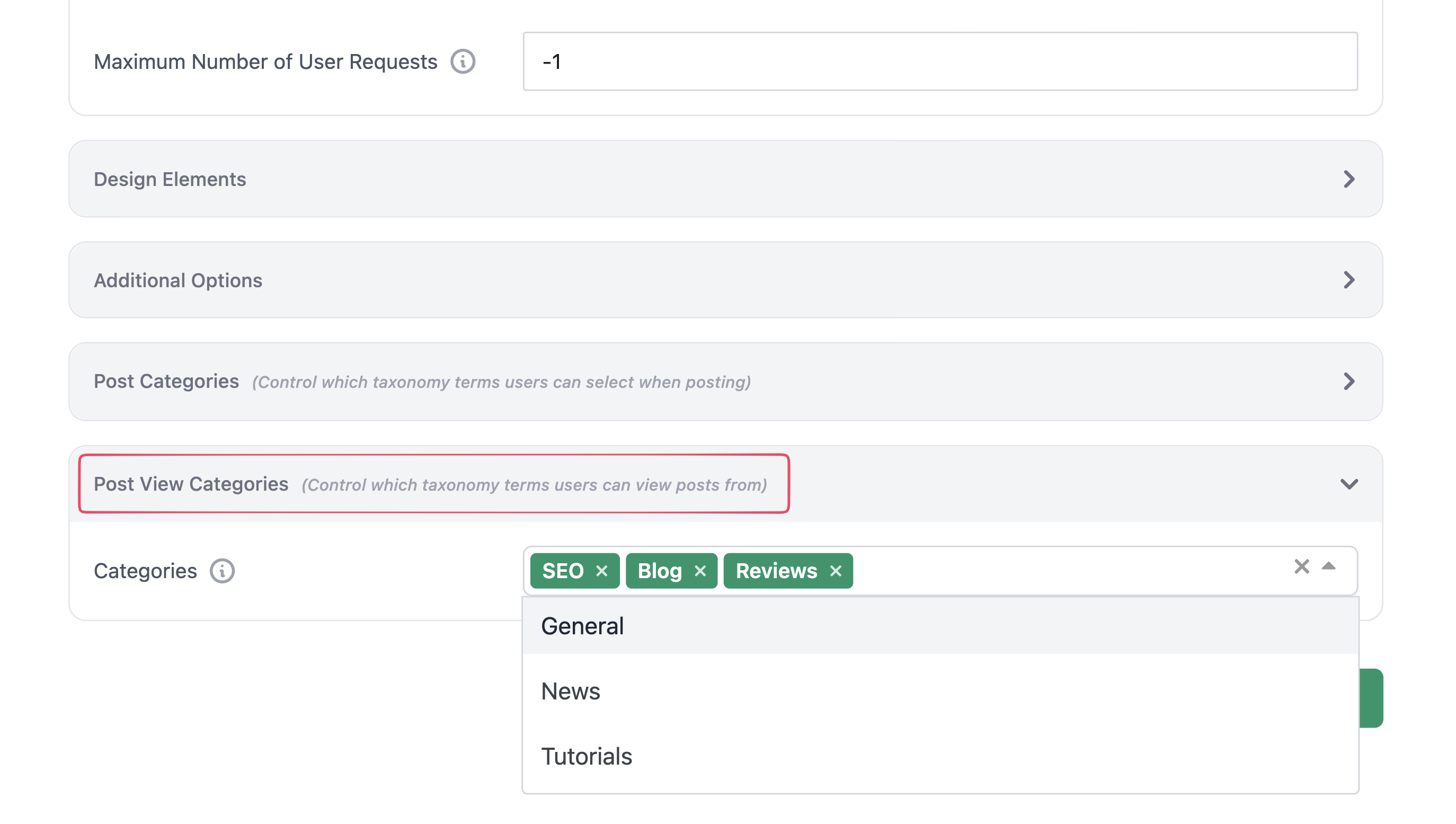
Assign one or more categories to the subscription. Users with an active subscription can see posts in those categories, while everyone else is blocked.
This approach lets you build a tiered membership site without manually restricting every individual post. It's especially useful for premium blogs, online learning platforms, paid communities, digital magazines, and content marketplaces.
Simply organize your content into categories, connect those categories to subscription packs, and WPUF handles the rest.
5. Hide Menu Items From Unauthorized Users
Restricting content is only part of the picture. If a navigation link points to a page a visitor can't access anyway, it's better to hide the link altogether, and WPUF Pro makes this possible with Menu Restriction.
Note: This feature works only with classic WordPress themes, such as Twenty Twenty-One. Full Site Editing (FSE) themes use the Navigation block instead of the classic menu system, so this menu restriction feature is not supported.
Setting Up Menu Restriction
Go to Appearance → Menus and edit any menu item. You'll notice additional WPUF visibility settings added to each item, letting you show or hide it based on subscription packs, login status, or user role.
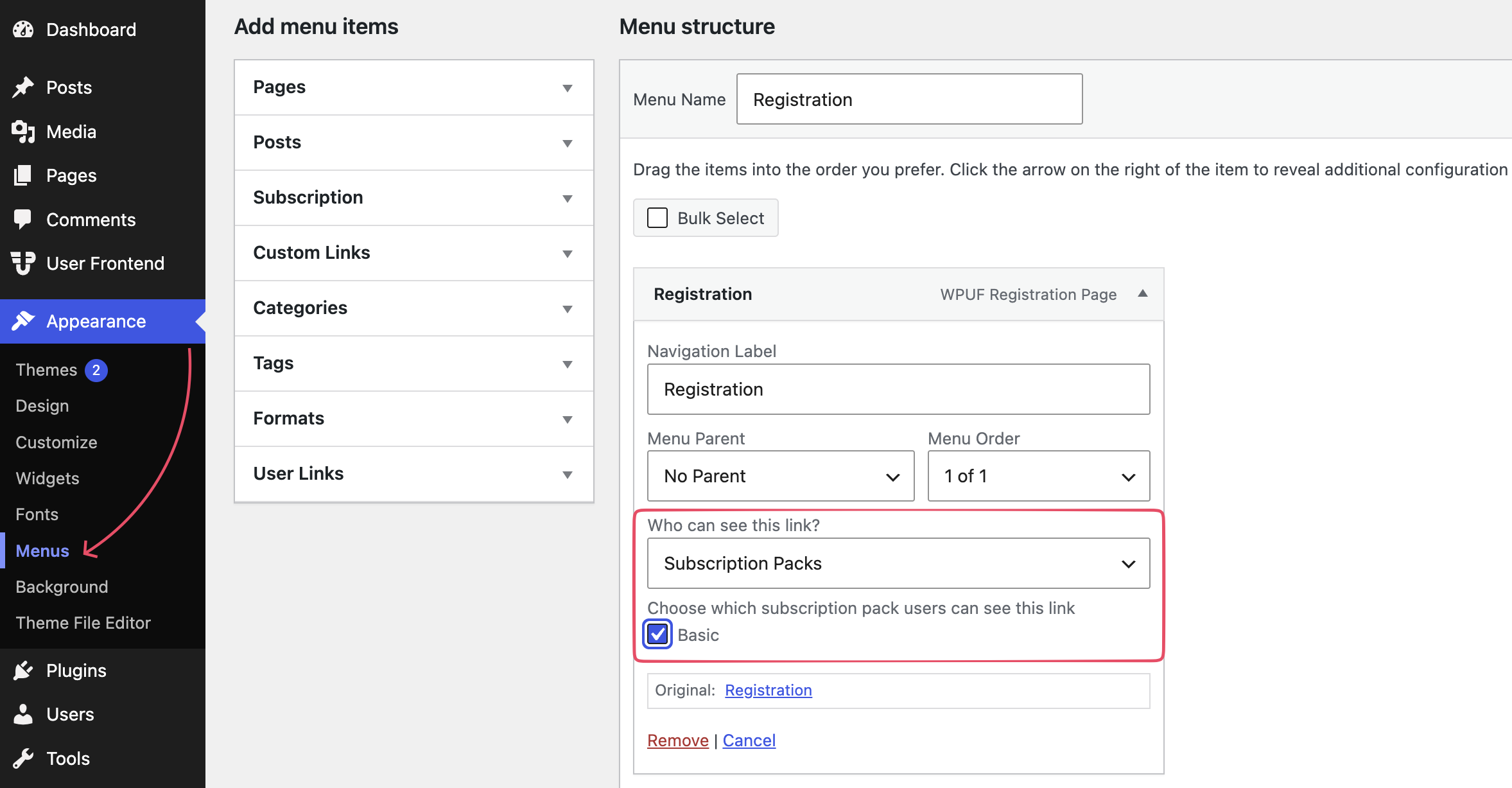
For example, you can hide the Registration menu item from users who don't have an active subscription.
How to Choose the Right Content Restriction Method for Your Site
WPUF Pro includes several content restriction tools, each designed for a different use case. Choosing the right one depends on how you want visitors to access your content.
| Feature | Best Used For |
|---|---|
| Post/Page Restriction | Protecting individual posts or pages. |
| Partial Content Restriction | Showing a preview before requiring users to log in or subscribe. |
| Post View Control | Automatically applying the same visibility rules to every post submitted through a specific frontend form. |
| Subscription Pack Category Restriction | Creating tiered membership sites where subscribers unlock entire categories of content. |
| Menu Restriction | Hiding navigation links that visitors don't have permission to access. |
Many websites combine these features. For example, you might use category restrictions for premium articles while using the Partial Content Restriction block to display a teaser before prompting visitors to subscribe.
Common Mistakes to Avoid When Restricting WordPress Content
When setting up content restrictions, a few simple mistakes can prevent your rules from working as expected.
- Testing while logged in as an Administrator. Administrators often bypass restrictions, so always test with a subscriber account or in an incognito window.
- Assigning the wrong user role. Double-check that users have the expected role before troubleshooting access issues.
- Forgetting to connect categories to subscription packs. If you're using category-based restrictions, make sure the appropriate categories are assigned within the subscription pack settings.
- Using the wrong restriction method. Individual post restrictions are ideal for one-off content, while Post View Control automatically protects every post created through a specific form.
- Not customizing the unauthorized access message. A clear message explaining why content is unavailable and how to gain access creates a much better user experience.
Taking a few minutes to verify these settings can save significant troubleshooting later. You can learn more from WP User Frontend Documentation.
Frequently Asked Questions About How to Restrict Content in WordPress
Can I restrict only part of a WordPress post?
Yes. Use the Partial Content Restriction block in the WordPress block editor to display a free preview while protecting the remaining content for logged-in users or subscribers.
Can I restrict content by user role?
Yes. WPUF Pro allows you to limit access based on WordPress user roles, including custom roles created by your website.
Can I automatically protect posts submitted through a frontend form?
Yes. Enable Post View Control and configure the visibility settings within your post submission form. Every post submitted through that form will automatically follow the selected access rules.
Can I create subscription-only content?
Yes. Subscription packs can be used to restrict individual content as well as entire categories, making it easy to build tiered membership websites.
Can I hide menu items from visitors?
Yes. WPUF Pro includes Menu Restriction settings that let you show or hide navigation items based on login status or user roles, helping visitors see only the links relevant to them.
Take Control of Your WordPress Content
Whether you're building a premium blog, membership website, customer portal, or private community, WP User Frontend Pro gives you flexible tools to control who can access your content.
From protecting individual posts and displaying subscriber-only content to automatically restricting frontend submissions and locking entire categories, you can build a tailored access system that fits your site's needs.
By combining Post/Page Restriction, Partial Content Restriction, Post View Control, Subscription Packs, and Menu Restriction, you can create everything from a simple members-only blog to a fully tiered content platform, all without managing separate access rules for every piece of content.
If you're looking for an easy way to restrict WordPress content while keeping everything managed from a single plugin, these built-in WP User Frontend Pro features provide a powerful and flexible solution.
Explore them on your own site and choose the combination that best matches your content strategy.

