WordPress Form Spam Protection for User-Submitted Posts
You open your dashboard and there are nine new pending posts. All nine are about crypto. None of them came from a real person. If you let people submit posts from the front end of your site, this becomes a weekly job, and every guide you find about WordPress form spam protection talks about contact forms instead. This one covers post submission forms, where the stakes are higher.
TLDR
- Contact form spam clogs your inbox. Post submission spam gets published on your domain, which is a much bigger problem.
- Set your form to save submissions as Pending. That one setting stops spam from ever going live.
- Cloudflare Turnstile and reCAPTCHA both ship free in WP User Frontend. Math Captcha and Really Simple Captcha come with Pro.
- A captcha on your form does nothing about bots hitting the default WordPress registration URL, which most guides skip entirely.
- Two or three light layers beat one heavy one. You do not need to make real people solve puzzles.
Why Post Submission Spam Costs More Than Contact Form Spam
Contact form spam wastes your time. Post submission spam damages your site.
The difference is where the junk ends up. A spam contact form entry sits in your inbox until you delete it. A spam post submission becomes a draft, or worse, a published page on your own domain. That means live backlinks to whatever the spammer is selling, sitting on a URL that carries your brand.
Three costs stack up quickly.
- Published junk. Anything that auto-publishes puts spam links on your site until you notice.
- Fake accounts. Submission forms usually sit behind registration, so spam posts arrive with spam users attached. Those accounts bloat your database and trigger notification emails that hurt your sending reputation.
- Missed real submissions. When ninety percent of your pending queue is garbage, you stop reading it carefully, and the good guest post gets rejected with the rest.
Set Your Default Post Status to Pending
Do this first, before you add any captcha at all. It takes ten seconds and it removes the worst outcome entirely.
Open your form in User Frontend, go to Post Forms, choose the form you need to edit. Go to the form Settings tab, and set the post status for new submissions to Pending Review.
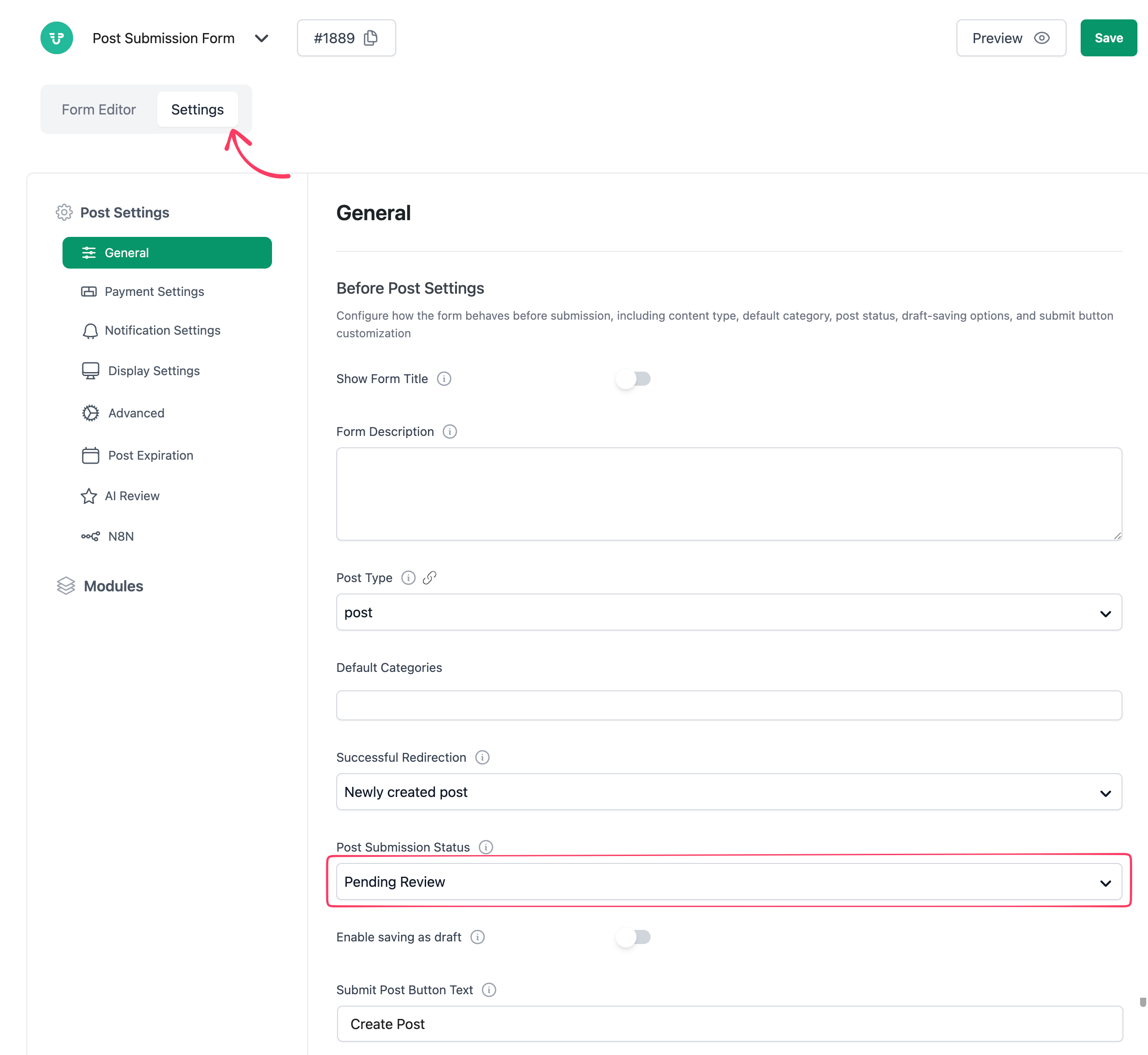
Now nothing a bot submits can appear on your site without you approving it. Spam still arrives, but it arrives somewhere harmless.
Plenty of people skip this because they want submissions to go live instantly. That is a fair goal for a trusted contributor site. It is a bad default for an open form, and it is worth reading up on how frontend guest submissions actually work before you turn moderation off.
Add a Captcha Field to Your Submission Form
A CAPTCHA is the single most effective filter against automated bots, and WPUF gives you four options across its free and paid versions.
- Cloudflare Turnstile. Free. Usually invisible to real visitors.
- Google reCAPTCHA. Free. Familiar, but sends visitor data to Google.
- Math Captcha. Pro. A simple sum, with no third party involved.
- Really Simple Captcha. Pro. An image challenge, also fully self-hosted.
Use Cloudflare Turnstile When You Want Zero Friction
Note: You need to set Site key and Secret key in User Frontend Settings in order to use “Cloudflare Turnstile” field. Click here to get the these key
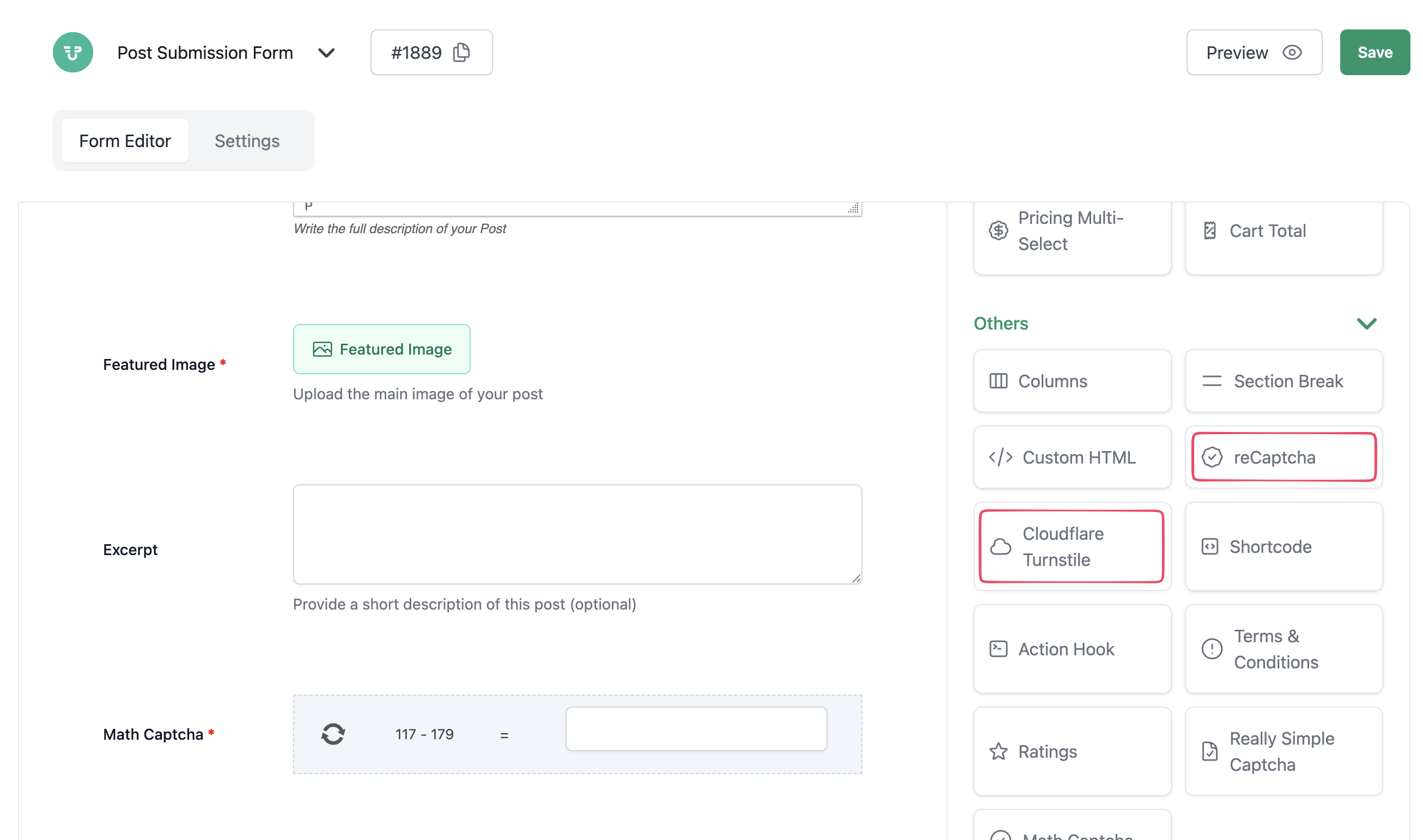
Turnstile runs checks in the background and most real visitors never click anything. Drag the Cloudflare Turnstile field into your form, then add your site key and secret key from your Cloudflare dashboard.
That matters more than it sounds. Every visible challenge costs you some genuine submissions, and a contributor who abandons a half-written guest post is a real loss.
Use reCAPTCHA When Your Team Already Knows It
reCAPTCHA works the same way in the builder. Drag in the reCAPTCHA field, then add your keys. It catches a similar share of bots, and there is a good chance you already have keys sitting in another project. Our walkthrough on setting up Google reCAPTCHA on WordPress covers generating them.
Pick Only One
Adding both does not double your protection. It just gives real people two hoops instead of one, and your submission rate drops for no gain. Choose Turnstile if you have no strong preference.
Turn On Email Verification for Guest Submissions
Email verification stops a whole category of bot that a captcha misses.
Guest posting lets people submit without an account, which is great for reach and terrible for spam. WPUF handles this in the General tab of the form Settings tab. Enable guest posting, require a name and email, then switch on email verification.
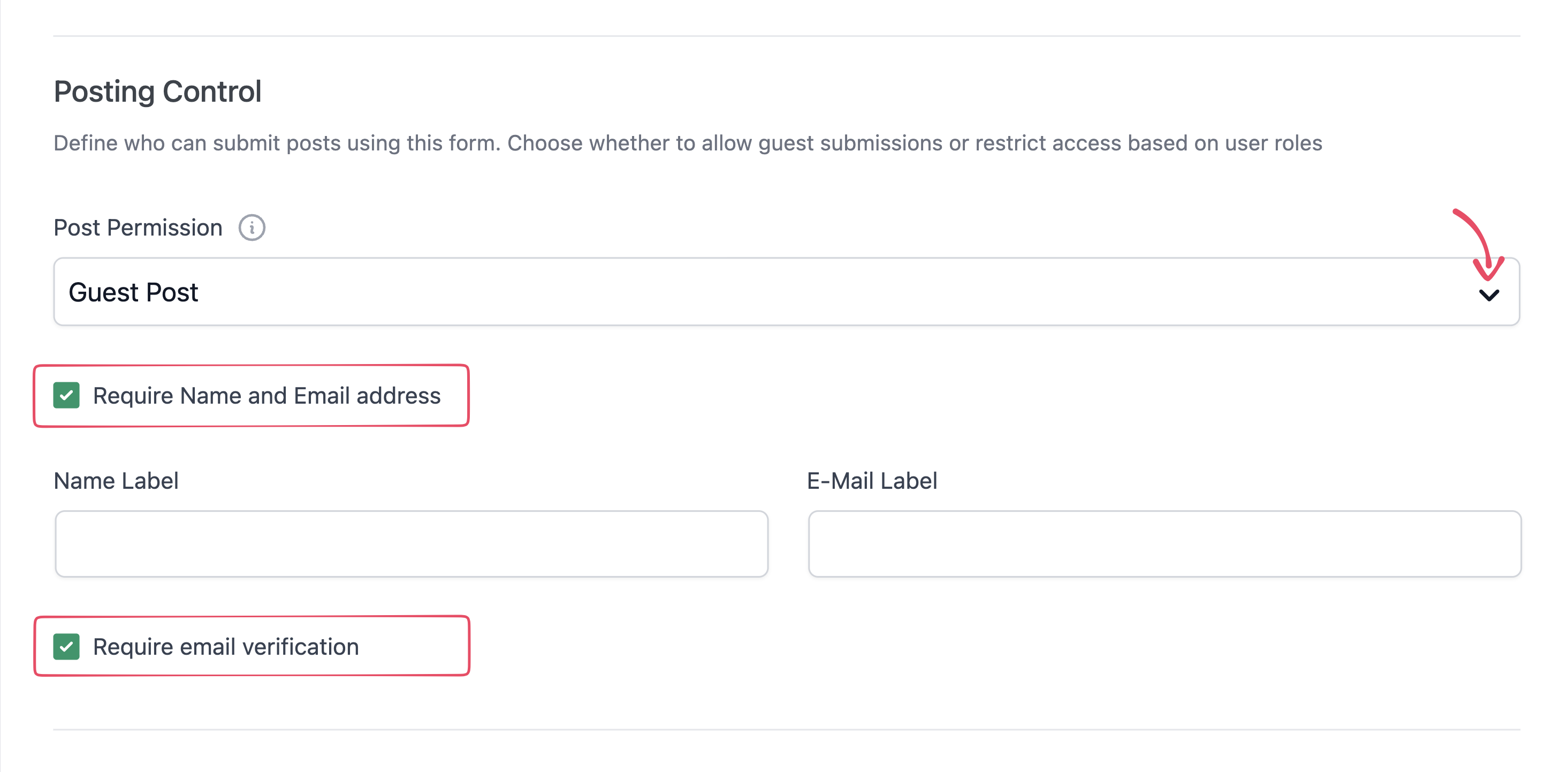
Now the submission only counts once someone clicks a link in a real inbox. Most spam scripts never check mail, so they never complete the step. This is a free feature and it costs your genuine contributors about fifteen seconds.
Restrict Which Roles Can Submit Posts
If only certain people should be posting, say so in the settings rather than relying on filters to catch everyone else.
Go to General tab of the form Settings and choose which user roles are allowed to submit. Everyone else sees your unauthorized message instead of the form.
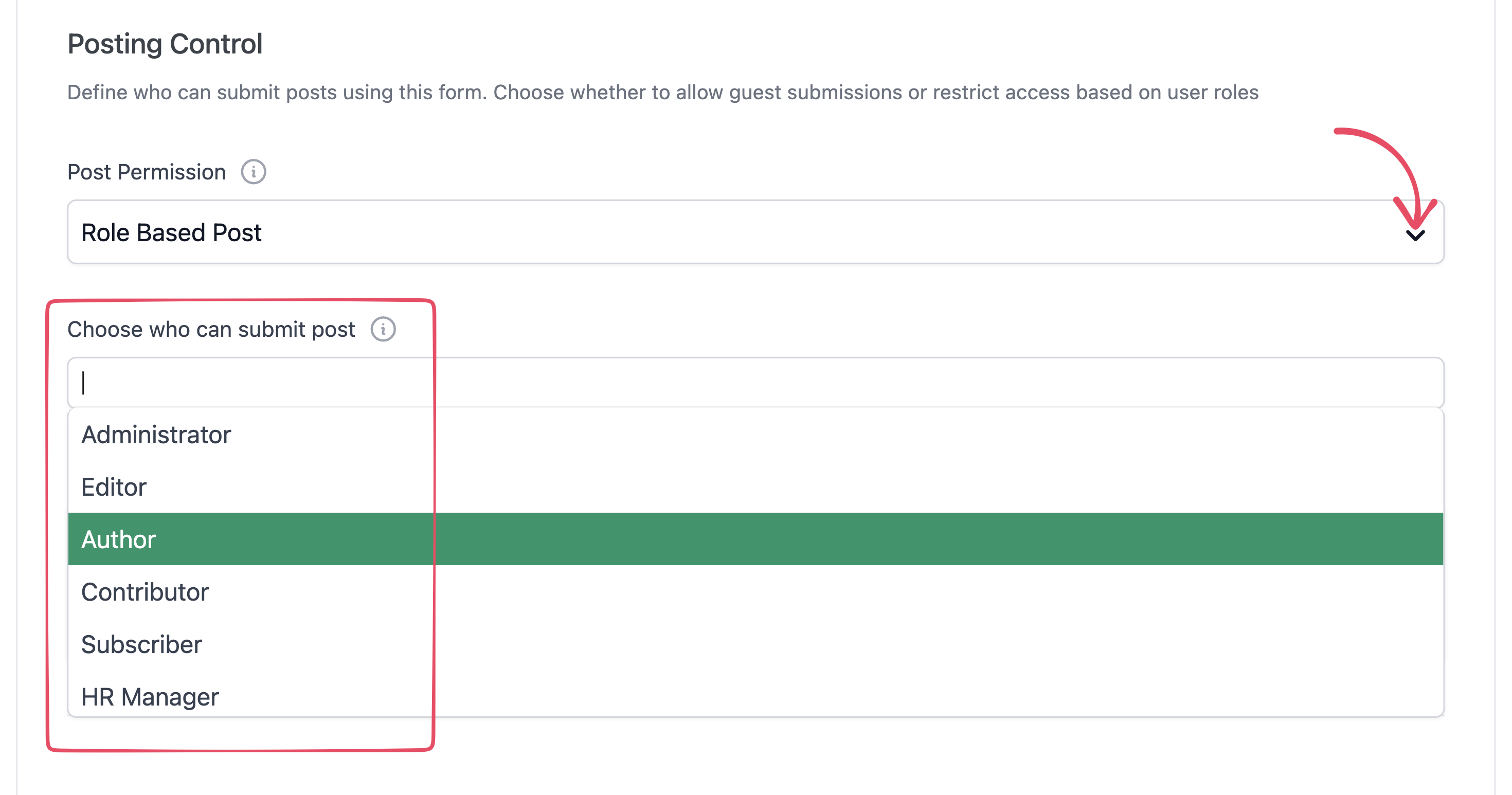
This works well for membership sites and internal contributor programs. It does nothing for a public write-for-us page, obviously, so match the tool to the site.
Limit Form Entries and Set a Schedule
Entry limits cap the damage when a bot does get through.
WPUF free lets you limit how many entries a form accepts and set dates for when the form is open. Both live in the Advanced tab of the form Settings tab, and both are useful in ways people underestimate.
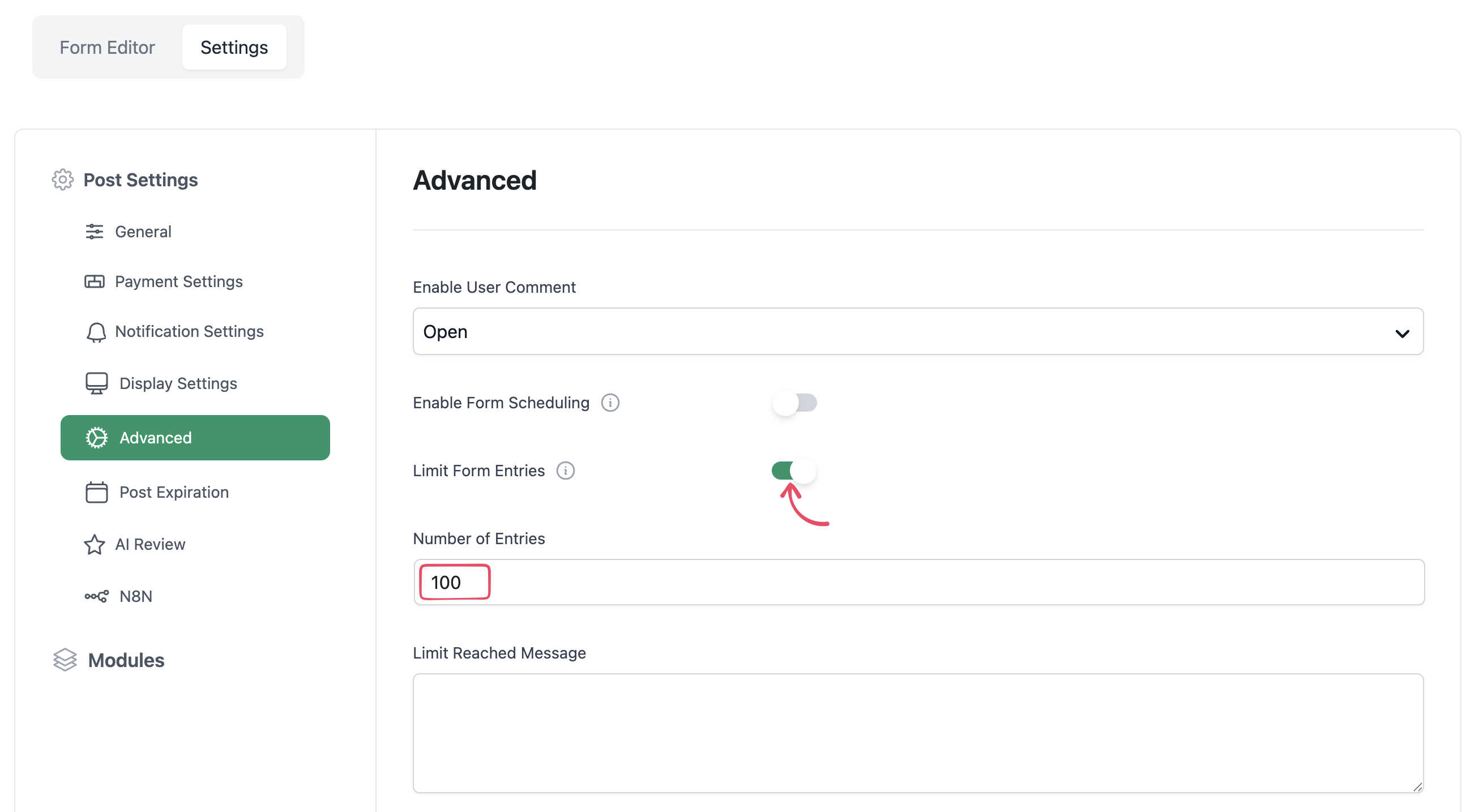
A campaign form that only needs fifty entries should stop at fifty. A form for a submission window that closes on the thirtieth should close on the thirtieth. Bots do not respect your deadlines, so the form has to. We covered the mechanics in more depth in this post on form expiration and entry limits.
Close the Door Bots Are Actually Using
Here is the part most spam guides leave out. Your submission form is often not where the bots are going.
By default, WordPress puts its registration form at the same predictable URL on every install, and bots sweep the internet hitting it directly. They never load your page, so they never see your captcha field. That is how sites end up with hundreds of fake users and a form that appears to be working perfectly. If you or a security plugin have already moved that URL, check where it points now.
You have three options, and they are not mutually exclusive.
- Turn registration off. Go to Settings → General and uncheck “Anyone can register.” Best fix if you do not actually need accounts, and many sites have this on from setup without ever using it.
- Use a registration form you control. WPUF Pro adds unlimited custom registration forms with role assignment on signup, so you build the signup page instead of relying on the default one. Free ships a registration shortcode with default fields only.
- Approve new users manually. The New User Approve workflow is a Pro feature and it holds every new account until an admin says yes. We wrote about how the user approval feature works when it shipped.
Worth knowing about the slow attacks too. Some bots deliberately register just a few accounts per minute to stay under rate limits. You will not notice those for weeks, which is why manual approval or a periodic user audit is worth the effort.
Know What WP User Frontend Does Not Block
Several common anti-spam methods sit outside what a submission form can do, so plan for them separately.
- Honeypot fields. A hidden field bots fill in and humans never see. There is no honeypot field in the WPUF builder, free or Pro.
- IP blocking. Banning a repeat offender by address belongs at your firewall or host, where it stops the request before WordPress loads.
- Keyword filtering. Rejecting submissions containing certain words is a moderation job, handled by an anti-spam plugin rather than the form.
- Country filtering. Restricting entries by location also happens above the form, usually at your CDN.
For all four, reach for a site-wide anti-spam plugin or your firewall. Akismet, AntiSpam Bee, and Cloudflare rules all cover ground the form itself cannot, and they protect your comments and login page at the same time. That is a feature, not a workaround, since your form was never the only way in.
Build a WordPress Form Spam Protection Stack That Holds
No single method blocks everything. Two or three light layers beat one heavy one, and they cost your real users far less. Here is what a reasonable setup looks like for a public submission form.
| Layer | What it stops | Version |
|---|---|---|
| Pending post status | Anything from publishing without review | Free |
| Cloudflare Turnstile | Most automated bots | Free |
| Email verification on guest posts | Scripts that cannot receive mail | Free |
| Registration turned off in WordPress | Bots hitting the default signup URL | Free |
| New User Approve | Fake accounts, when you cannot close signup | Pro |
| Entry limits | Volume damage when something slips through | Free |
Five of those six are free. Start there, run it for a couple of weeks, and only add more if spam is still reaching your queue. If you are also weighing up how to handle contributor workflow on top of this, our roundup of the best guest post plugins covers the wider picture.
Frequently Asked Questions – WordPress Form Spam Protection
Will adding a captcha reduce my real submissions?
Visible captchas do cost you some genuine submissions, especially on mobile. That is exactly why Turnstile is the better default, since most real visitors pass without clicking anything. If you must use a visible challenge, keep it easy.
Why am I still getting spam after adding reCAPTCHA?
Usually because the spam is not automated. Real people are paid to fill in forms by hand, and no captcha stops a human. Pending status and manual review are your defense there, not a better bot filter.
Do I need Akismet as well?
Not to begin with. Get the free layers in place first and see what still reaches you. Akismet is worth adding if you take a high volume of submissions and manual review is becoming a real cost.
Bots keep registering but never submit anything. Why?
They are harvesting accounts for later, or the registration itself is the goal, since some scripts just look for sites with open signup. Either way those accounts bloat your database and generate notification email, so clear them out and close the door.
Should I just turn off user registration completely?
If you do not need accounts, yes. It is the single most effective fix available. Membership sites, marketplaces, and contributor programs obviously cannot, which is where approval and captcha come in instead.
Can I block spam without showing visitors anything at all?
Mostly. Turnstile is invisible for most visitors, Pending status is invisible by definition, and entry limits never touch the user experience. That combination is close to frictionless and it handles the majority of automated spam.
Start With the Free Layers
Good WordPress form spam protection starts with three free settings. Set your form to Pending, add Turnstile, and turn on email verification for guests. That takes about ten minutes and handles most of what you are dealing with today.
Then check your user list. If it is full of accounts that have never posted anything, the bots found your registration page, and that is the next thing to fix.

