Members sign in on a page built by your own theme, then land wherever you send them, and it all starts with a single shortcode.
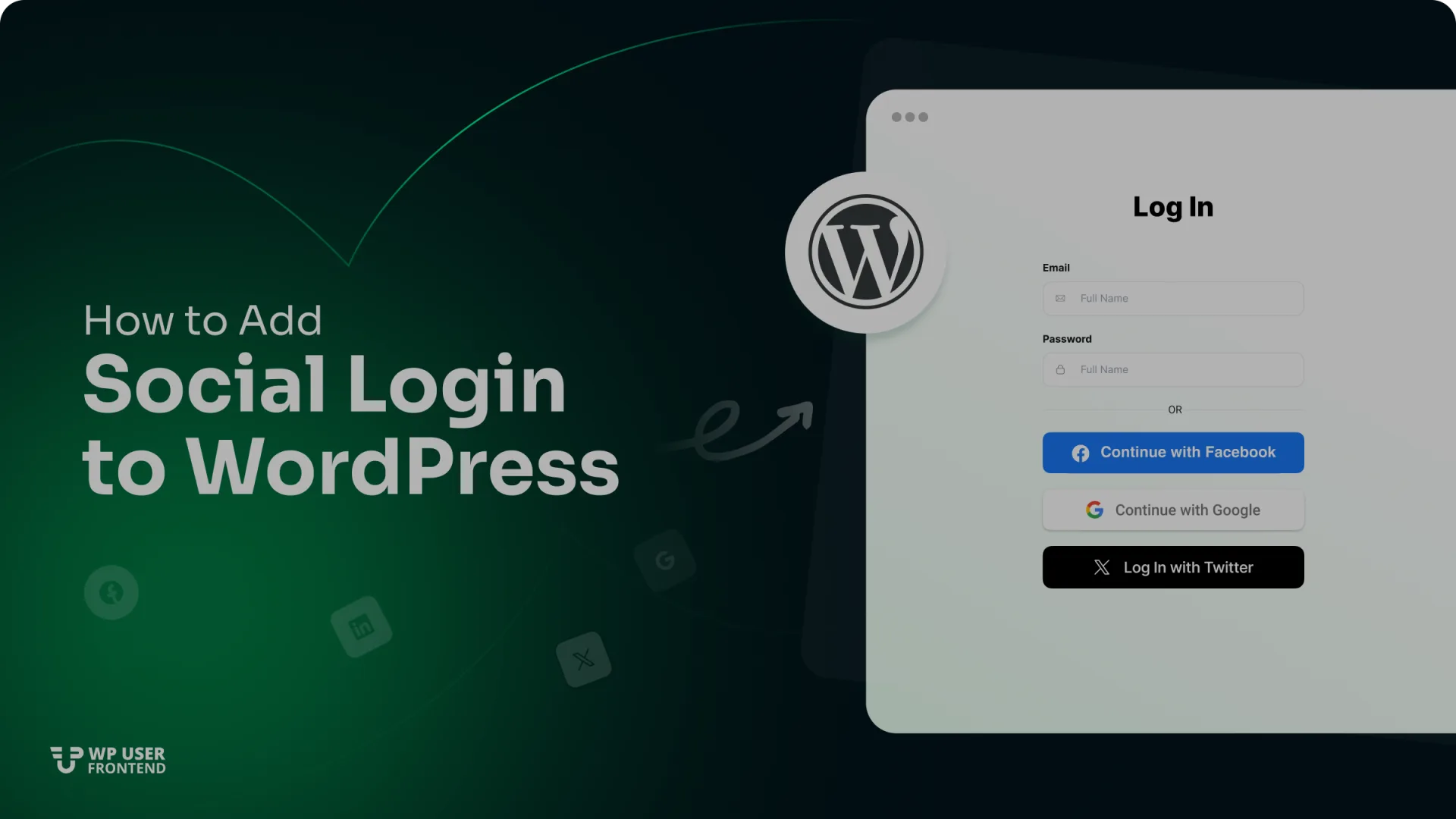
Fix What the Default Login Page Costs You
The WordPress login screen carries someone else's branding, and then it drops people into the dashboard.
Launch in Minutes
Paste one shortcode on a page and the login form shows up right away.
Keep Your Branding
Members never see the WordPress logo or a screen that belongs to someone else.
Make Signing In Simple
Members sign in and get on with it, without a detour through the dashboard.
Guide Members Onward
Pick the page each member lands on once they sign in, so nobody gets stranded.
Skip the Setup Work
One click builds the Login page for you, along with the other pages you need.
Fit Any Theme
Classic themes and block themes both work, and each can carry a logout link in its menu.
Control Every Part of the Login Flow
Most of the login flow is controlled on one tab, under User Frontend, then Settings, then Login / Registration.
Override the Default Screen
Switch on Login Registration Override and your page handles sign-ins from then on.
Set the Landing Page
Redirect After Login is a dropdown, so you pick where members go next.
Stop Bots at the Door
Turn on reCAPTCHA in Login Form, or use Cloudflare Turnstile on the same form.
- Pro
Add Social Login Buttons
Turn on the Social Login module, and members sign in with Facebook, X, or LinkedIn from the Personal plan and up. GitHub arrives on Professional and Business.
Route Every Sign-In Through Your Page
One shortcode and five settings decide where people sign in and where they land.
Place It Anywhere
The [wpuf-login] shortcode works on any page and any page template.
Assign the Page
Name your login page in settings so WordPress knows where to send people.
Turn On Override
Login Registration Override hands sign-ins to your page instead of the default one.
Choose the Next Stop
Redirect After Login decides which page a member sees once they are in.
Cover the Old Form
Default Login Redirect catches people who still sign in through the WordPress form.
Avoid Redirect Loops
weDevs advises naming the login page even when you skip the override, because a blank setting can loop.
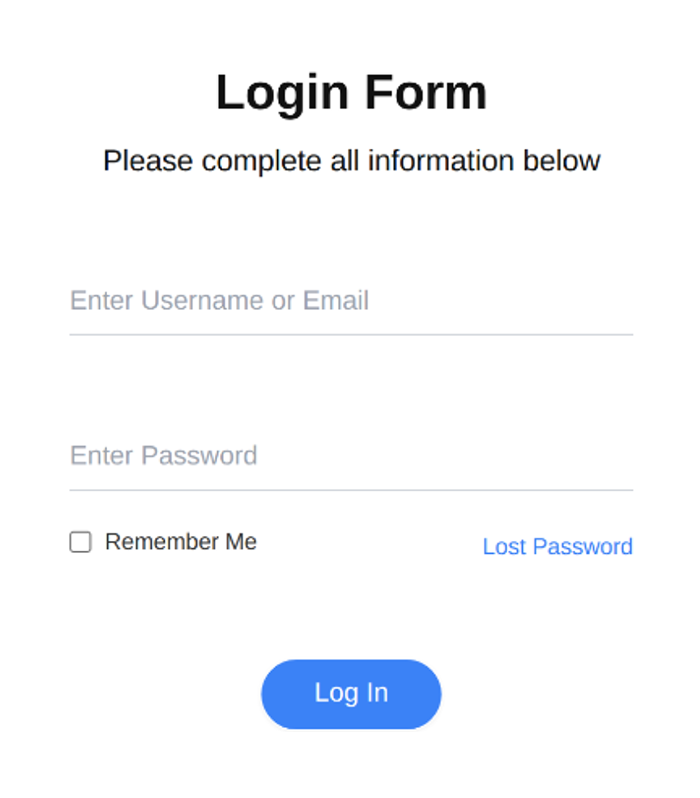
See Where a Custom Login Page Pays Off
Four kinds of sites where the default WordPress screen gets in the way.
Frequently Asked Questions
What people usually want to know before they move the login page over.
Do I need Pro for a custom login form?
Does this hide my WordPress login URL?
Where do members go after they sign in?
Can I add social login buttons?
How do I stop bots from hitting the form?
Will the form match my theme?
Can members change their password later?
Do I need to write any code?
Build Your Login Page with WP User Frontend
Install the free plugin, name your login page, and members stop seeing a WordPress screen.